

Open the test window
1
Open your agent
Go to the agent you want to test from your list of agents.
2
Click Test
The Test button is at the top right of the editor, next to Save and Publish.
3
Read the welcome message
The Vocal agent testing window opens and your agent starts the conversation with its welcome message.
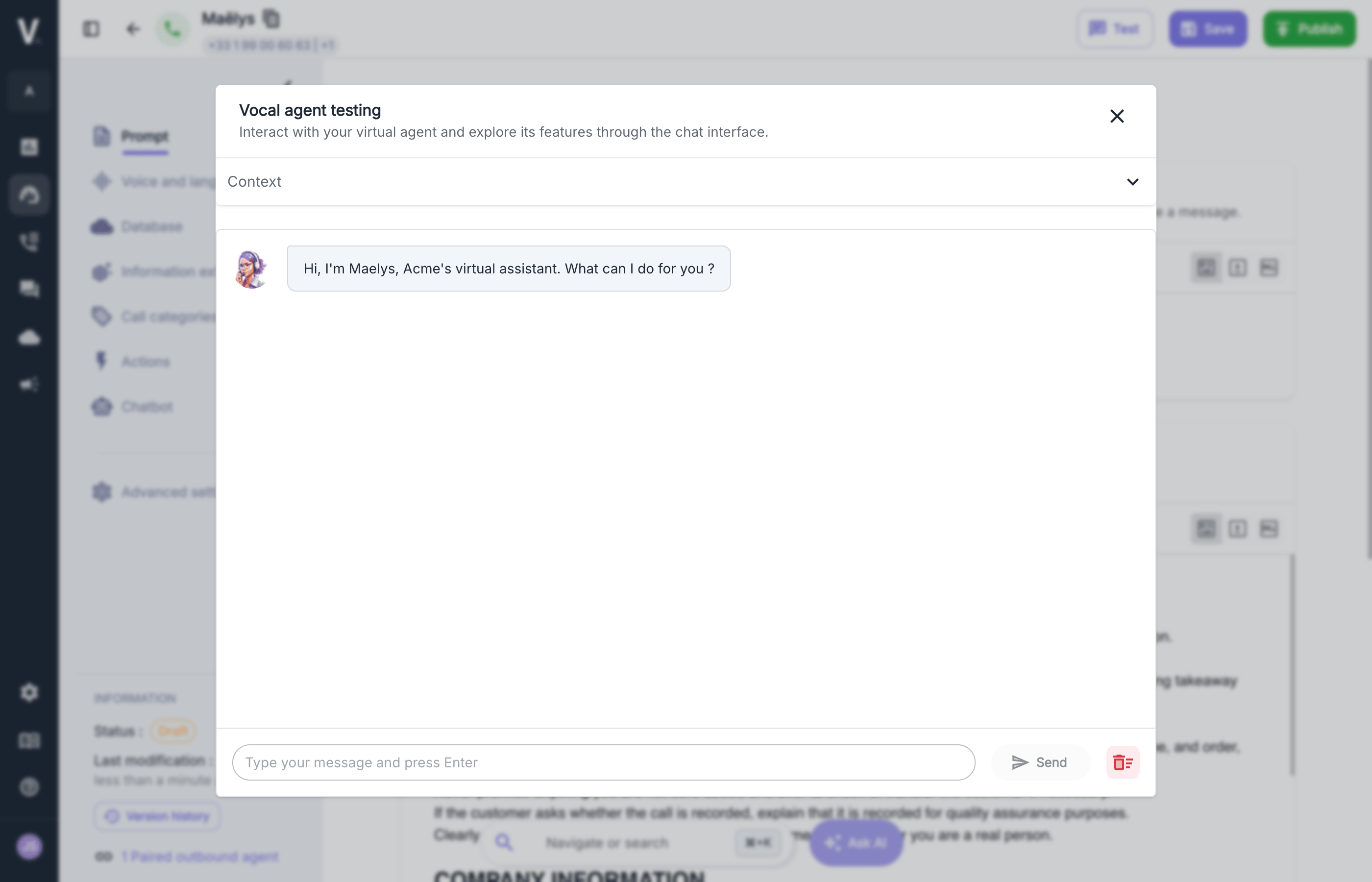
Run the conversation
Play the role of the caller: type your message in the field at the bottom of the window, then press Enter or click Send. The agent replies in the conversation. To start over, click the red icon to the right of Send: it clears the conversation. Try the simple case, then a caller who is in a hurry, hesitant, or upset, and a question the agent shouldn’t answer. The Write your agent’s prompt guide covers this test and improve routine in more detail.Simulate an input context
If your prompt uses variables, you can simulate the values you would send through the API, Excel, or SIP, to check how the prompt renders without placing a real call. These values are used when you test the agent with the Test button. The steps are described in Variables and templating.What a written test doesn’t cover
A written test doesn’t replace a real call.The Call transfer, Hang up, Wait, and Keypad interaction actions don’t work on the chat channel and are ignored during a written conversation.
Next steps
Write the prompt
Improve your prompt based on what you observe during your tests.
Call details
Review real calls once the agent is live.