

In a nutshell
Picture an agent who, at the end of every call, fills in a summary sheet by answering one simple question, for example: “Did this call result in an appointment?”, and ticking the right answer. That’s exactly what call categories do:- A category is the question asked about the call (e.g. Call outcome, Call reason, Lead qualification).
- Labels are the possible answers to that question (e.g. Appointment booked, Callback requested, Not interested).
- For each label, you explain when it applies. The agent relies on these explanations to pick the right label at the end of the conversation.
This feature was previously called “classifiers”. The principle is the same: only the name and the way to configure it have changed.
What is it for?
Categories turn hours of conversations into actionable data:- Quickly measure how many calls end with an appointment, a callback or a refusal.
- Spot the most frequent call reasons and the topics that cause friction.
- Track your agents’ performance based on your own business rules.
A call’s category is visible in the Call Dashboard and on the call detail page.
Where to find them
In your agent’s configuration, open the Call categories entry in the side menu.Create a category
Click the New category button: a window opens and guides you step by step.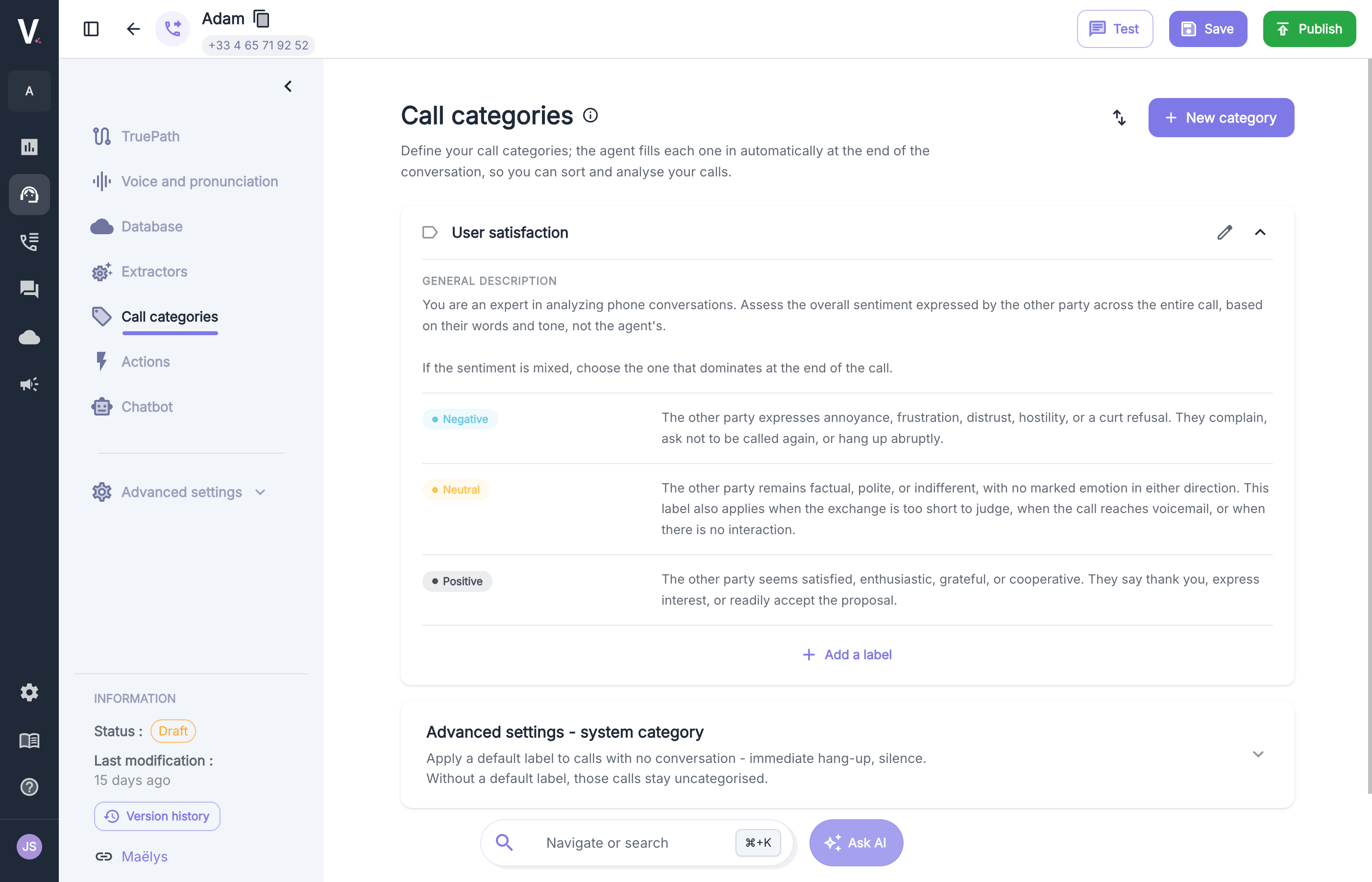
- Category name (required): the question the category answers. Pick a clear name, for example Lead qualification.
- General description: a sentence stating the purpose of the category, for example “This category determines whether the call resulted in an appointment.”
- Possible labels: the list of answers the agent can choose from. For each label, fill in:
- the label name;
- a description explaining when this label applies.
- Add a label: adds a possible answer. The trash icon removes a label.