

Agent Voice
Text-to-speech allows you to customize the user experience by selecting a voice that suits your linguistic needs
and your brand identity.
Voice Catalog
To access the catalog of available voices, click the Edit button next to the voice currently configured for your agent.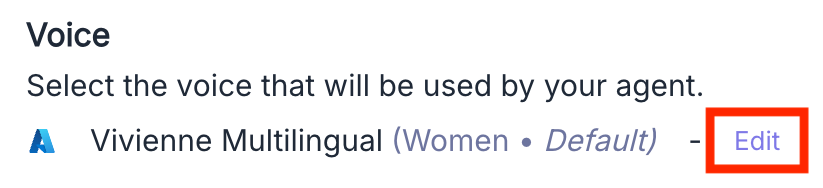
Voice Selection
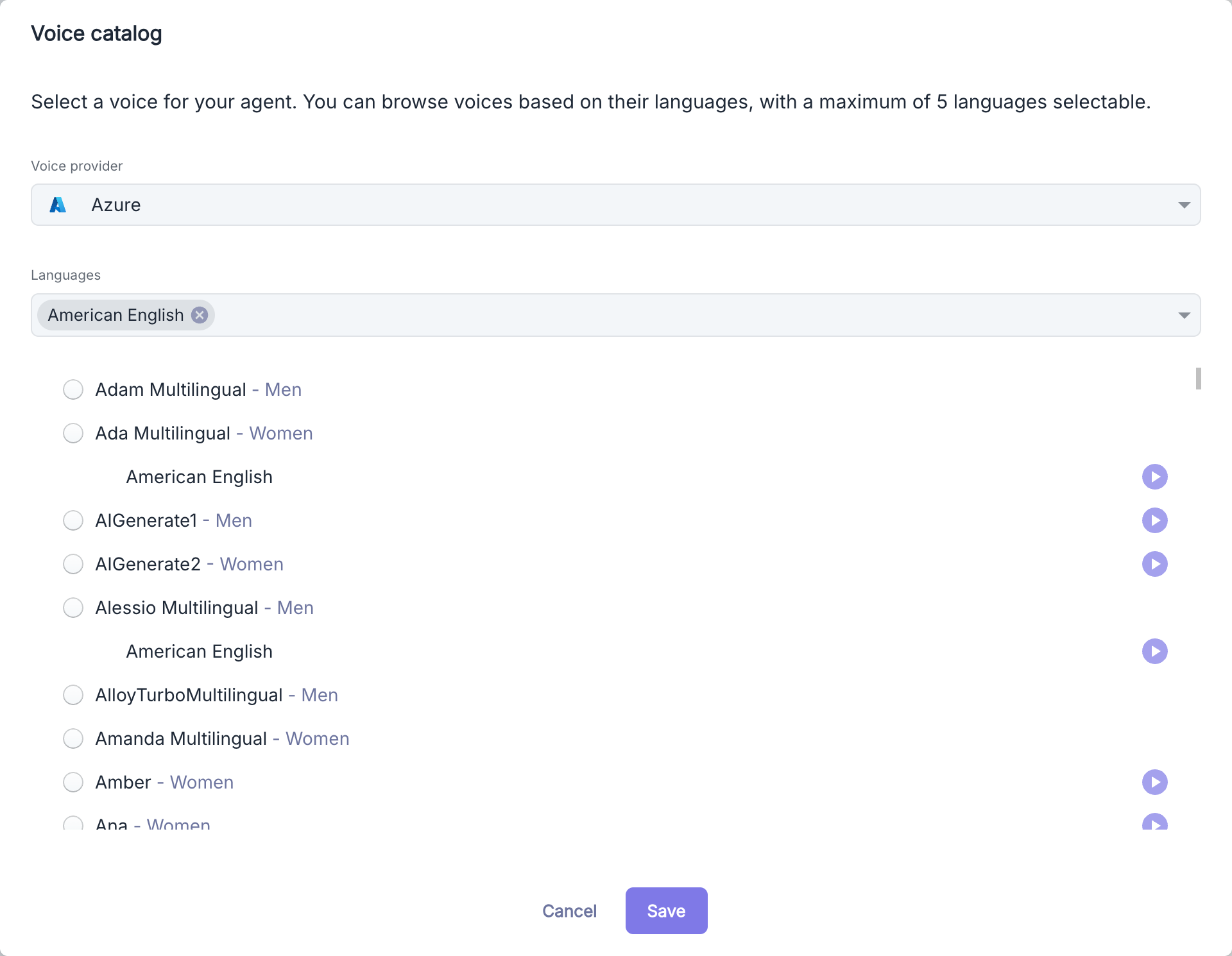
1
Select Provider
Choose the voice technology provider from the dropdown menu. Each provider offers distinct voice features.
2
Configure Languages
Select the languages your agent should master. These languages will determine the available voices in the next step.
3
Choose Voice
Browse through the voice options that match your linguistic criteria and select the one that best suits your needs.
4
Confirmation
Click the Save button to apply your selection and enable the chosen voice.
Languages
Language Selection
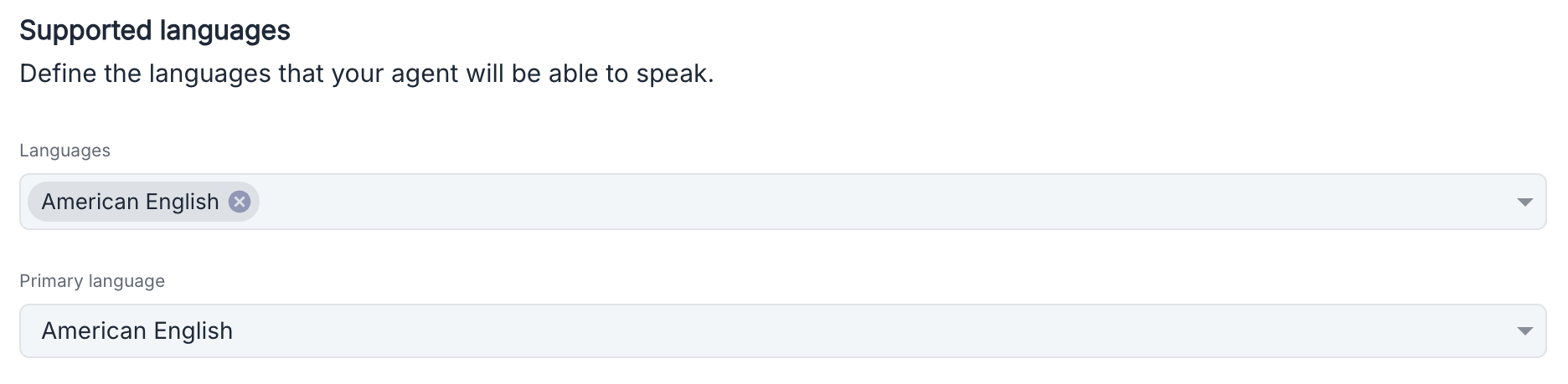
1
Add Supported Languages
Select all the languages your agent should master from the Languages dropdown menu. Each language is identified with its regional variant.
2
Define Primary Language
Select the primary language that will be used by default when the agent cannot determine the user’s language.
Multilingual Operation
The agent uses automatic language detection to adapt its response to the user:Automatic Detection
The agent automatically identifies the language used by the interlocutor and responds in the same language if it is among the configured languages.
Default Language
If the detected language is not supported, the agent will use the primary language defined in the configuration.
Troubleshooting Common Issues
If your agent does not correctly detect the user’s language:- Ensure that the language is included in the list of supported languages.
- Make sure that the spoken phrases contain enough words to enable reliable detection.
Speech Rate

Slow
Slower pace for better understanding during complex concepts or for those with hearing difficulties.
Normal
Standard pace calibrated for natural conversation.
Fast
Accelerated pace for users to deliver information quickly.
Phonemes
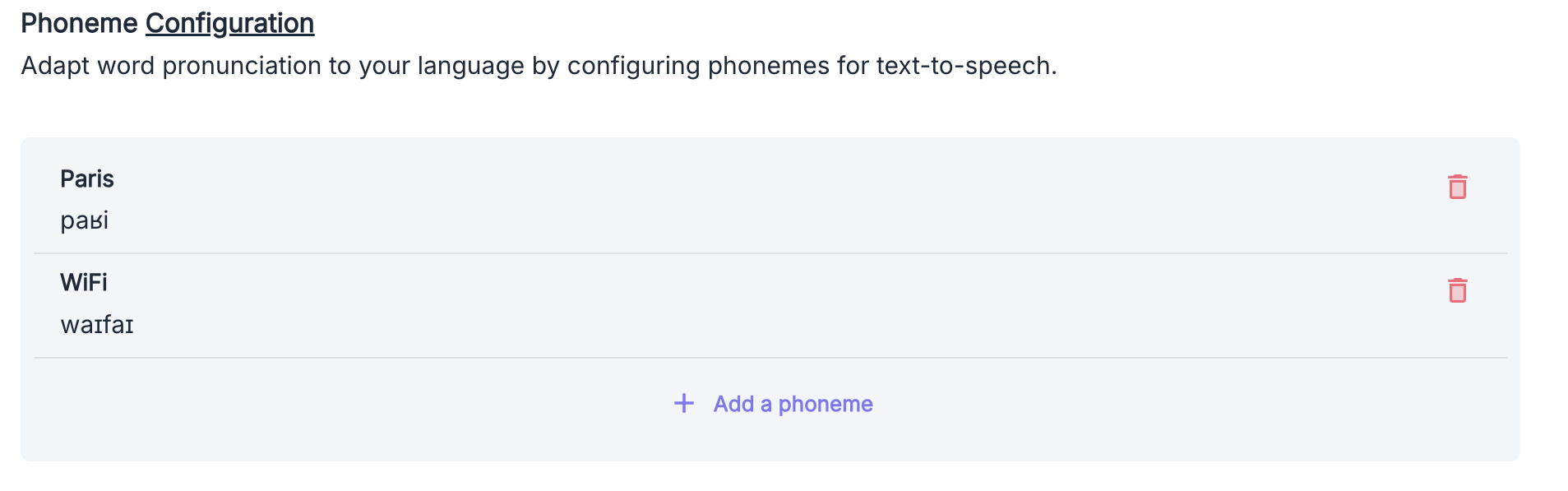
- Proper names
- Technical terms
- Acronyms and abbreviations
- Foreign words
Adding a Custom Phoneme
1
Access the Interface
From the “Phoneme Configuration” section, click the Add Phoneme button to open the configuration window.
2
Define the Word and Its Pronunciation
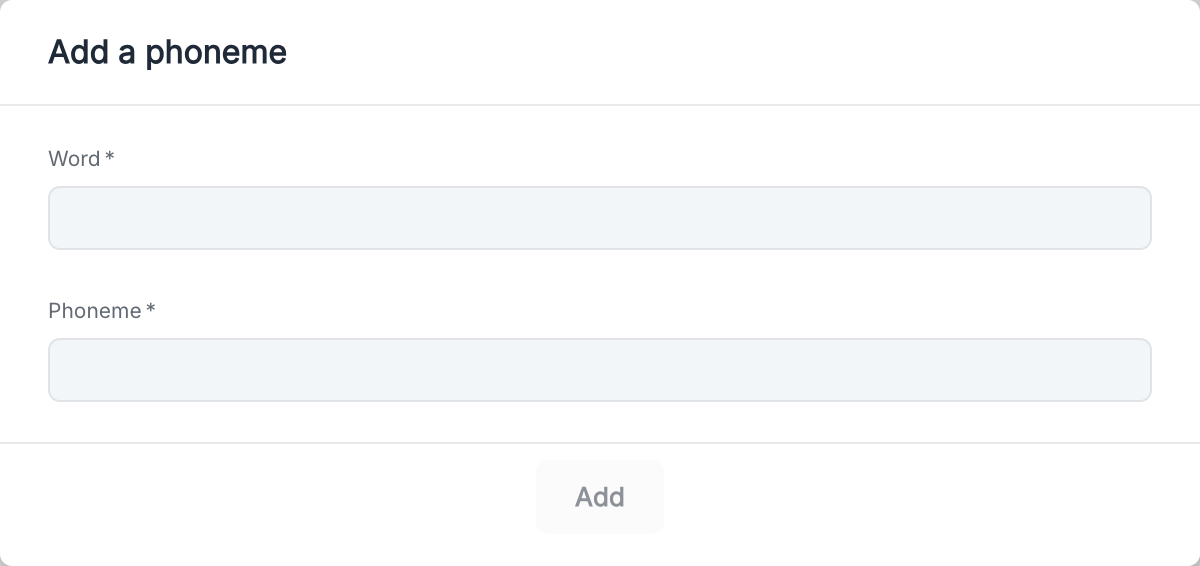
- Word: Enter the word to customize
- Phoneme: Enter the corresponding phonetic transcription
Phonetic Notation
Phonemes should be entered according to the International Phonetic Alphabet (IPA) standard.Use Cases
Brand Names
Ensure that your agent correctly pronounces your company and product names.
Specialized Terminology
Optimize the pronunciation of technical terms specific to your industry.
Practical Recommendations
- After adding a custom phoneme, conduct a test call to check that the pronunciation meets your expectations.
- Start by configuring phonemes for the most frequently used terms by your agent.
Voice Substitutions
When your voice agent encounters certain abbreviations, acronyms, or technical terms in text, it may sometimes pronounce them incorrectly or unnaturally. The substitution module allows you to set replacement rules to optimize the user experience.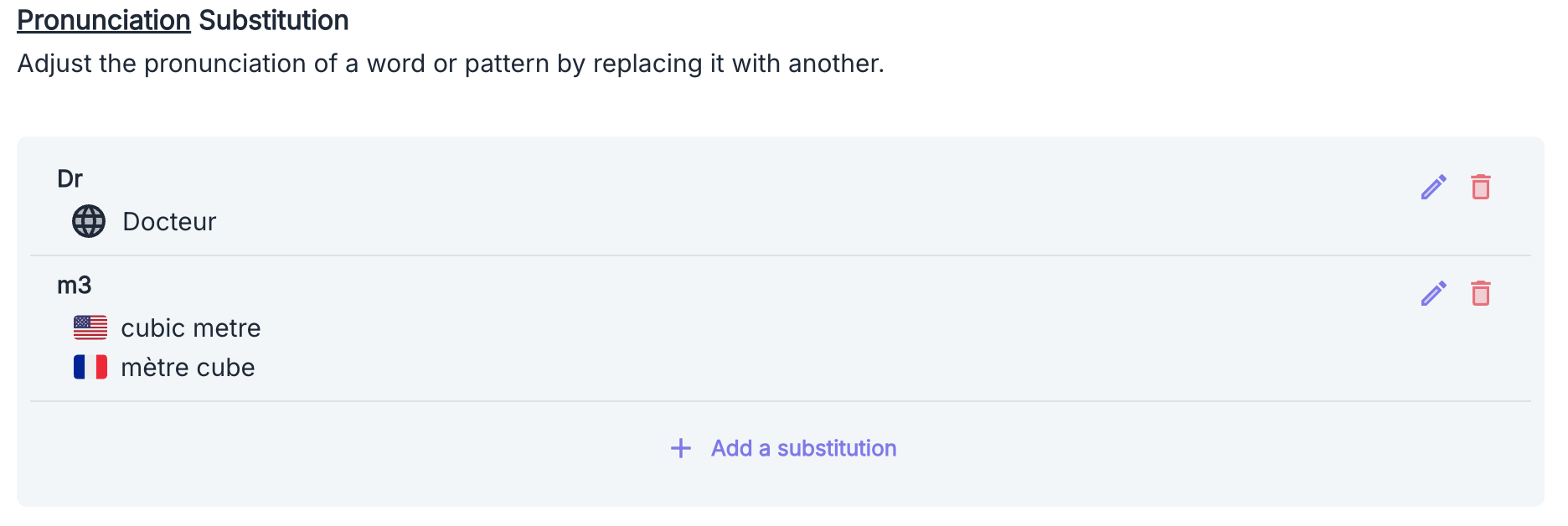
Common Use Cases
Measurements and Numbers
Measurements and Numbers
- Units of Measure: “cm” → “centimeter”, “kg” → “kilogram”
- Mathematical Symbols: ”+” → “plus”, ”=” → “equals”, ”>” → “greater than”
People and Places
People and Places
- Titles and Courtesy Titles: “Dr” → “Doctor”, “Mr.” → “Mister”
- Geographical Abbreviations: “St” → “Saint”, “Av.” → “Avenue”
Specialized Terms
Specialized Terms
- Acronyms: “TVA” → “Value Added Tax”, “SNCF” → “S N C F”
- Technical Terms: Adapt the pronunciation of terms specific to your industry
Special Characters
Special Characters
- Special Characters: ”€” → “euros”, ”@” → “at symbol”, ”&” → “and”
- Regular Expressions: Create advanced substitution rules to manage complex cases
Configuring Substitutions
To configure a new substitution:1
Access the Interface
From the “Pronunciation Substitution” section, click the Add Substitution button to open the configuration window.
2
Fill Out the Form
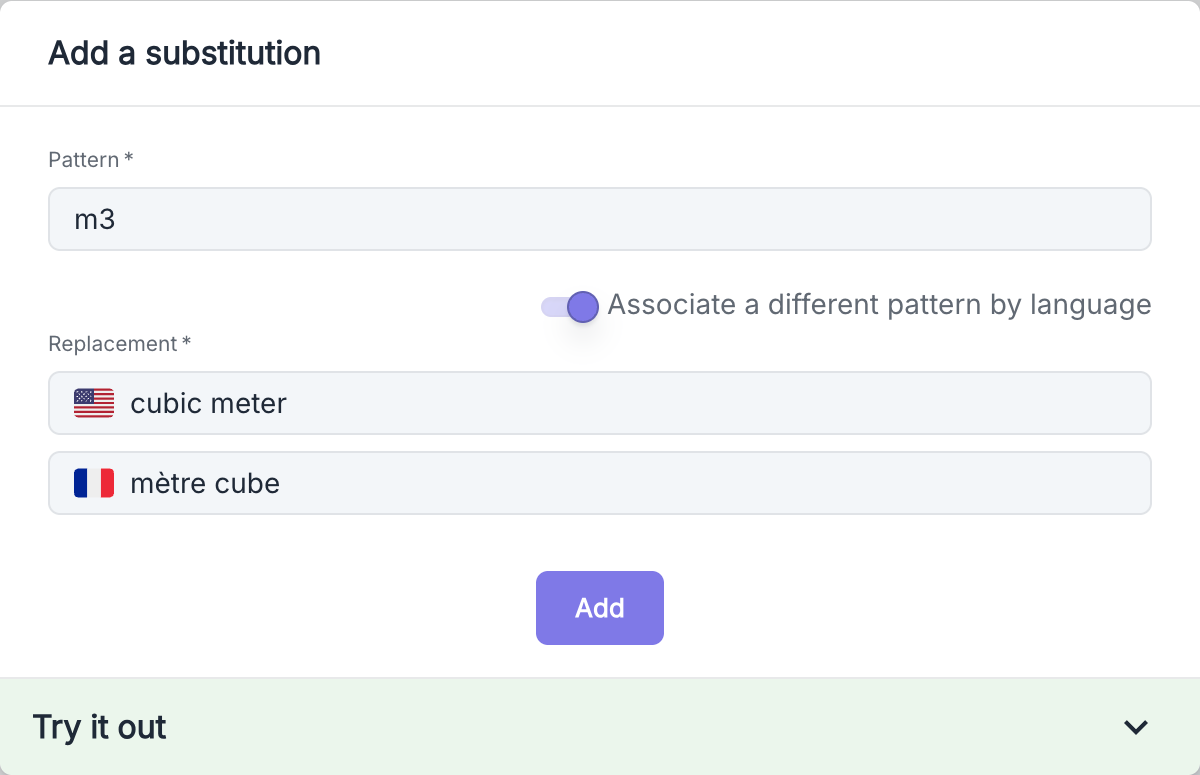
Testing Substitutions
After configuring your substitutions, use the “Try” function to check how your agent will pronounce certain phrases containing the defined patterns. The Volubile platform offers a testing feature right below the substitution form: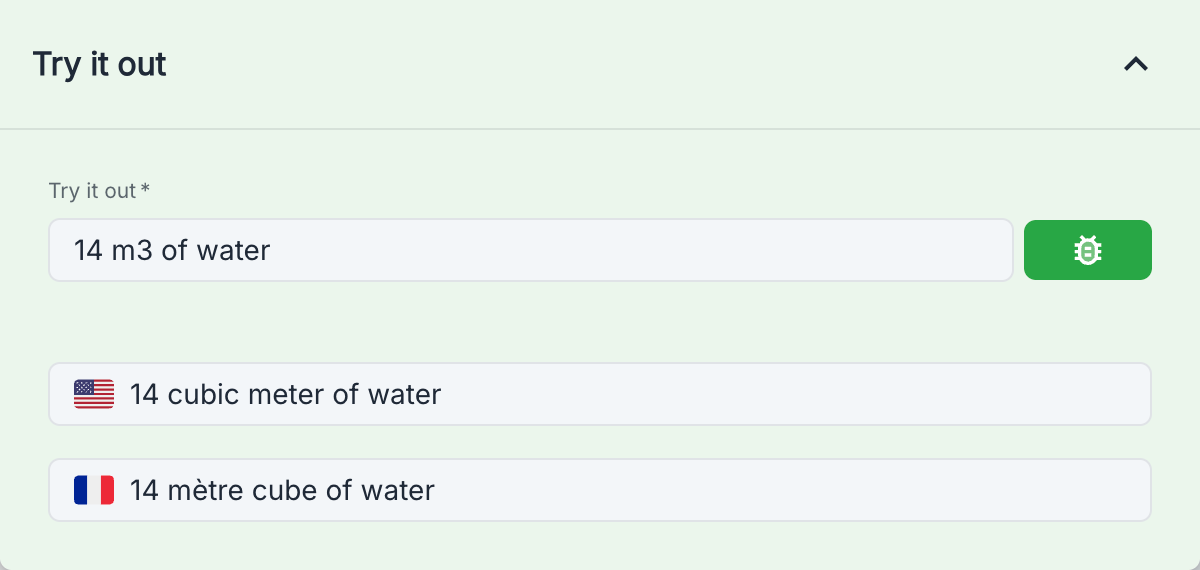
1
Open the Test Section
Expand the “Test” section located at the bottom of the form.
2
Enter an Example
Enter a sample text containing the pattern you want to test.
3
Check by Language
See how your pattern will be detected in different languages (French, English, etc.).
Rules and Best Practices
- For complex acronyms, prefer spelling them out (e.g., “IBM” → “I B M”) if the natural pronunciation is ambiguous.
- Test your substitutions to ensure their effectiveness.
- Limit to strictly necessary substitutions to maintain optimal performance.
- Use the “Associate a different pattern by language” option to set specific substitutions for each language when pronunciation or abbreviation differs by language (for example, “cm” could be replaced by “centimeter” in English and “centimètre” in French).