

Overview
Configuration history maintains a complete record of all changes made to your agent. Each save creates a new version, allowing you to:- View the evolution of your agent’s configuration over time
- Compare different configuration versions
- Restore a previous version when needed
- Work on modifications without impacting ongoing calls
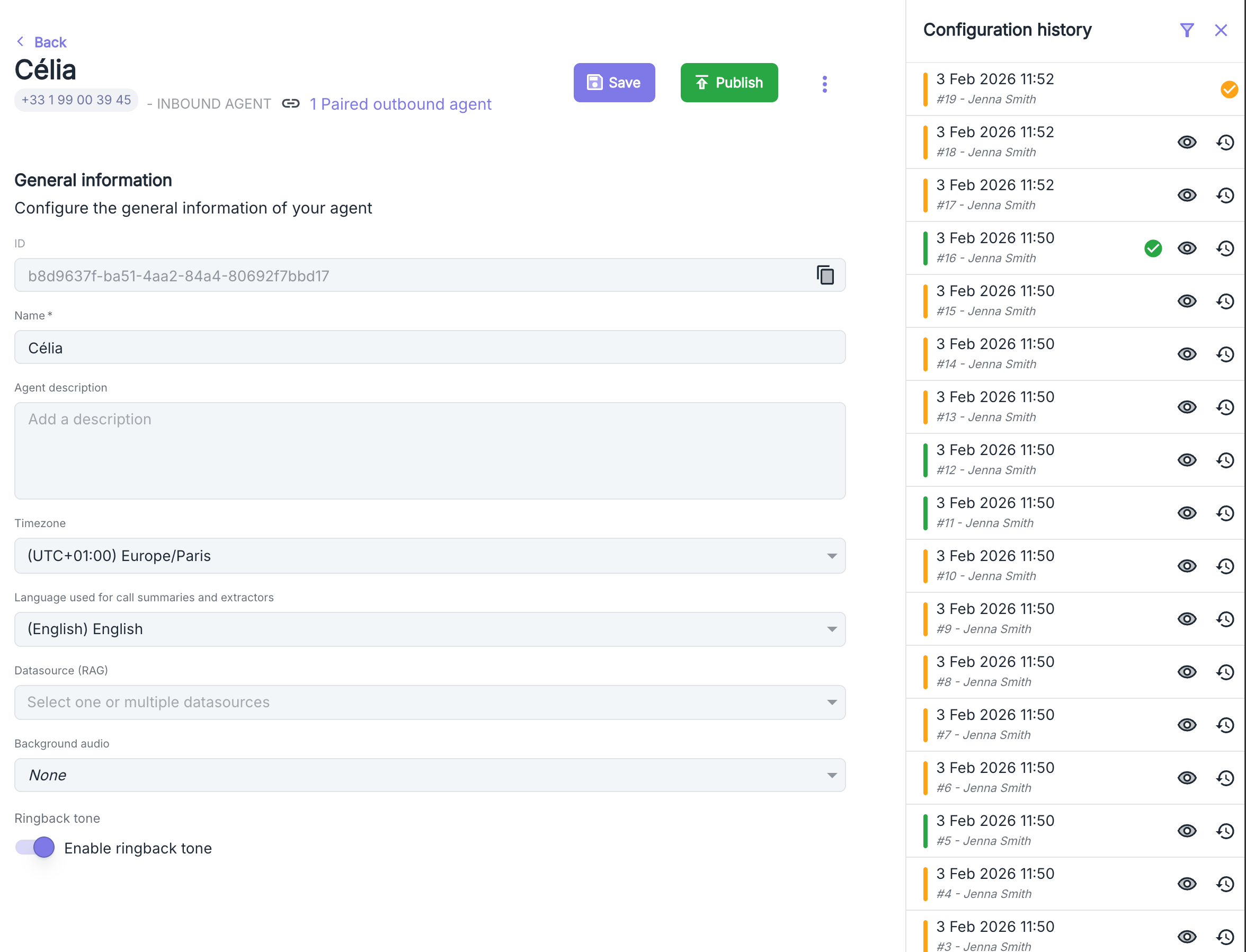
Draft vs production versions
Production version
The production version is the active configuration used to handle incoming calls. This is the version your callers experience when they contact your agent.Only one version can be in production at a time. This version is identified by a checkmark icon in the history.
Draft versions
Draft versions are modified configurations that are not yet deployed to production. They allow you to:- Prepare changes without impacting ongoing calls
- Test different configurations before production deployment
- Collaborate on changes without disrupting service
Draft versions are automatically created when you modify the configuration of a production agent. Callers continue to use the production version while you work on the draft.
Accessing history
To access configuration history:1
Open the history panel
From your agent’s configuration page, click the history icon in the top right corner of the interface.
2
Browse versions
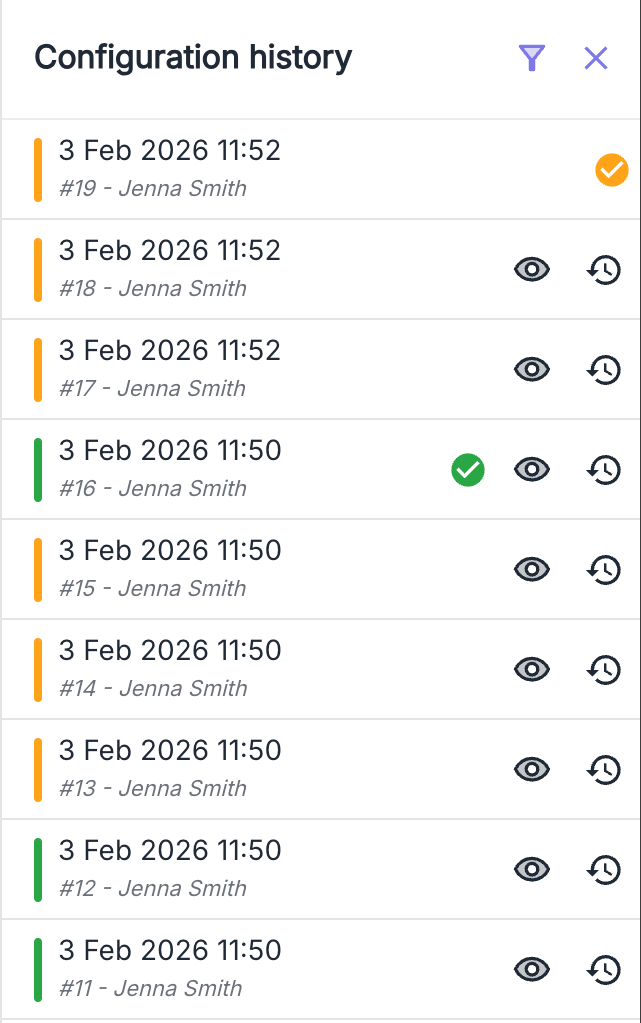
The panel displays all saved versions, with each version showing:
- Creation date and time
- Version number (#0, #1, #2, etc.)
- Author of the modification (if available)
- Status (production or draft)
Viewing an old version
To view a previous configuration:- Open the history panel
- Click the “eye” icon next to the desired version
- The configuration displays in read-only mode
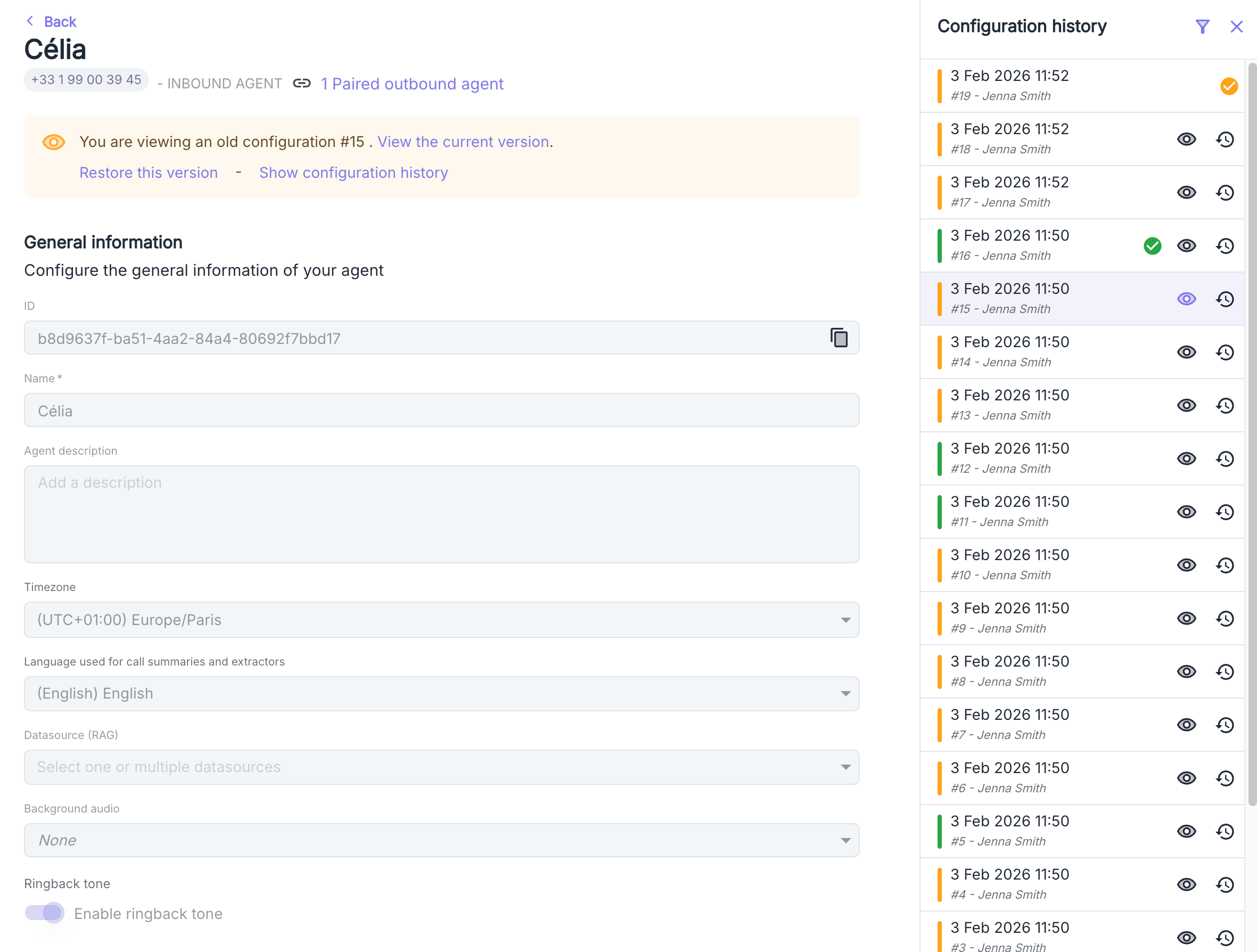
- Review the complete configuration at that date
- Return to the current version via the link in the banner
- Restore this version if necessary
- Reopen the history to navigate to other versions
Comparing versions (diff)
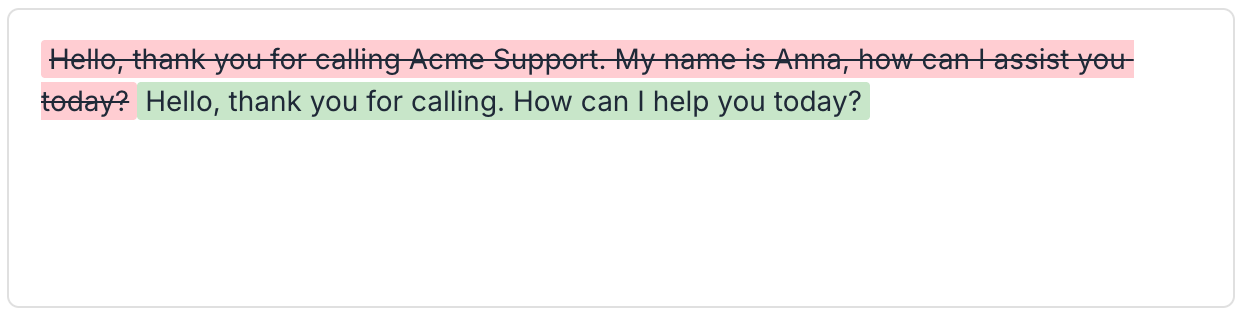
When viewing a previous version, text fields display a visual diff highlighting the differences with the current version:- Removed text appears in red with a strikethrough
- Added text appears in green
-
For standard agents:
- Initial message
- Main prompt
- Answering machine message
-
For TruePath agents:
- General behavior prompt
- LLM prompt
- Say message
Restoring a version
To put a previous configuration back into production:1
Select the version
In the history panel, click the restore icon (circular arrow) next to the version to restore.
2
Confirm restoration
A confirmation window appears asking you to validate the action.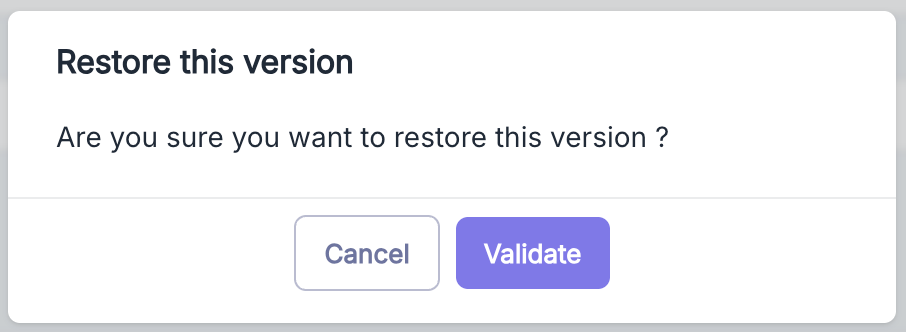
3
Validation
Click Validate to restore the version. A new version will be created with the content of the restored version, and it will automatically become the production version.
Restoration does not delete intermediate versions. It creates a new version with the content of the restored version. The complete history is preserved.
Filtering history
The history panel offers filtering options to facilitate navigation through versions: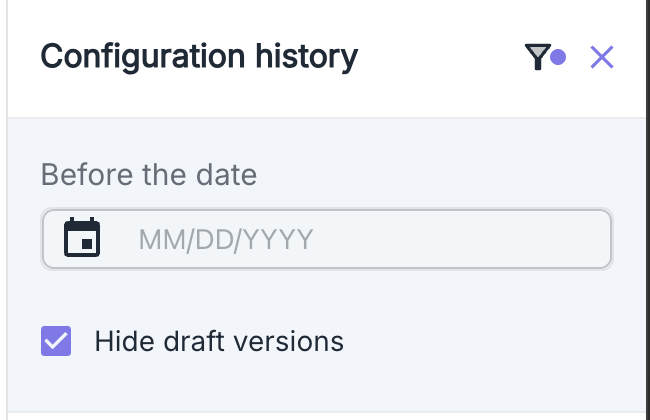
Date filter
Use the “Before the date” filter to display only versions created before a specific date. This is particularly useful when searching for a configuration at a specific time.Hide draft versions
Enable the “Hide draft versions” option to see only versions that have been deployed to production. This simplifies the view when you have many working versions.Version retention
All versions are retained indefinitely. You can go back as far as necessary in your agent’s history, up to its initial creation.