

Overview
The data selector serves as the main interface for accessing variables extracted from the preceding nodes of your graph. This functionality is automatically activated when focusing on form fields marked with the icon, indicating the possibility of injecting dynamic variables.Interface
The data selector interface consists of several key elements:- Variable selection panel: Display area for available variables based on the chosen mode
- Mode switch: Toggle button to switch between
Global ContextandNode Scoped Variables - Add button: Confirmation of variable injection into the target field
TruePath offers two distinct modes for variable selection, each tailored to specific usage needs.
Global Context Mode
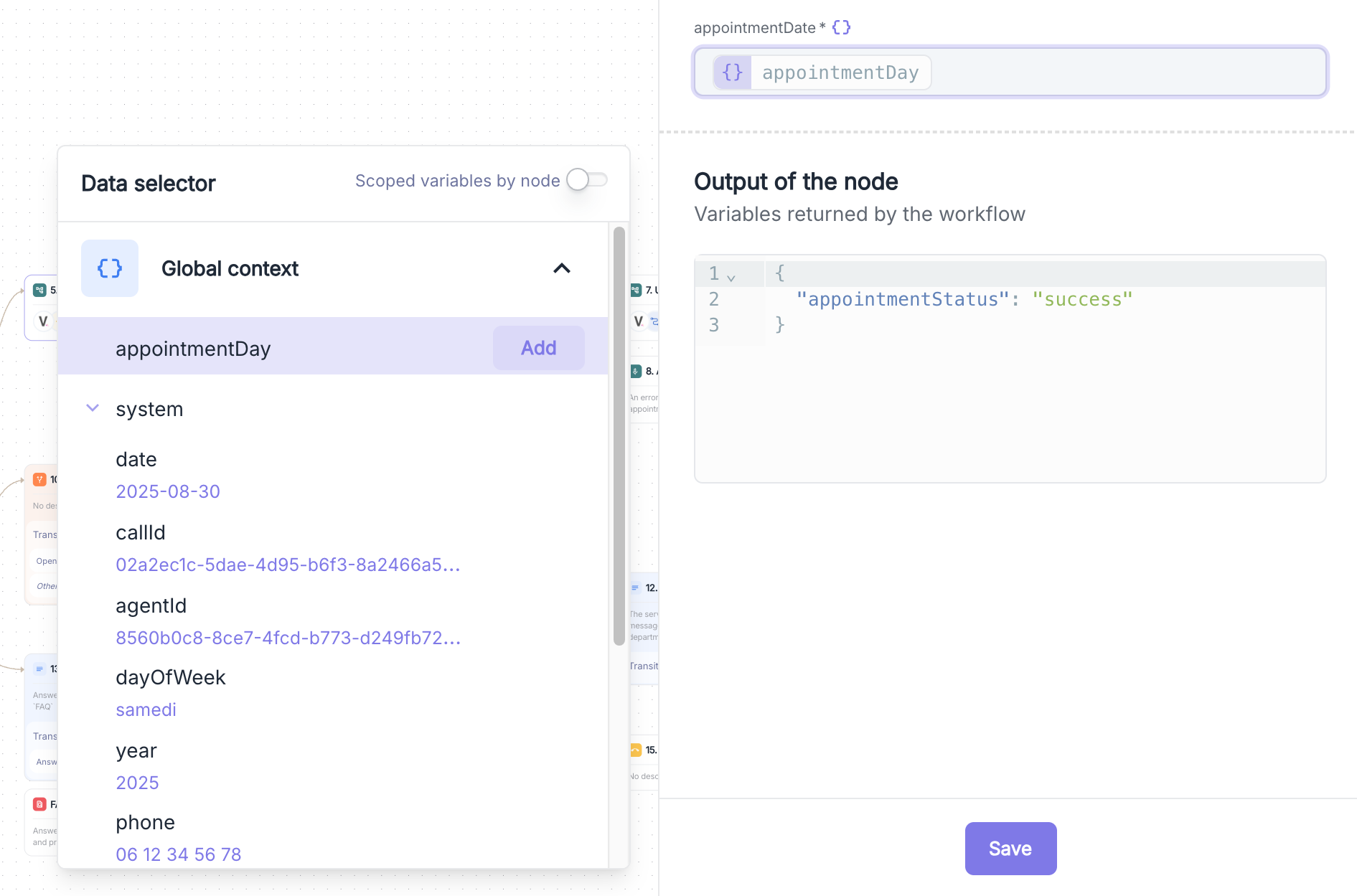
Functioning
- Automatic aggregation: Collection of all variables from the beginning of the graph
- Retention of the latest version: In the case of duplicate variables, the system keeps the most recent value
- Simplified access: A single interface presenting all available variables without reference to source nodes
Example of Advanced Configuration
In a scenario of appointment scheduling with multiple modification attempts:Available System Variables
The global mode automatically includes essential system variables.System Variable
Find the available system variables
Node Scoped Mode
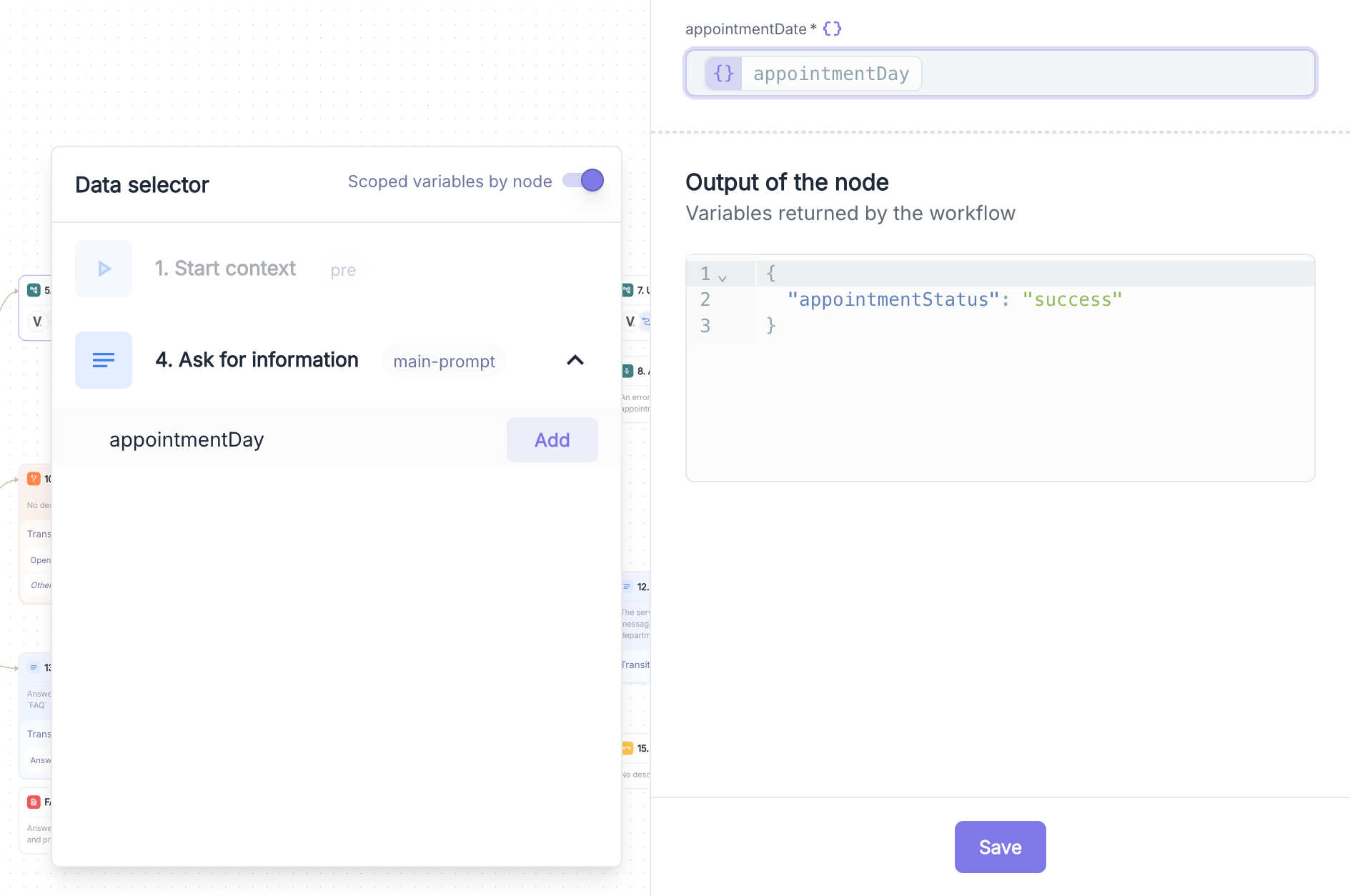
Functioning
- Context retention: Maintenance of a variable’s value at the exact moment of its extraction
- Node selection: Ability to choose the version of a variable based on the source node
- Complete traceability: Clear identification of the origin of each variable
Organizational Structure
The scoped mode organizes variables according to a clear hierarchy:Example of Advanced Configuration
In a scenario of appointment scheduling with multiple modification attempts:Variable Injection in Forms
Dynamic Fields
Fields marked with the icon in TruePath forms support dynamic variable injection. These fields can contain:- Pure variables: Direct injection of a variable (
{appointmentDay}) - Mixed text: Combination of fixed text and variables (
"Your appointment on {appointmentDay} at {appointmentTime}") - System variables: Use of contextual data (
"Call received on {system.date}")
Injection Process
- Field Identification: Click on a field marked with the
- Activation of Data Selector: Automatic opening of the selection panel
- Mode Selection: Choose between Global Context and Scoped by Node
- Variable Selection: Choose the appropriate variable
- Validation: Confirmation via the “Add” button