

Overview
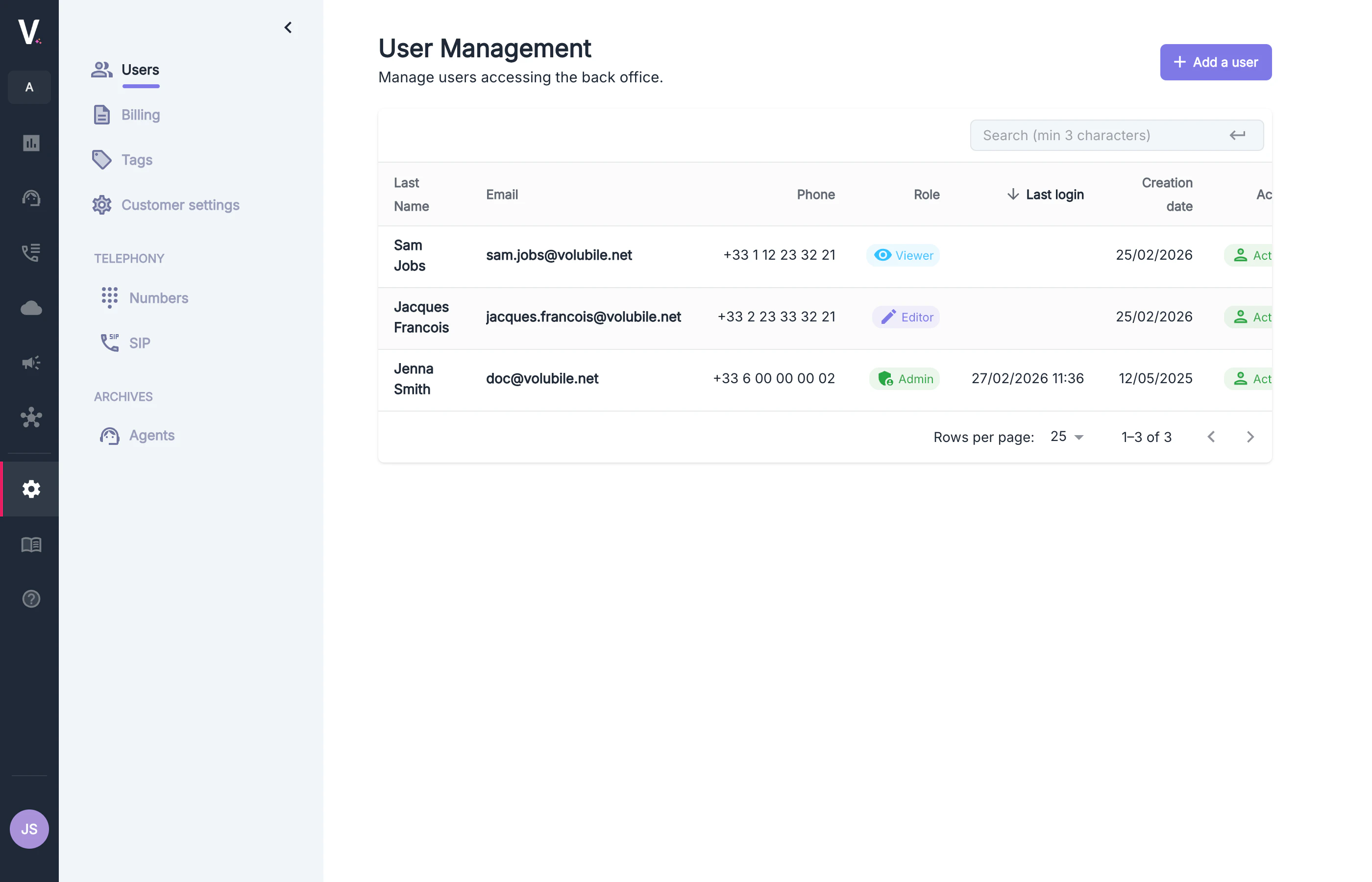
The user management page centralizes all actions related to access control within your Volubile workspace. It allows you to:- View all users with access to the back office
- Create new user accounts
- Track recent login activity
- Assign and modify user roles
Management Interface
User Table
The user table displays the following information:Use the search bar at the top of the table to filter users. Enter at least 3 characters to trigger the search.
User Roles
Volubile provides three access roles, each with clearly defined permissions.Admin
Admins have complete control over the workspace. Can:- Manage members: add, remove, and change roles
- Manage billing: usage, subscriptions, invoices, payment methods
- Create, edit, and delete all resources: agents, conversation flows, knowledge bases, voices
- Access all data, including raw transcripts and recordings
- Configure telephony settings
- Modify workspace settings
- Manage API keys, public keys, webhooks, and capacity limits (concurrency, CPS)
- Nothing — Admins have full permissions.
Editor
Editors have full access to creation, testing, and analytics features, but no administrative permissions. Can:- Create and modify agents, conversation flows, knowledge bases, and voices
- Test and simulate interactions
- Access logs, transcripts, recordings, and analytics
- Export data
- Run calls and campaigns
- Configure external connections
- Manage billing
- Manage workspace members
- Manage API keys, webhooks, or global settings
- Modify workspace-level configuration
Viewer
Viewers have read‑only access with no ability to view sensitive data. Can:- View calls and analytics
- Start a call
- Access scrubbed history
- View grouped telephony resources
- Create, edit, or delete resources
- Access API keys, webhooks, or connections
- Manage billing, settings, or members
Roles are assigned when creating a user and can be updated at any time using the Edit button in the Actions column. A user may have different roles across different clients.
Creating a New User
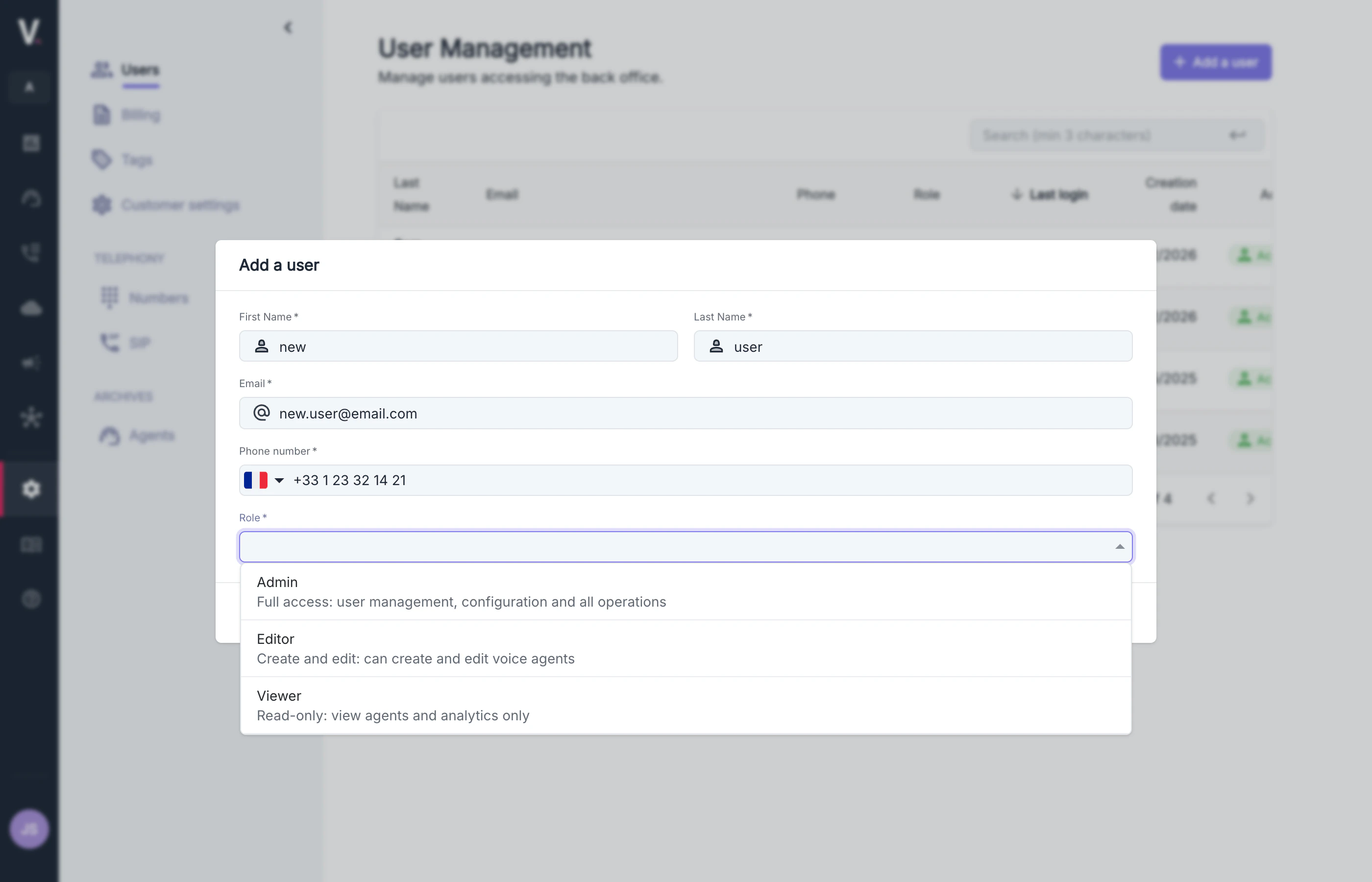
User Creation Form
Personal information
Personal information
- First name* — User’s first name
- Last name* — User’s last name
- E-mail* — Login identifier
- Phone number* — Number including the international prefix
Role
Role
- Admin
- Editor
- Viewer
After the account is created, the user will automatically receive an email to set their password and activate their
profile.
Frequently Asked Questions
A user has lost their password. What should I do?
A user has lost their password. What should I do?
You do not need to create a new account.
Click Send email in the Actions column to send a password reset link.