

Definition
In the context of configuring a generative AI conversational agent, actions refer to the concrete operations that the agent can perform beyond simple text generation. They enable the agent to do something before, during, or after a call. An action is an explicit instruction that the agent can execute, generally triggered by an identified user intent or a particular context in the conversation. Examples of actions in an AI conversational agent:- Call an external API → Retrieve an order status, check a calendar, query a database
- Trigger a workflow → Create a CRM ticket, send a support request, launch an internal procedure
- Send an email or SMS → Appointment confirmation, client follow-up, summary delivery
- Create / modify a database entry → Update a client profile, record a response
- Redirect to a human → Transfer to an advisor when needed, escalate a complex case
- Perform a calculation or business verification → Estimate a quote, validate eligibility, compare two products
Usage
To effectively respond to the entire communication lifecycle, the action architecture has been structured around three strategic moments.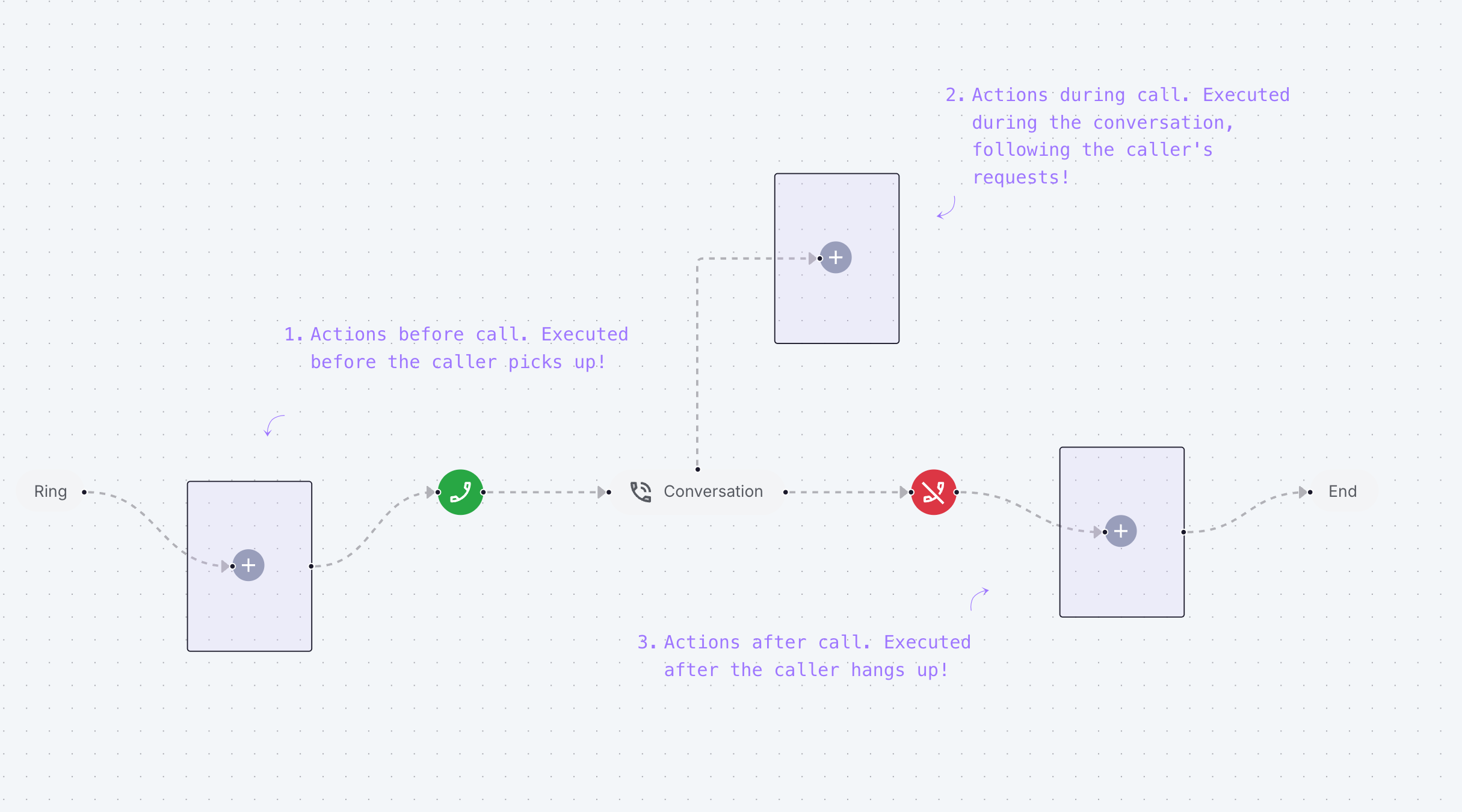
Before the Call
During the ringing interval, you can trigger preliminary actions such as identifying the caller or retrieving essential contextual information to prepare the agent for the interaction.
During the Call
Once the call starts and throughout its duration, you can equip your agent with numerous actions.These capabilities allow you to precisely configure how the agent accesses additional information, manages call transfers, determines call termination conditions, and optimizes interactions with IVR systems and hold messages.It is in this phase that actions reveal their maximum potential, offering a multitude of automation possibilities. This flexibility can sometimes complicate design, but our platform has been optimized to make this configuration as intuitive as possible.
First steps
Actions During the Call
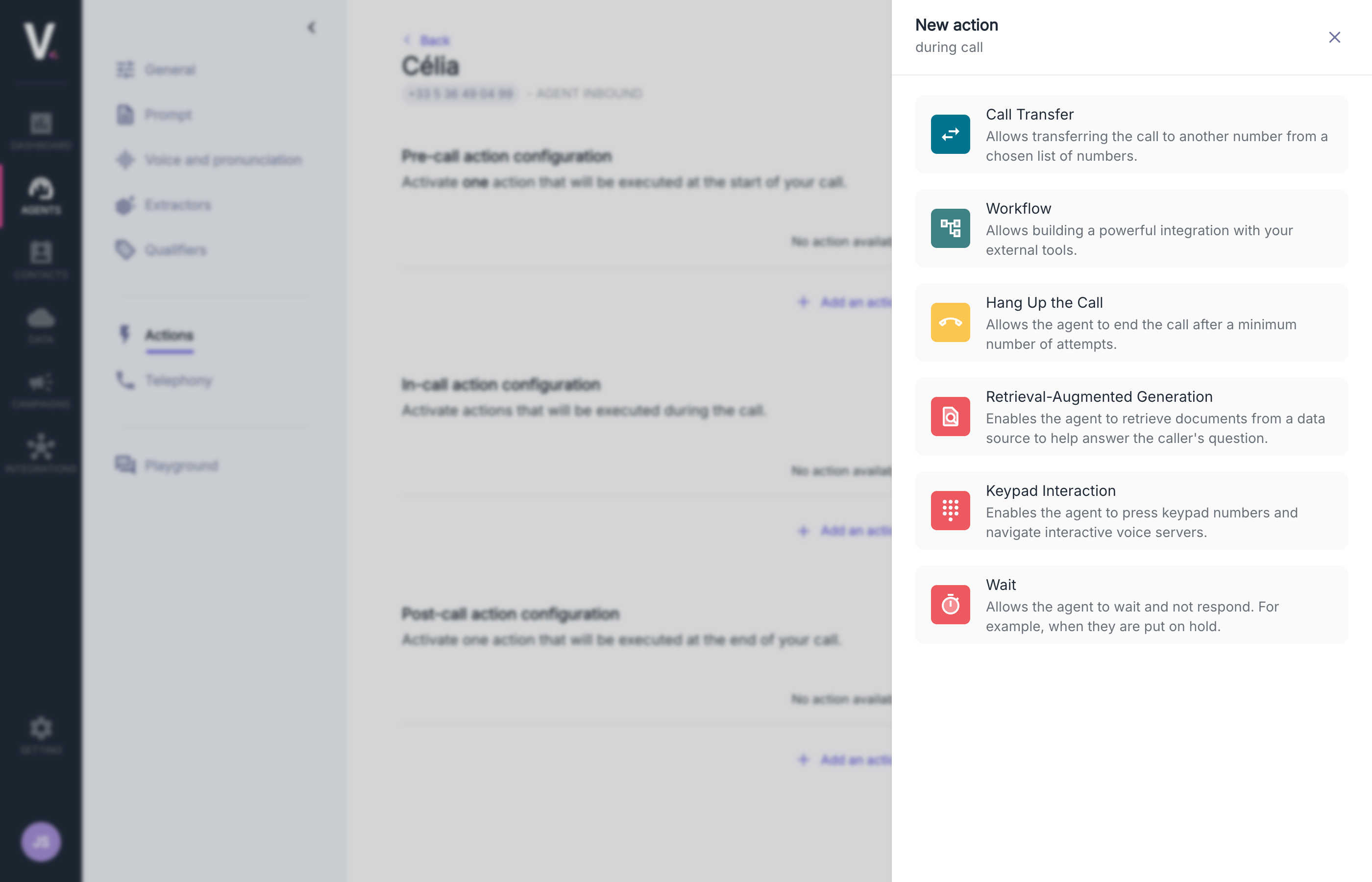
Call Transfer
The transfer action allows for the intelligent redirection of a call to another agent or an external number. This strategic feature can be configured to execute at different moments during the interaction.Use Cases
- Transfer to a specialized agent when a particular request is identified
- Redirect to an external service outside of business hours
- Automatic escalation to technical support for complex issues
Call Transfer Action Parameters
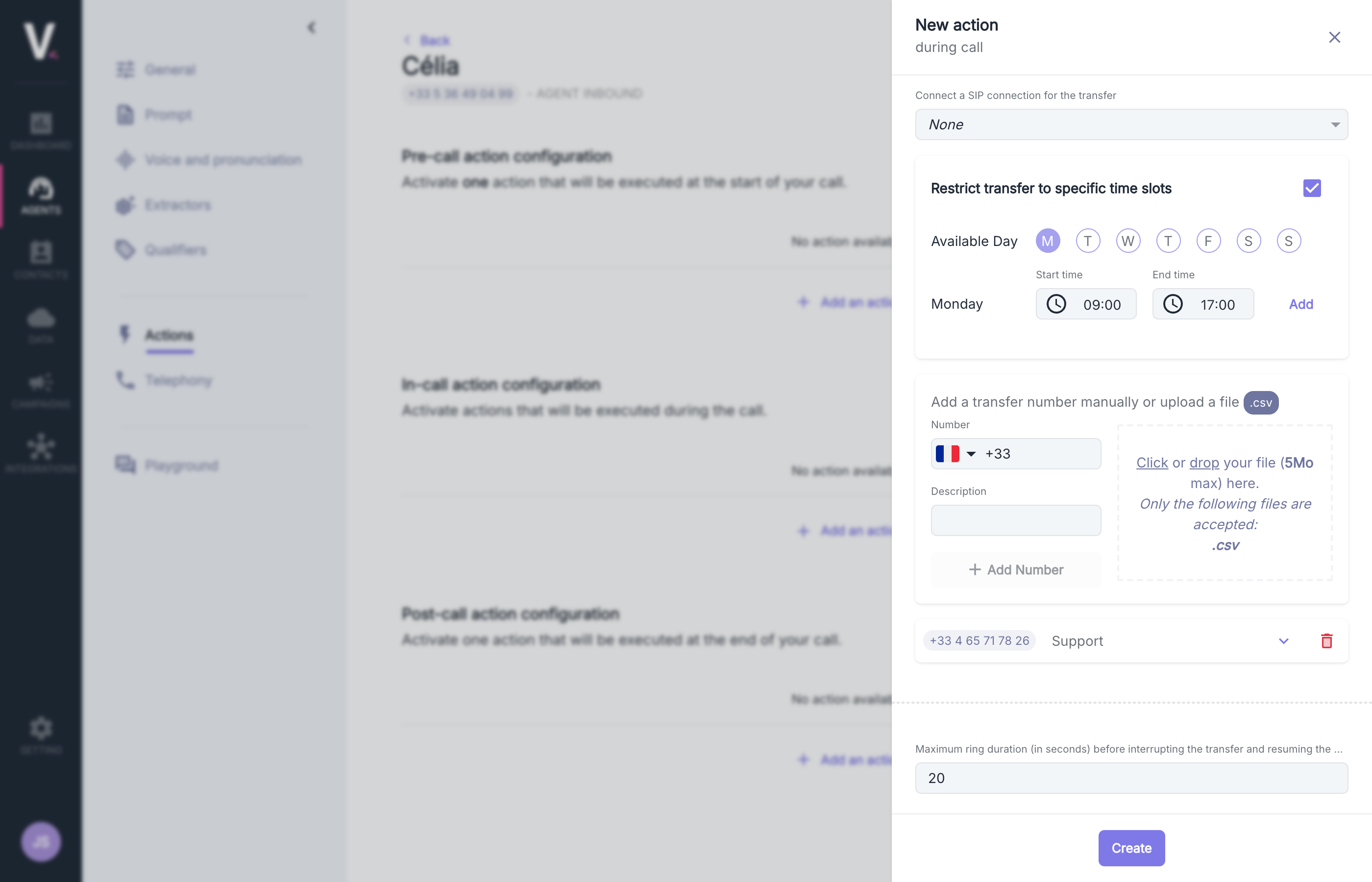
| Field | Description |
|---|---|
| Action Name | Explicit identifier such as “Transfer” or a more specific name according to your needs |
| Description | Precise definition of the purpose and mechanism of this transfer action |
| SIP Connection | Selection of an existing SIP connection for the transfer (optional) |
| Maximum Ring Duration | Maximum ringing duration (in seconds) before interrupting the transfer and resuming the call by the agent (Min 5s, Max 45s, Default 20s) |
SIP Connection
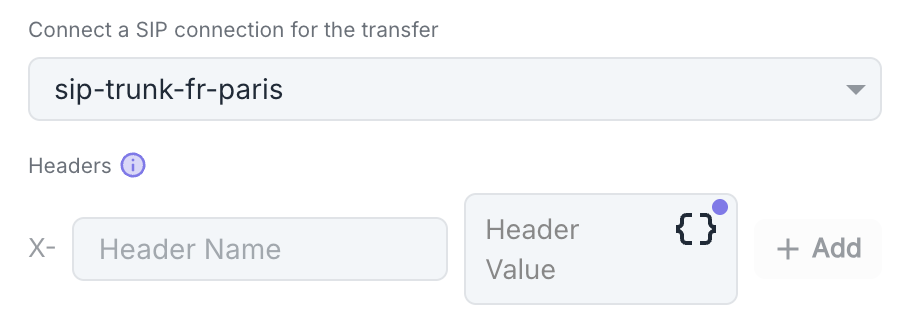
- Click on Add to add a new header.
- For each header, specify:
- Header name: Name of the SIP header.
- Header Value: Value associated with this header.
Transfer Timing Restrictions
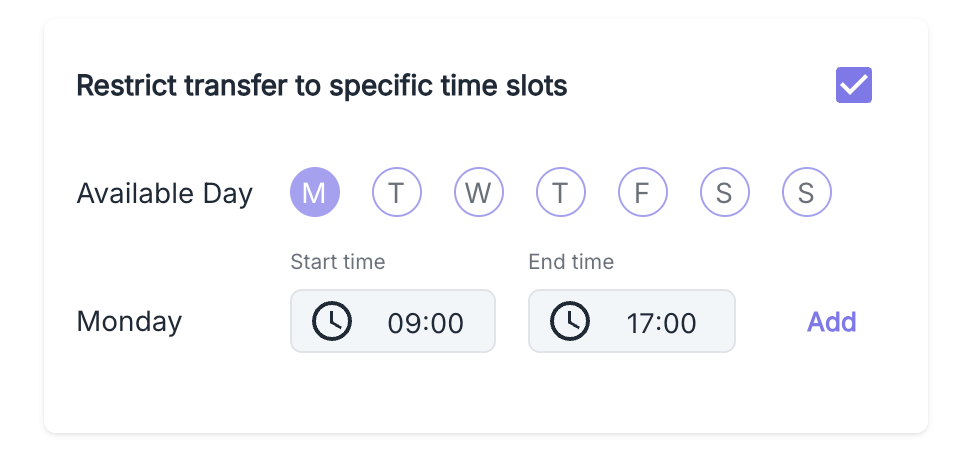
- Enable the option Restrict transfer to time slots
- Select eligible days (Monday, Tuesday, Wednesday, Thursday, Friday, Saturday, Sunday)
- Define the availability hours (e.g., 09:00 - 17:00)
- Click on Add to validate this time slot.
Adding Transfer Numbers
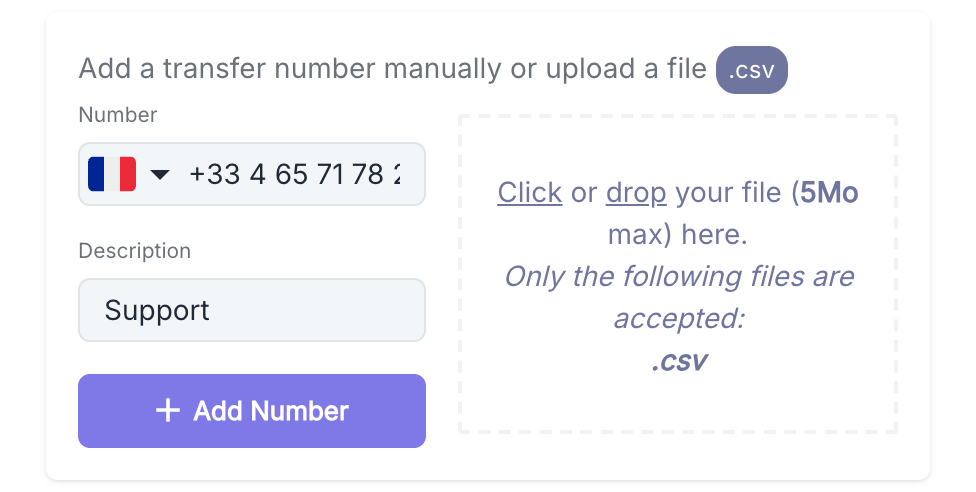
Manual Addition
- Select the country from the dropdown menu (country code)
- Enter the phone number
- Add a description to identify this number (e.g., “Technical Support”)
Import
Allowed File| Specification | Description |
|---|---|
| Accepted Format | .csv file (max. 5 MB) |
| Required Structure | See the table below |
| Column | Type | Required | Description |
|---|---|---|---|
phone | Text | Yes | E.164 format (e.g., +33612345678) |
description | Text | No | Description of the person or service |
Maximum Ring Duration
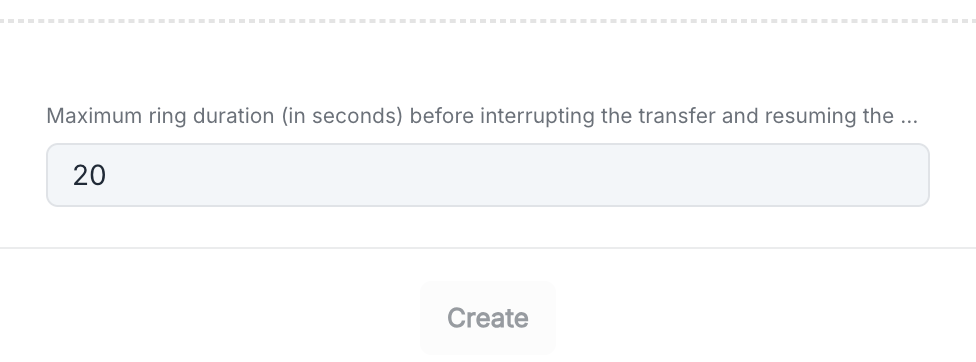
20 seconds (Min 5s, Max 45s).
Workflow
This feature allows for the development of sophisticated integrations with your external systems during the course of your communications.Configure Workflows During the Call
See how to configure workflows
Hang Up
The hang-up action allows for controlled termination of a communication under specifically defined conditions. This feature can be implemented at different stages of the interaction.A default hang-up mechanism (not visible in this interface) is already integrated to avoid interaction loops while maintaining user experience quality. There is already a default hang-up action (not visible here) so that my agent does not loop while not hanging up on the user.
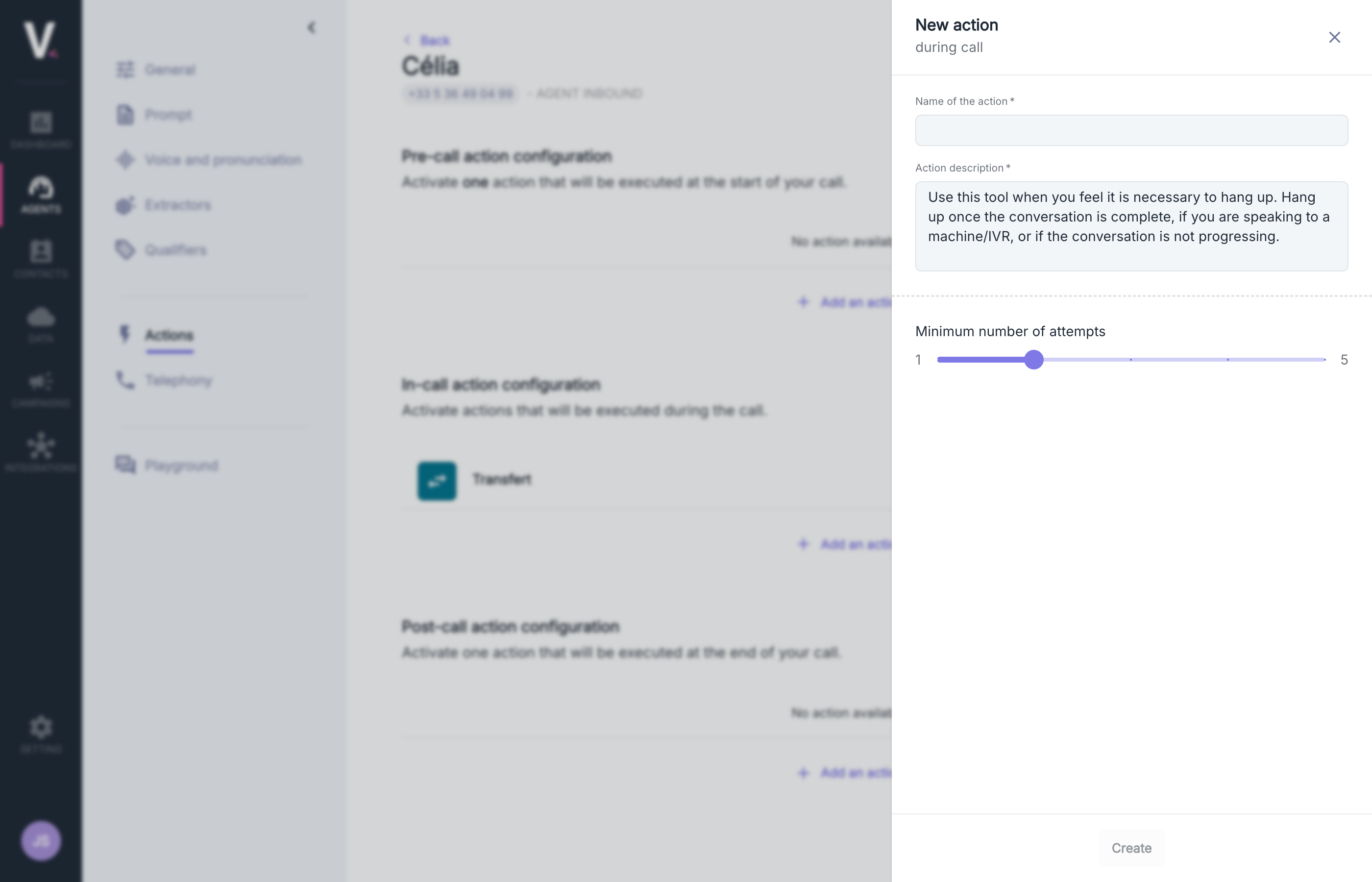
Use Cases
The hang-up action is particularly relevant in the following scenarios:- When all conversation objectives have been achieved
- Upon detecting interaction with an automated system (machine/IVR)
- When the conversation reaches a stalemate without progression
Configuration Parameters
Configuring a hang-up action requires defining the following parameters:| Parameter | Description |
|---|---|
| Action Name | Unique and descriptive identifier of the action |
| Action Description | Detailed explanation specifying the goal and functioning of the action |
| Minimum Number of Attempts | Calibration of the minimum attempt threshold before activation (scale from 1 to 5) |
Description
Specify in natural language the precise conditions under which the agent should terminate the communication.Attempt Configuration
The configuration control allows you to adjust the minimum number of attempts before triggering (Min 1, Max 5).RAG
The integration of RAG (Retrieval Augmented Generation) data sources allows you to enrich your agent with specific knowledge to deliver contextualized and precise responses.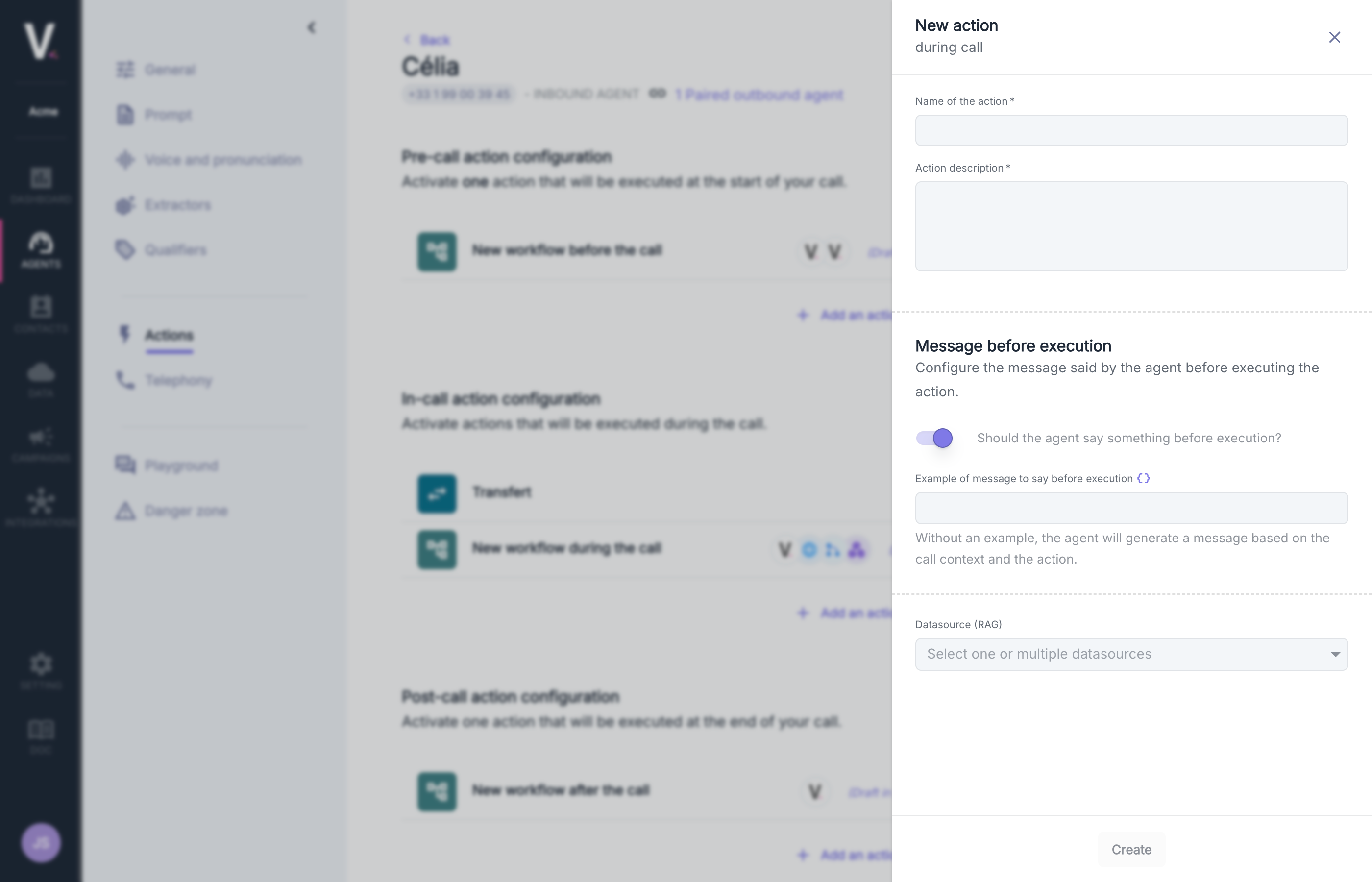
Required Fields
| Field | Description |
|---|---|
| Action Name | Unique and descriptive identifier of the action |
| Action Description | Detailed explanation specifying the objective and functionality of the action |
| Message before execution | Configure the message said by the agent before executing the action |
| Data Source (RAG) | Selection of a data source to enrich the interaction |
Description
Specify in natural language the exact circumstances under which the agent should activate this functionality.Message before execution
Enable or disable the message that the agent will say before executing the RAG action. You can add an example phrase to be spoken if the option is enabled.Data Source (RAG)
The dropdown menu allows you to select from the data sources configured in your environment.RAG
Configure your first RAG database
Keyboard Interaction
This feature allows the agent to emit tones by simulating key presses on a telephone keypad, thus facilitating interaction with interactive voice response systems .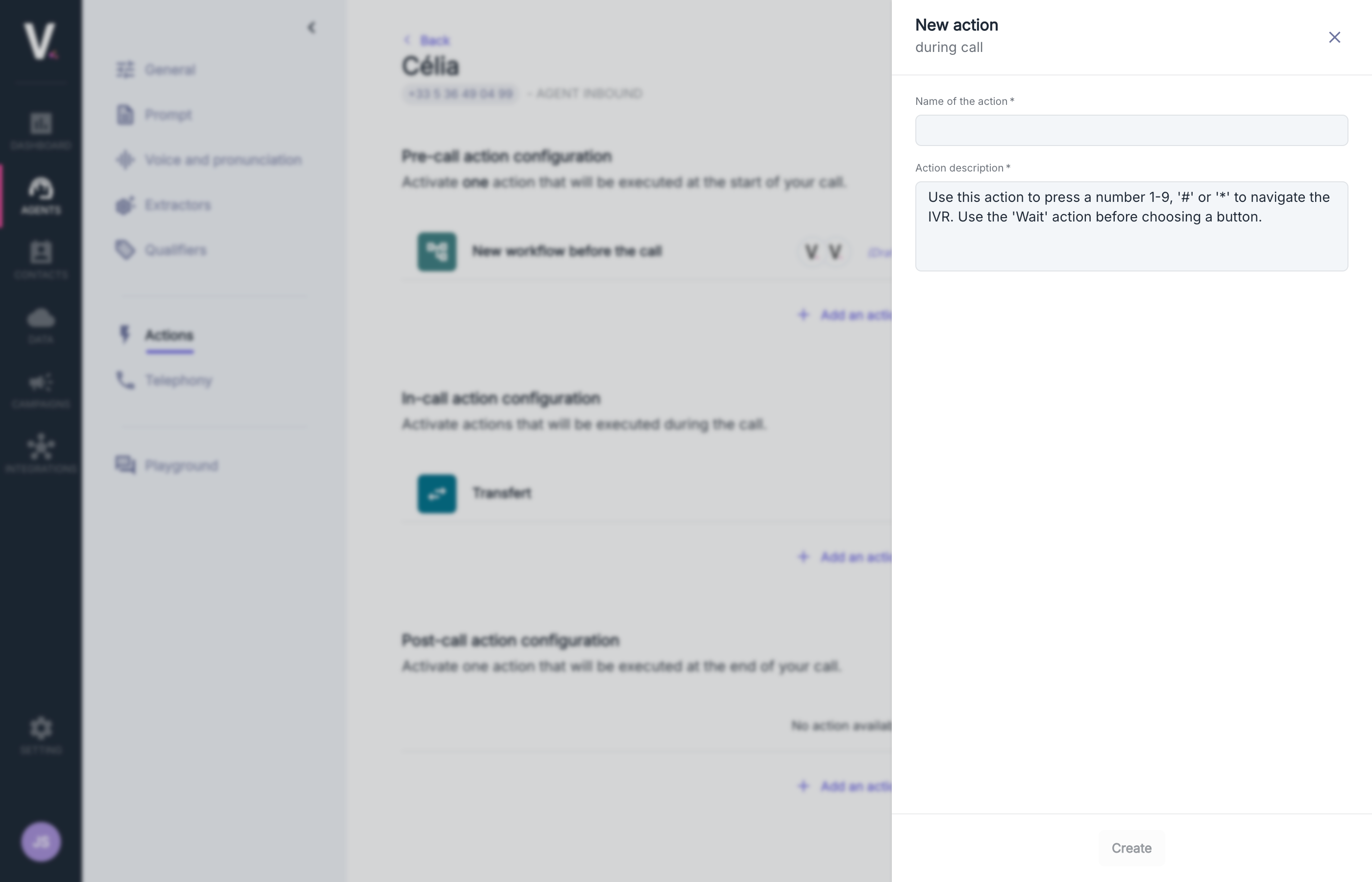
Required Fields
| Field | Description |
|---|---|
| Action Name | Unique and descriptive identifier of the action |
| Action Description | Detailed explanation specifying the objective and functionality of the action |
Description
In most implementations, the default description proves adequate, but you can enrich or customize it using natural language suited to your operational context.Wait
This feature allows the agent to temporarily suspend its responses, which is essential during holds (welcome music) or to detect IVR systems and wait for the complete announcement of menu options.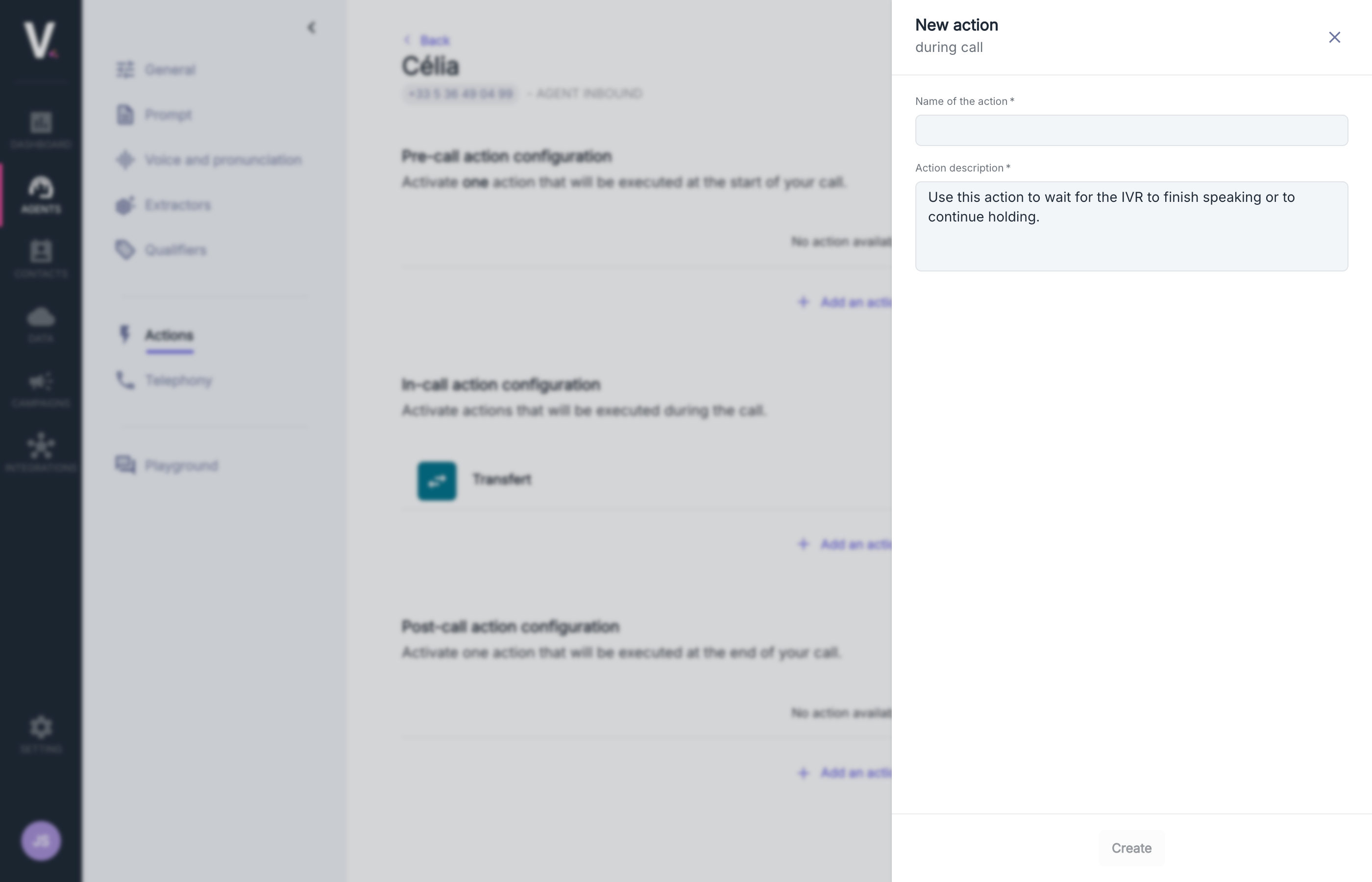
Required Fields
| Field | Description |
|---|---|
| Action Name | Unique and descriptive identifier of the action |
| Action Description | Detailed explanation specifying the objective and functionality of the action |
Description
In most implementations, the default description proves adequate, but you can enrich or customize it using natural language suited to your operational context.Actions After the Call
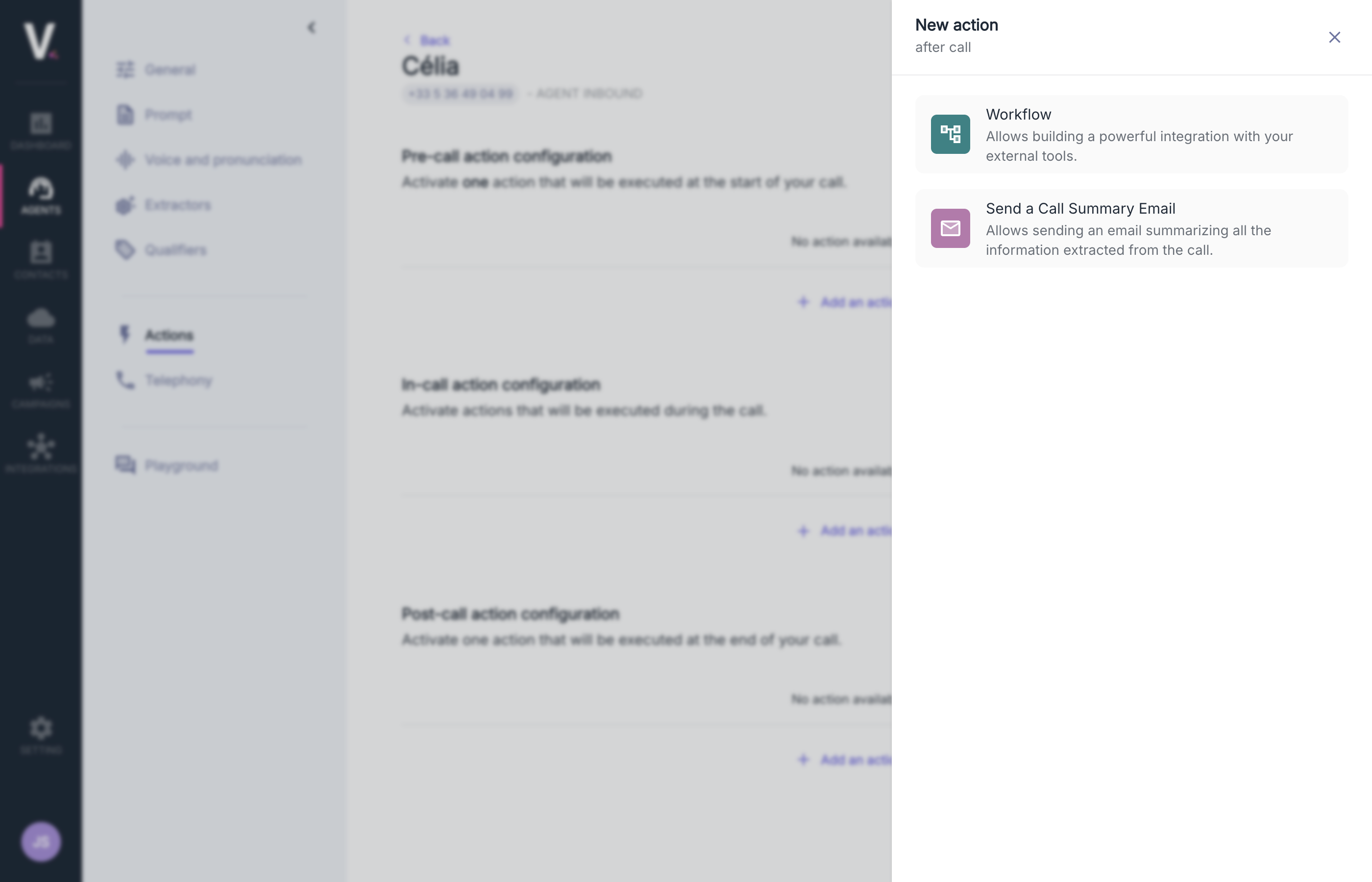
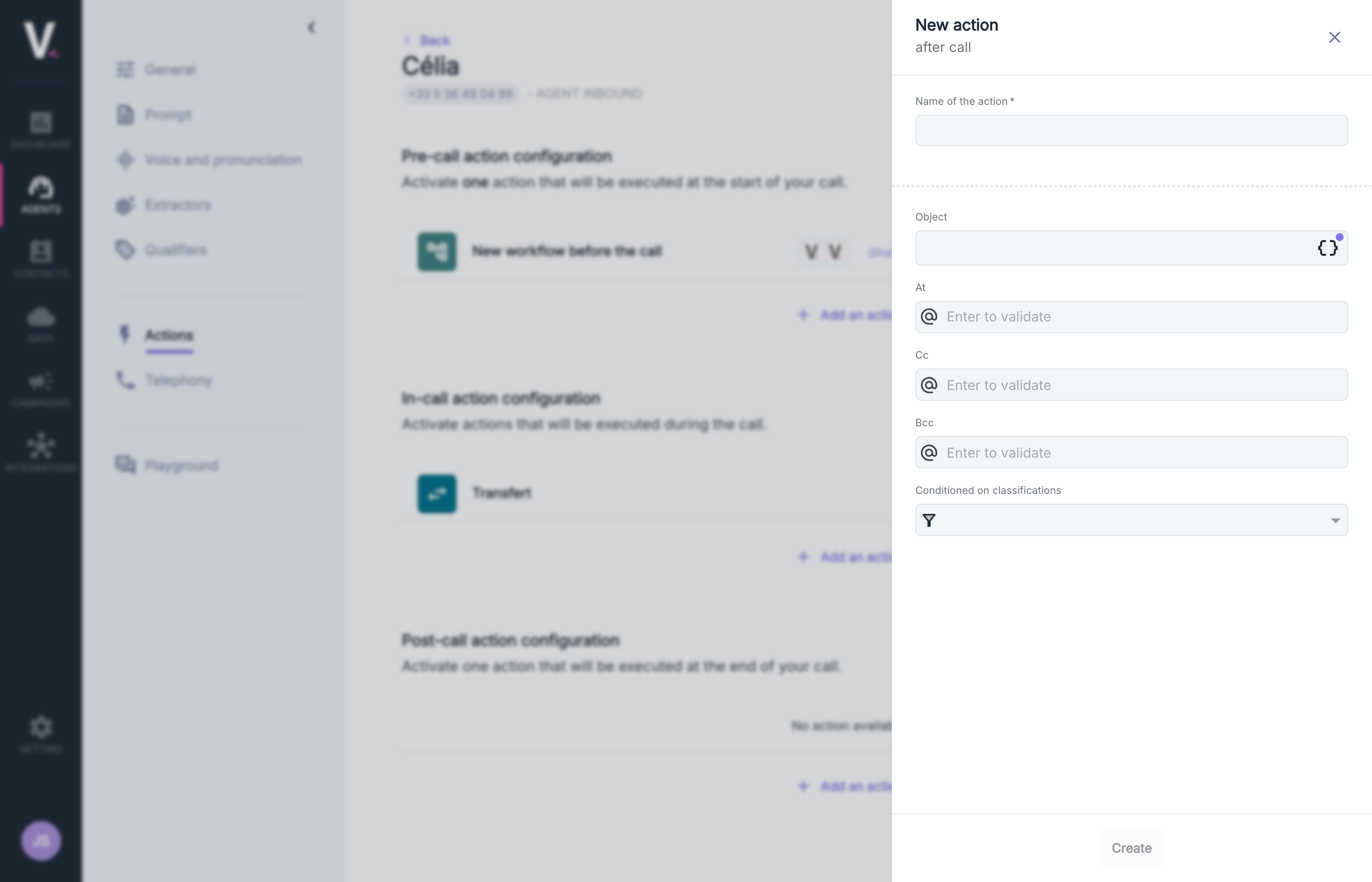
Use Cases
This feature is particularly suited to the following scenarios:- Automatic sending of a summary of the conversation
- Notification to relevant teams following a customer interaction
- Structured transmission of specific requests identified during the call
- Automated escalation for issues requiring specific intervention
Configuration Parameters
Creating an email sending action requires defining the following parameters:| Parameter | Description | Required |
|---|---|---|
| Action Name | Unique and descriptive identifier of the action | ✓ |
| Subject | Subject of the email to be sent | ✓ |
| To | Email address(es) of the main recipient(s) | ✓ |
| Cc | Email address(es) of recipients in copy | |
| Bcc | Email address(es) of recipients in blind copy | |
| Conditioned by Classifications | Trigger criteria based on call categorization |
Subject Configuration

Conditional Configuration

- Select one or more relevant classifications from the dropdown menu
- The email will only be sent if the call matches the defined classification criteria
- This feature is particularly effective in targeting specific interaction scenarios
Workflow
This feature allows for the development of sophisticated integrations with your external systems after the end of your communications.Configure Workflows After the Call
See how to configure workflows