> ## Documentation Index
> Fetch the complete documentation index at: https://docs.volubile.ai/llms.txt
> Use this file to discover all available pages before exploring further.
# Variables and Data Selector
> TruePath integrates a sophisticated variable management system that allows for the capture, storage, and reuse of information throughout the conversational graph. This system facilitates the creation of personalized and dynamic interactions by enabling agents to access data collected during previous exchanges.
## Overview
The data selector serves as the main interface for accessing variables extracted from the preceding nodes of your graph. This functionality is automatically activated when focusing on form fields marked with the icon, indicating the possibility of injecting dynamic variables.
## Interface
The data selector interface consists of several key elements:
* **Variable selection panel**: Display area for available variables based on the chosen mode
* **Mode switch**: Toggle button to switch between `Global Context` and `Node Scoped Variables`
* **Add button**: Confirmation of variable injection into the target field
TruePath offers two distinct modes for variable selection, each tailored to specific usage needs.
## Global Context Mode
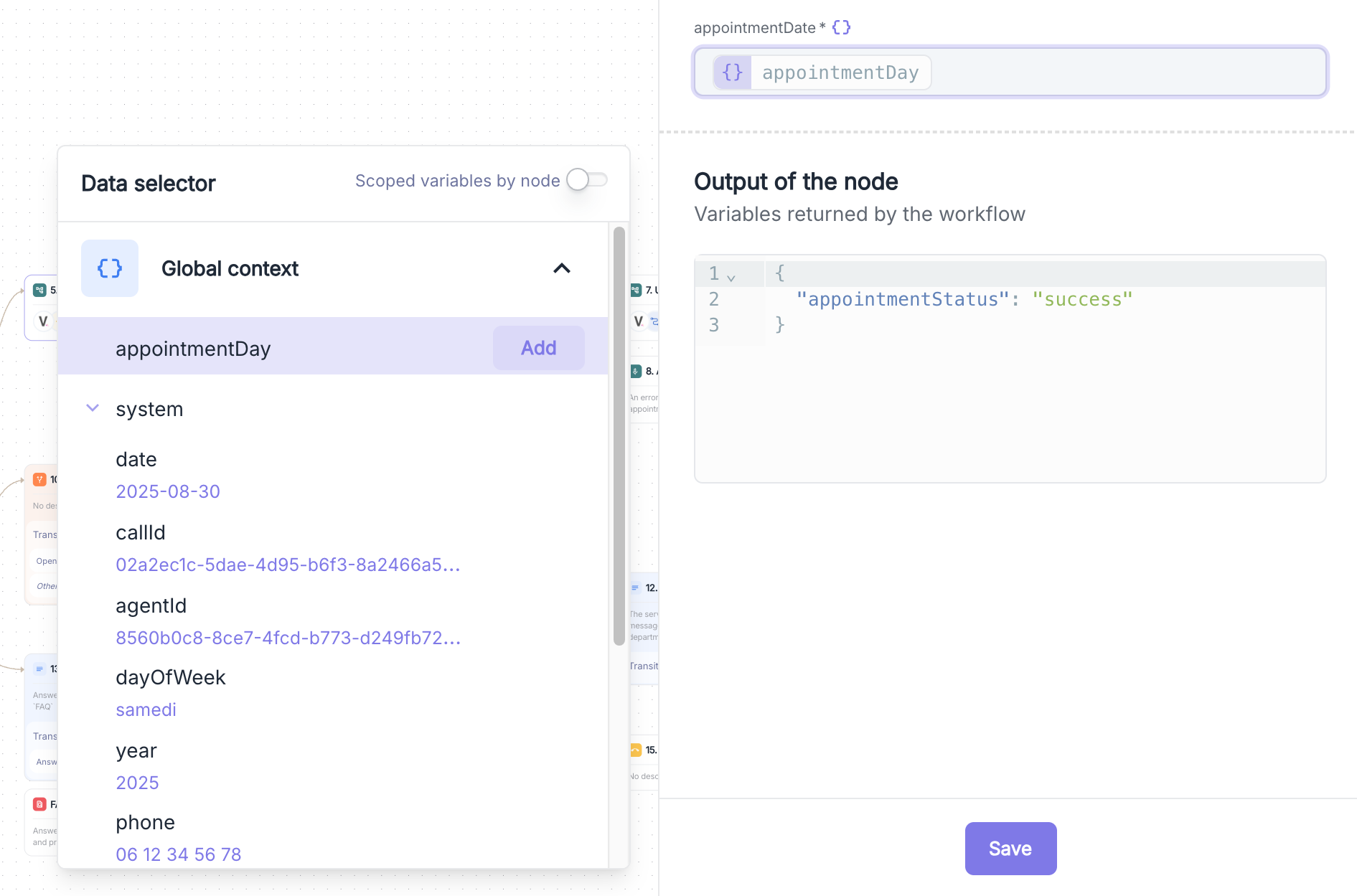 The global context mode automatically aggregates all variables extracted from all previous nodes of the conversational graph. This approach provides a unified view of the collected data with the following features:
### Functioning
* **Automatic aggregation**: Collection of all variables from the beginning of the graph
* **Retention of the latest version**: In the case of duplicate variables, the system keeps the most recent value
* **Simplified access**: A single interface presenting all available variables without reference to source nodes
### Example of Advanced Configuration
In a scenario of appointment scheduling with multiple modification attempts:
```
Node 3. Initial Appointment
├── appointmentDay → "Monday"
├── appointmentTime → "14:00"
Node 7. Appointment Modification
├── appointmentDay → "Wednesday"
├── appointmentTime → "16:00"
```
The global mode allows selecting the latest version of a variable.
### Available System Variables
The global mode automatically includes essential system variables.
Find the available system variables
## Node Scoped Mode
The global context mode automatically aggregates all variables extracted from all previous nodes of the conversational graph. This approach provides a unified view of the collected data with the following features:
### Functioning
* **Automatic aggregation**: Collection of all variables from the beginning of the graph
* **Retention of the latest version**: In the case of duplicate variables, the system keeps the most recent value
* **Simplified access**: A single interface presenting all available variables without reference to source nodes
### Example of Advanced Configuration
In a scenario of appointment scheduling with multiple modification attempts:
```
Node 3. Initial Appointment
├── appointmentDay → "Monday"
├── appointmentTime → "14:00"
Node 7. Appointment Modification
├── appointmentDay → "Wednesday"
├── appointmentTime → "16:00"
```
The global mode allows selecting the latest version of a variable.
### Available System Variables
The global mode automatically includes essential system variables.
Find the available system variables
## Node Scoped Mode
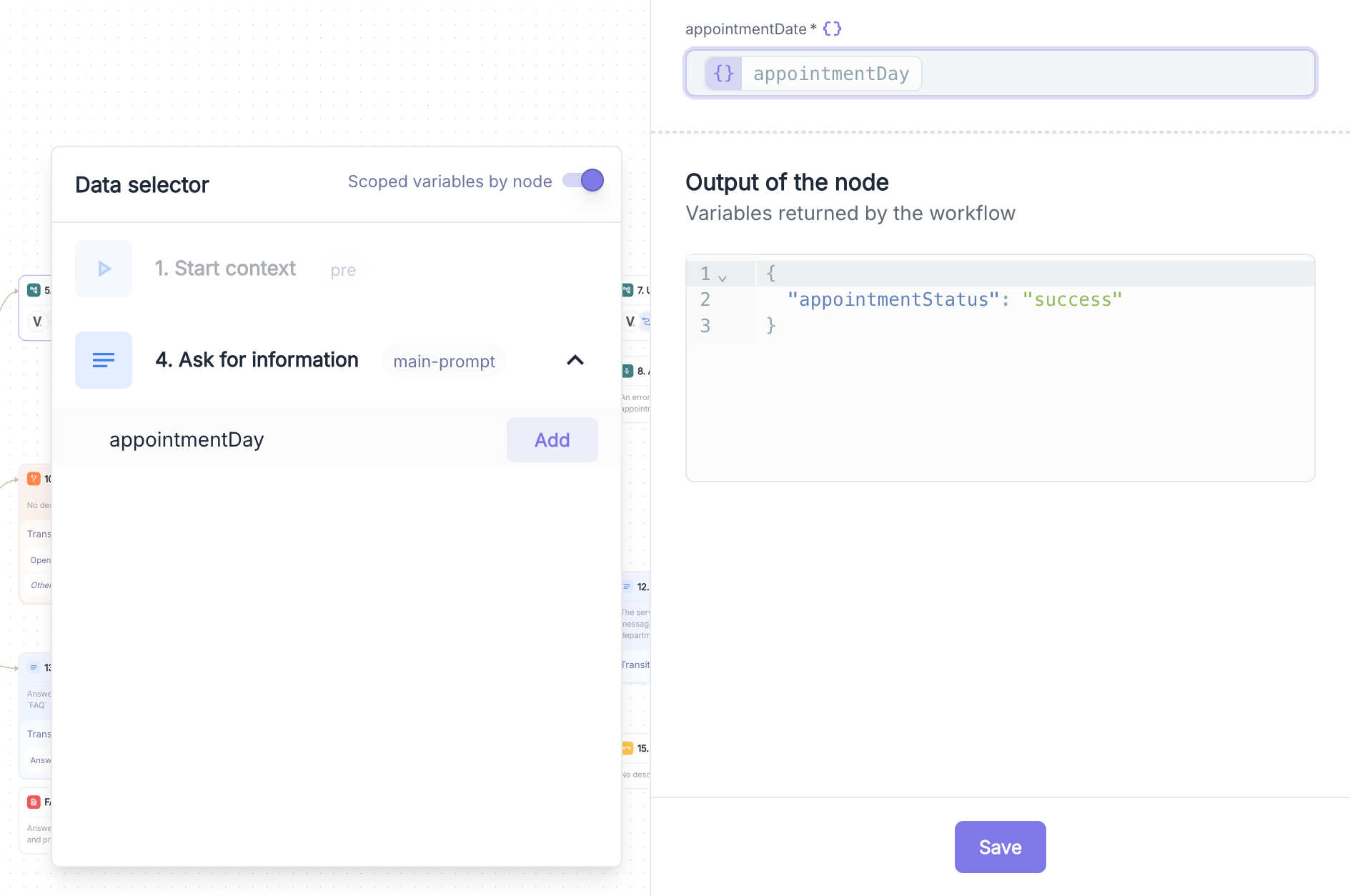 The node scoped variables mode provides granular access to variables while preserving their context of extraction specific to each node. This approach allows precise control over the source of the data used.
### Functioning
* **Context retention**: Maintenance of a variable's value at the exact moment of its extraction
* **Node selection**: Ability to choose the version of a variable based on the source node
* **Complete traceability**: Clear identification of the origin of each variable
### Organizational Structure
The scoped mode organizes variables according to a clear hierarchy:
```
Source Node
├── Variable 1
├── Variable 2
└── Variable n
```
### Example of Advanced Configuration
In a scenario of appointment scheduling with multiple modification attempts:
```
Node 3. Initial Appointment
├── appointmentDay → "Monday"
├── appointmentTime → "14:00"
Node 7. Appointment Modification
├── appointmentDay → "Wednesday"
├── appointmentTime → "16:00"
```
The scoped mode allows precise selection of which version to use according to the business context.
## Variable Injection in Forms
### Dynamic Fields
Fields marked with the icon in TruePath forms support dynamic variable injection. These fields can contain:
* **Pure variables**: Direct injection of a variable (`{appointmentDay}`)
* **Mixed text**: Combination of fixed text and variables (`"Your appointment on {appointmentDay} at {appointmentTime}"`)
* **System variables**: Use of contextual data (`"Call received on {system.date}"`)
Variable injection only works if the variable has been added via the data selector. Manual injection of text between curly braces `{}` is not supported.
### Injection Process
1. **Field Identification**: Click on a field marked with the
2. **Activation of Data Selector**: Automatic opening of the selection panel
3. **Mode Selection**: Choose between Global Context and Scoped by Node
4. **Variable Selection**: Choose the appropriate variable
5. **Validation**: Confirmation via the "Add" button
#### Best Practices for Using Variables
* Use Global Context mode for simple graphs and system data
* Favor Scoped mode for complex business logic
* Systematically test variable injection before publication
* Use explicit variable names for improved readability
The node scoped variables mode provides granular access to variables while preserving their context of extraction specific to each node. This approach allows precise control over the source of the data used.
### Functioning
* **Context retention**: Maintenance of a variable's value at the exact moment of its extraction
* **Node selection**: Ability to choose the version of a variable based on the source node
* **Complete traceability**: Clear identification of the origin of each variable
### Organizational Structure
The scoped mode organizes variables according to a clear hierarchy:
```
Source Node
├── Variable 1
├── Variable 2
└── Variable n
```
### Example of Advanced Configuration
In a scenario of appointment scheduling with multiple modification attempts:
```
Node 3. Initial Appointment
├── appointmentDay → "Monday"
├── appointmentTime → "14:00"
Node 7. Appointment Modification
├── appointmentDay → "Wednesday"
├── appointmentTime → "16:00"
```
The scoped mode allows precise selection of which version to use according to the business context.
## Variable Injection in Forms
### Dynamic Fields
Fields marked with the icon in TruePath forms support dynamic variable injection. These fields can contain:
* **Pure variables**: Direct injection of a variable (`{appointmentDay}`)
* **Mixed text**: Combination of fixed text and variables (`"Your appointment on {appointmentDay} at {appointmentTime}"`)
* **System variables**: Use of contextual data (`"Call received on {system.date}"`)
Variable injection only works if the variable has been added via the data selector. Manual injection of text between curly braces `{}` is not supported.
### Injection Process
1. **Field Identification**: Click on a field marked with the
2. **Activation of Data Selector**: Automatic opening of the selection panel
3. **Mode Selection**: Choose between Global Context and Scoped by Node
4. **Variable Selection**: Choose the appropriate variable
5. **Validation**: Confirmation via the "Add" button
#### Best Practices for Using Variables
* Use Global Context mode for simple graphs and system data
* Favor Scoped mode for complex business logic
* Systematically test variable injection before publication
* Use explicit variable names for improved readability