> ## Documentation Index
> Fetch the complete documentation index at: https://docs.volubile.ai/llms.txt
> Use this file to discover all available pages before exploring further.
# Step Nodes
> Steps are available when building your graph and offer specialized features.
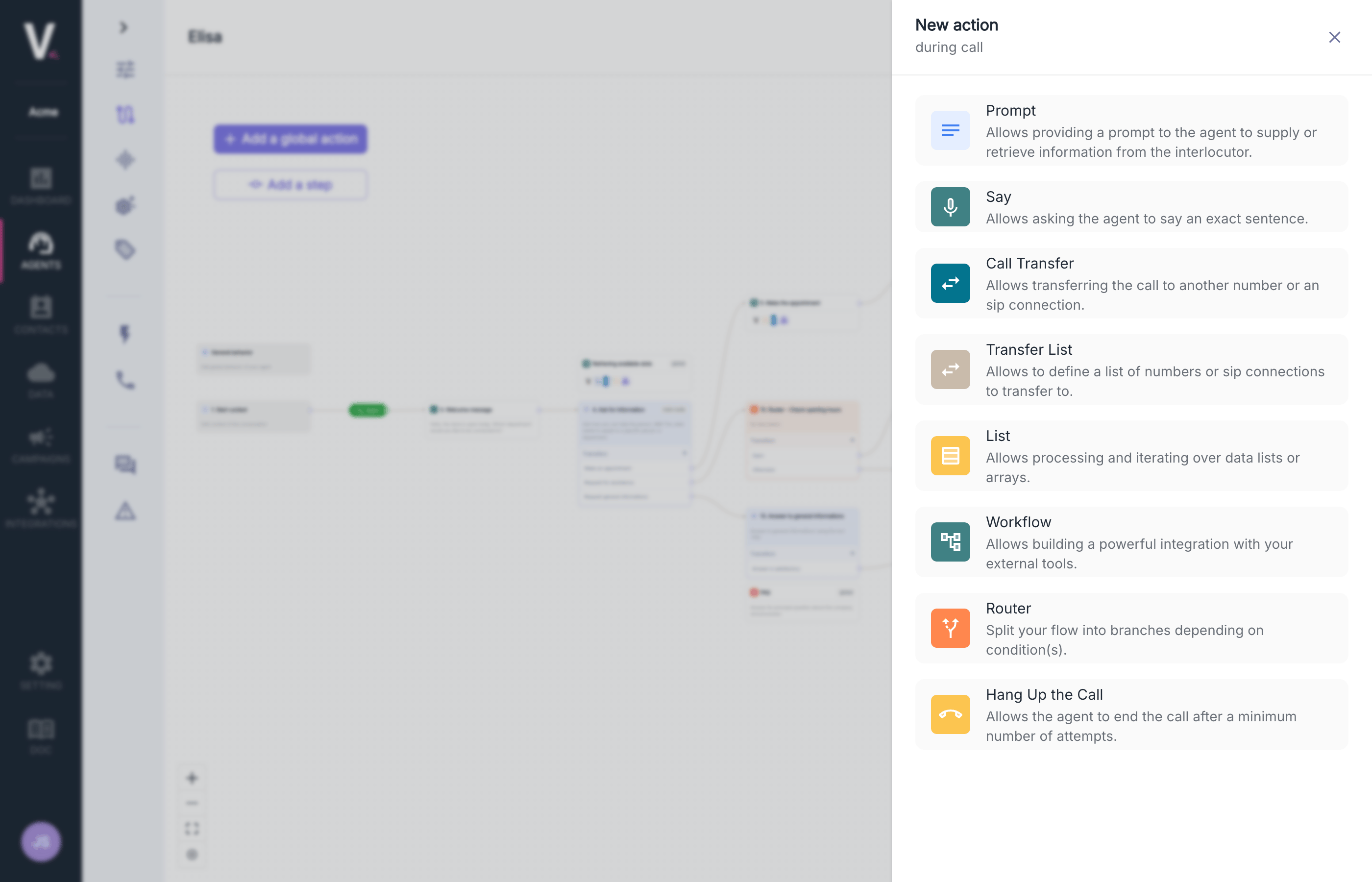 ## Prompt
The Prompt node forms the intelligent core of your conversational agent by defining behavioral instructions and contextual responses. This feature allows you to structure conversational logic with maximum precision.
### Use Cases
* Definition of responses to specific requests
* Management of complex conversation graphs
* Integration of business logic into interactions
### Configuration Parameters
## Prompt
The Prompt node forms the intelligent core of your conversational agent by defining behavioral instructions and contextual responses. This feature allows you to structure conversational logic with maximum precision.
### Use Cases
* Definition of responses to specific requests
* Management of complex conversation graphs
* Integration of business logic into interactions
### Configuration Parameters
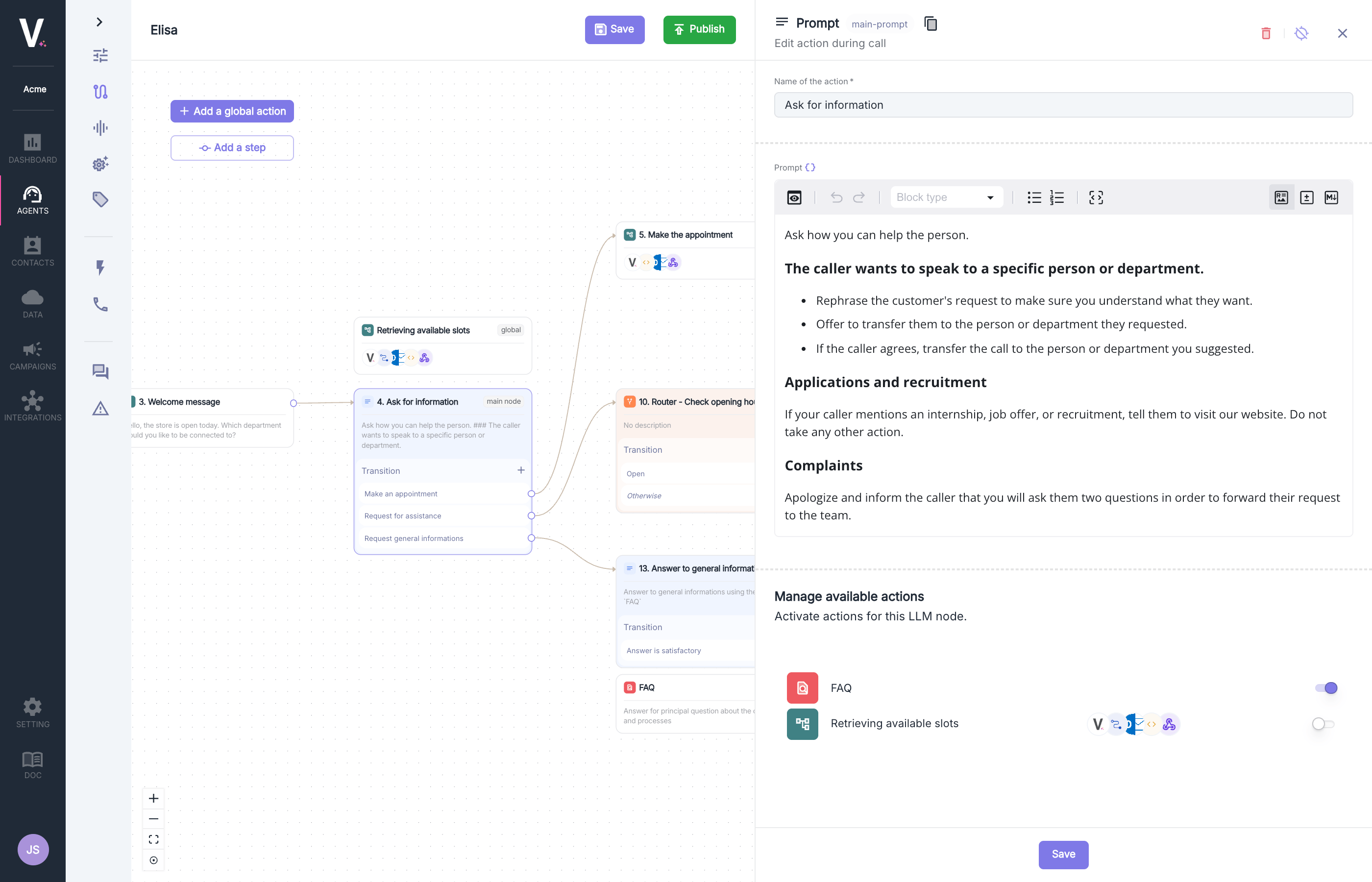 | Field | Description |
| ----------- | ----------------------------------------- |
| Action Name | Name of the node |
| Prompt | Detailed content of behavioral directives |
The prompt can be dynamic by inserting a variable via the data selector. [Use dynamic variables](#variables-and-data-selector)
### Instruction Structure
The prompt editor allows you to define:
* **Trigger Contexts**: Specific activation situations
* **Structured Responses**: Response scripts organized by scenarios
* **Conditional Actions**: Behaviors based on interactions
Learn to configure and contextualize your prompt effectively.
#### Best Practices
* Structure your instructions by use case
* Use bullet points for clarity
* Integrate precise conditions to avoid ambiguities
* Activate only the actions necessary for the context
### Speech Recognition Configuration
This section allows you to enable customization of end-of-speech detection only for this step (in its entirety). This allows, for example, to indicate to the agent that it should wait longer before considering that its interlocutor has finished their sentence.
| Field | Description |
| ----------- | ----------------------------------------- |
| Action Name | Name of the node |
| Prompt | Detailed content of behavioral directives |
The prompt can be dynamic by inserting a variable via the data selector. [Use dynamic variables](#variables-and-data-selector)
### Instruction Structure
The prompt editor allows you to define:
* **Trigger Contexts**: Specific activation situations
* **Structured Responses**: Response scripts organized by scenarios
* **Conditional Actions**: Behaviors based on interactions
Learn to configure and contextualize your prompt effectively.
#### Best Practices
* Structure your instructions by use case
* Use bullet points for clarity
* Integrate precise conditions to avoid ambiguities
* Activate only the actions necessary for the context
### Speech Recognition Configuration
This section allows you to enable customization of end-of-speech detection only for this step (in its entirety). This allows, for example, to indicate to the agent that it should wait longer before considering that its interlocutor has finished their sentence.
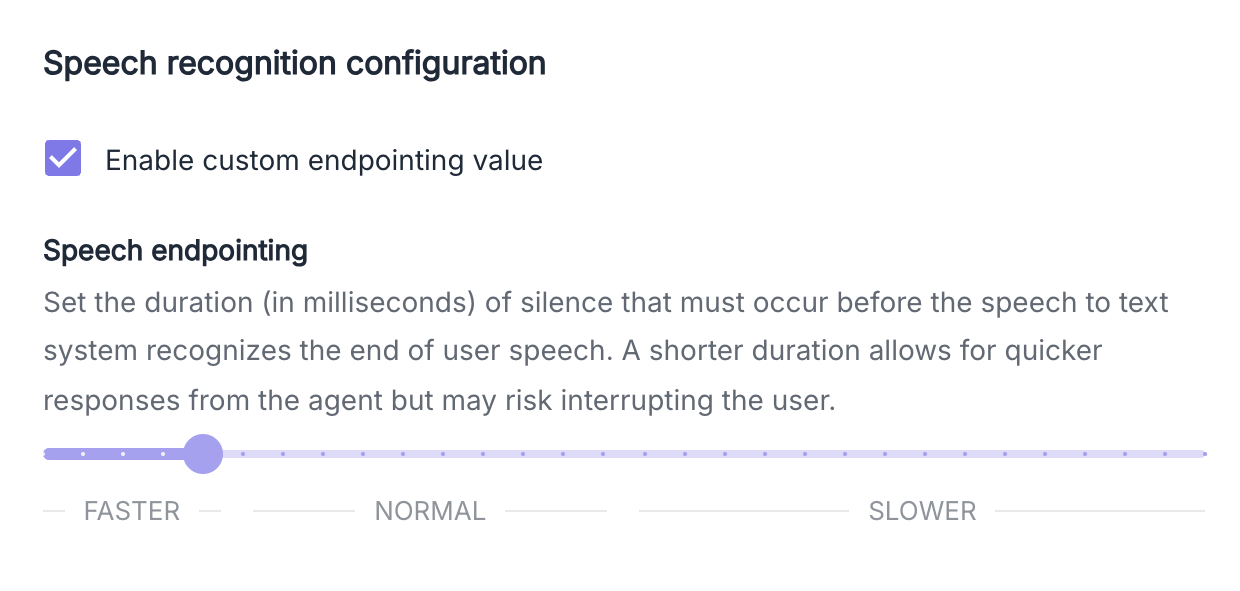 **Example:**
* 400 ms: For a standard conversation
* 2500 ms: Optimal to let the user spell
### Global Action Calls
This section allows you to activate the visibility of [global actions](./global-actions) made available to the agent for this particular prompt.
### LLM Transitions (`tool call`)
The Prompt action also allows for configuring intelligent transitions between the steps of your conversation graph. This advanced feature makes it easier to create dynamic journeys based on artificial intelligence.
**Transition Parameters**
**Example:**
* 400 ms: For a standard conversation
* 2500 ms: Optimal to let the user spell
### Global Action Calls
This section allows you to activate the visibility of [global actions](./global-actions) made available to the agent for this particular prompt.
### LLM Transitions (`tool call`)
The Prompt action also allows for configuring intelligent transitions between the steps of your conversation graph. This advanced feature makes it easier to create dynamic journeys based on artificial intelligence.
**Transition Parameters**
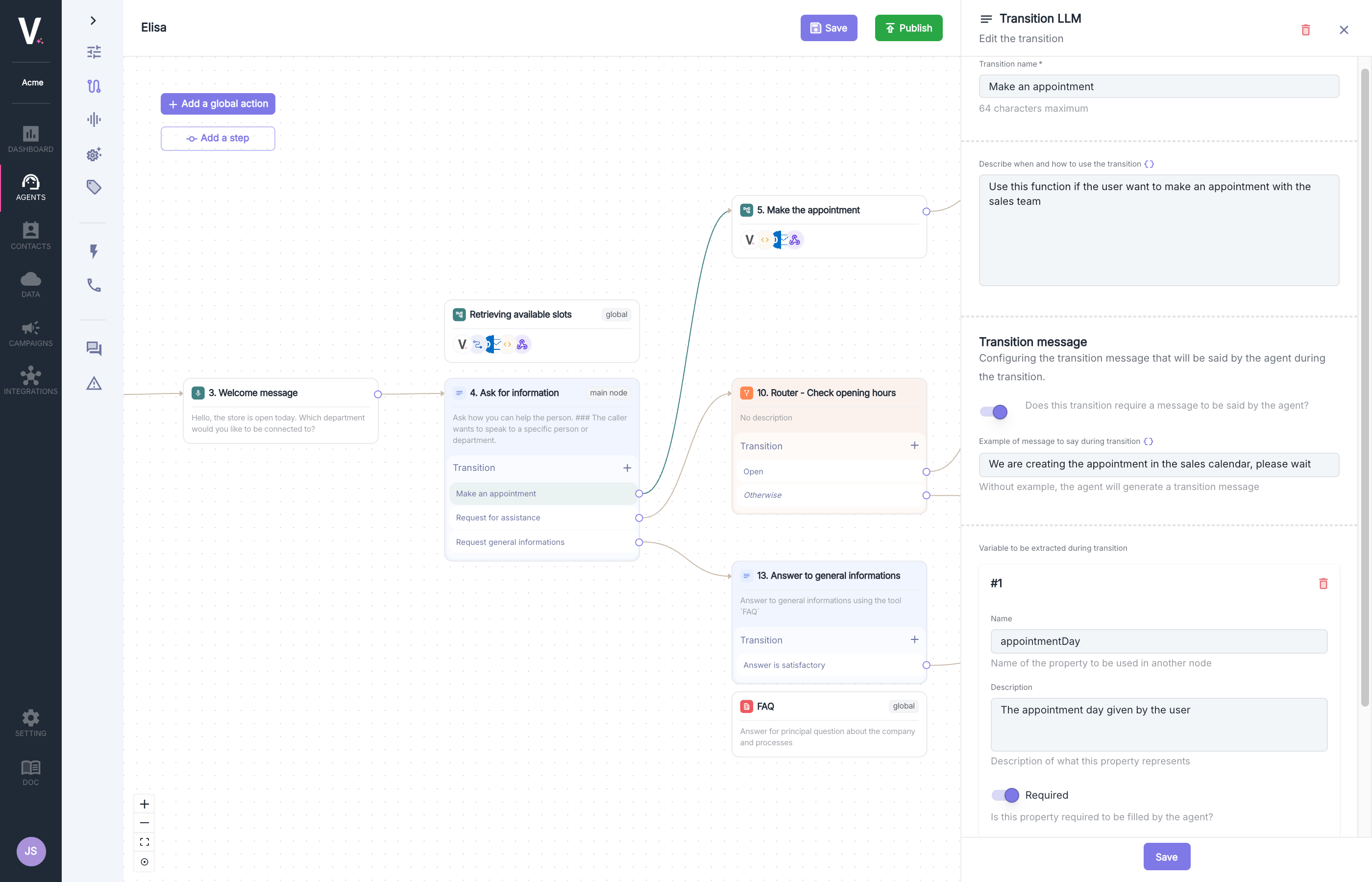 | Field | Description | Required |
| ------------------------------- | ----------------------------------------------------------------- | -------- |
| Transition Name | Descriptive identifier for the transition (maximum 64 characters) | |
| Transition Description (prompt) | Activation conditions for this transition in natural language | |
| Transition Message | Message spoken by the agent during execution (optional) | |
| Extraction Variables | Variables to capture during the transition for later use | |
The prompt can be dynamic by inserting a variable via the data selector. [Use dynamic variables](#variables-and-data-selector)
**Transition Message Configuration**
The interface offers a button to enable the configuration of a custom message:
* **Enable**: Allows you to define a specific message that the agent will say
* **Enable** and **Empty Message**: The agent automatically generates an appropriate transition message
* **Disable**: The agent will not speak during the transition
**Example message:** `"We are creating the appointment in the salesperson's calendar, please wait"`
The transition message can be dynamic by inserting a variable via the data selector. [Use dynamic variables](#variables-and-data-selector)
**Variable Extraction**
This feature allows you to capture information during the transition:
* **Variable Name**: Technical identifier for reference (e.g., `appointmentDay`)
* **Description**: Explanation of what this variable represents (e.g., "The appointment day provided by the user")
* **Required**: Optional configuration to make extraction mandatory
* **Type**: Type of variable to extract (`string`, `number`, `boolean`)
These variables can be reused in other steps of the graph to personalize the conversational experience.
#### Best Practices
* Use natural and precise language in your behavioral instructions
* Systematically test your configurations before deployment
* Structure your instructions with bullet points for clarity
* Define clear variable names for easier maintenance
* Configure informative transition messages to enhance user experience
## Say
The Say node allows the agent to communicate predefined or dynamic vocal messages during the phone interaction.
### Use Cases
* Personalized welcome messages according to context
* Communications of specific information during the call
* Confirmations and vocal acknowledgments
### Configuration Parameters
| Field | Description | Required |
| ------------------------------- | ----------------------------------------------------------------- | -------- |
| Transition Name | Descriptive identifier for the transition (maximum 64 characters) | |
| Transition Description (prompt) | Activation conditions for this transition in natural language | |
| Transition Message | Message spoken by the agent during execution (optional) | |
| Extraction Variables | Variables to capture during the transition for later use | |
The prompt can be dynamic by inserting a variable via the data selector. [Use dynamic variables](#variables-and-data-selector)
**Transition Message Configuration**
The interface offers a button to enable the configuration of a custom message:
* **Enable**: Allows you to define a specific message that the agent will say
* **Enable** and **Empty Message**: The agent automatically generates an appropriate transition message
* **Disable**: The agent will not speak during the transition
**Example message:** `"We are creating the appointment in the salesperson's calendar, please wait"`
The transition message can be dynamic by inserting a variable via the data selector. [Use dynamic variables](#variables-and-data-selector)
**Variable Extraction**
This feature allows you to capture information during the transition:
* **Variable Name**: Technical identifier for reference (e.g., `appointmentDay`)
* **Description**: Explanation of what this variable represents (e.g., "The appointment day provided by the user")
* **Required**: Optional configuration to make extraction mandatory
* **Type**: Type of variable to extract (`string`, `number`, `boolean`)
These variables can be reused in other steps of the graph to personalize the conversational experience.
#### Best Practices
* Use natural and precise language in your behavioral instructions
* Systematically test your configurations before deployment
* Structure your instructions with bullet points for clarity
* Define clear variable names for easier maintenance
* Configure informative transition messages to enhance user experience
## Say
The Say node allows the agent to communicate predefined or dynamic vocal messages during the phone interaction.
### Use Cases
* Personalized welcome messages according to context
* Communications of specific information during the call
* Confirmations and vocal acknowledgments
### Configuration Parameters
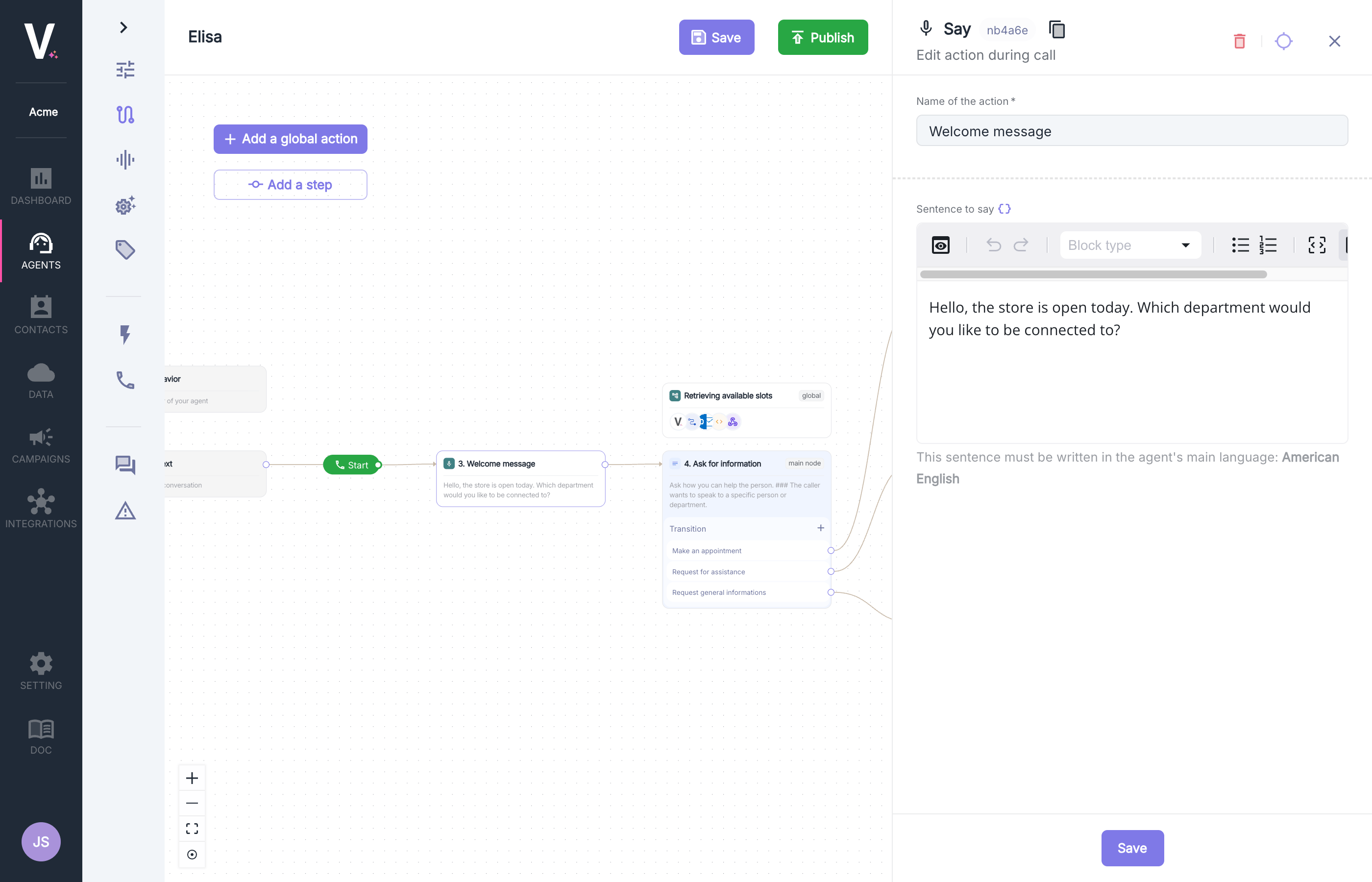 | Field | Description |
| ------------- | ------------------------------------------------------------ |
| Action Name | Name of the node |
| Phrase to Say | Textual content of the message that the agent will pronounce |
The message must be written in the agent's primary language (in this example: American English) to ensure optimal pronunciation.
1. The phrase can be dynamic by inserting a variable via the data selector. [Use dynamic variables](#variables-and-data-selector)
2. #### Best Practices
* Use natural and conversational language
* Avoid overly long phrases that may lose attention
* Integrate variables to personalize the experience
## Call Transfer
The Transfer node enables the intelligent redirection of a call to another agent or an external number. This strategic feature can be configured to execute at different times during the interaction.
### Use Cases
* Transfer to a specialized agent when a particular request is identified
* Redirection to an external service outside of business hours
* Automatic escalation to technical support for complex issues
### Configuration Parameters
| Field | Description |
| ------------- | ------------------------------------------------------------ |
| Action Name | Name of the node |
| Phrase to Say | Textual content of the message that the agent will pronounce |
The message must be written in the agent's primary language (in this example: American English) to ensure optimal pronunciation.
1. The phrase can be dynamic by inserting a variable via the data selector. [Use dynamic variables](#variables-and-data-selector)
2. #### Best Practices
* Use natural and conversational language
* Avoid overly long phrases that may lose attention
* Integrate variables to personalize the experience
## Call Transfer
The Transfer node enables the intelligent redirection of a call to another agent or an external number. This strategic feature can be configured to execute at different times during the interaction.
### Use Cases
* Transfer to a specialized agent when a particular request is identified
* Redirection to an external service outside of business hours
* Automatic escalation to technical support for complex issues
### Configuration Parameters
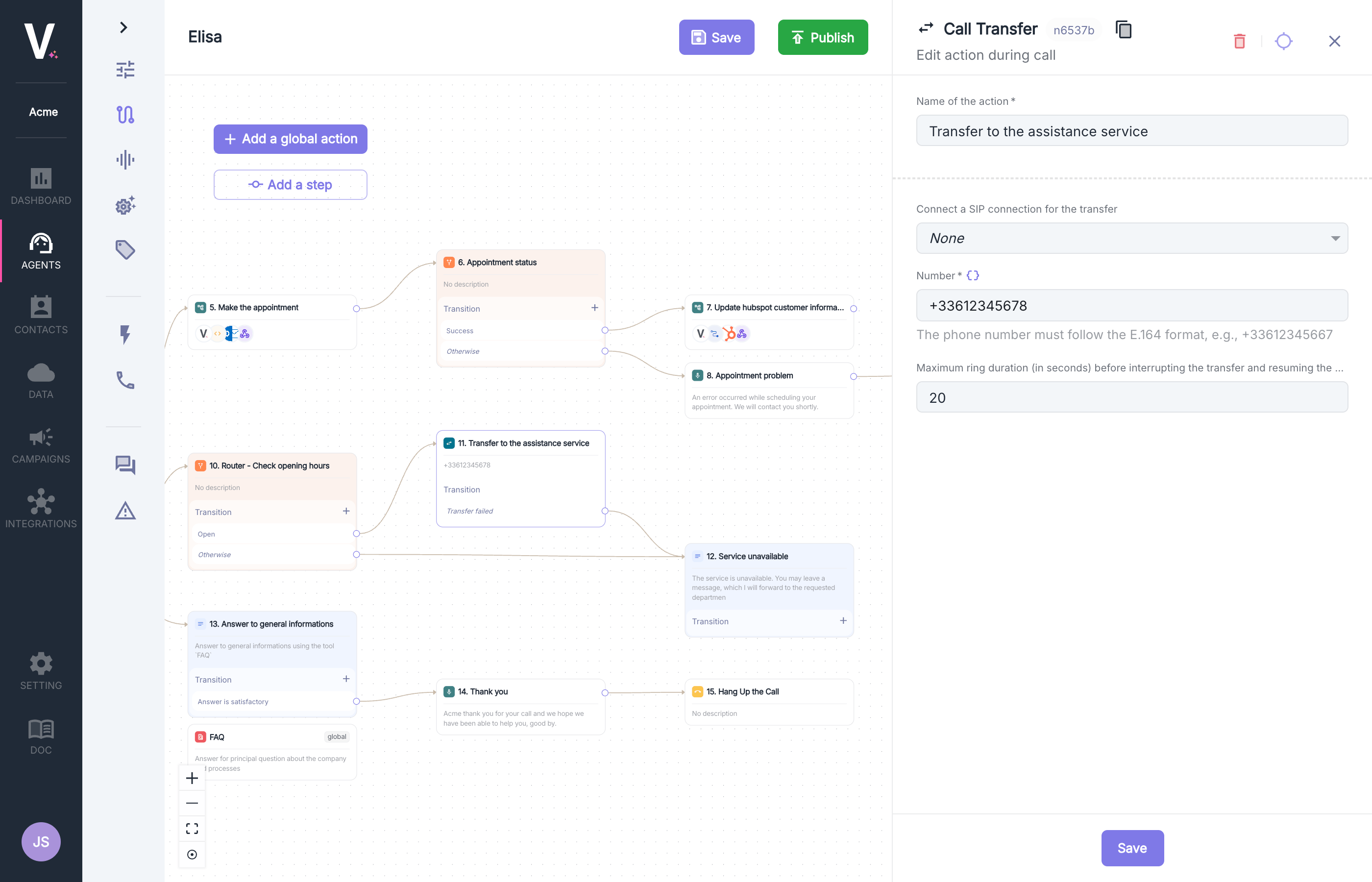 When configuring a transfer action, please provide the following information:
| Field | Description |
| --------------------- | ------------------------------------------------------------------------------------------------------------------------------------- |
| Action Name | Name of the node |
| SIP Connection | Selection of an existing SIP connection for the transfer (optional) |
| Maximum Ring Duration | Maximum ring duration (in seconds) before interrupting the transfer and resuming the call by the agent (Min 5s, Max 45s, Default 20s) |
### Adding a Transfer Number
When configuring a transfer action, please provide the following information:
| Field | Description |
| --------------------- | ------------------------------------------------------------------------------------------------------------------------------------- |
| Action Name | Name of the node |
| SIP Connection | Selection of an existing SIP connection for the transfer (optional) |
| Maximum Ring Duration | Maximum ring duration (in seconds) before interrupting the transfer and resuming the call by the agent (Min 5s, Max 45s, Default 20s) |
### Adding a Transfer Number
 Add a phone number by entering a number in the international E.164 format (e.g., `+33612375667`).
The phone number (in international E.164 format, e.g., `+33612375667`) can be dynamically injected by inserting a variable via the data selector. [Use dynamic variables](#variables-and-data-selector)
### SIP Connection
Add a phone number by entering a number in the international E.164 format (e.g., `+33612375667`).
The phone number (in international E.164 format, e.g., `+33612375667`) can be dynamically injected by inserting a variable via the data selector. [Use dynamic variables](#variables-and-data-selector)
### SIP Connection
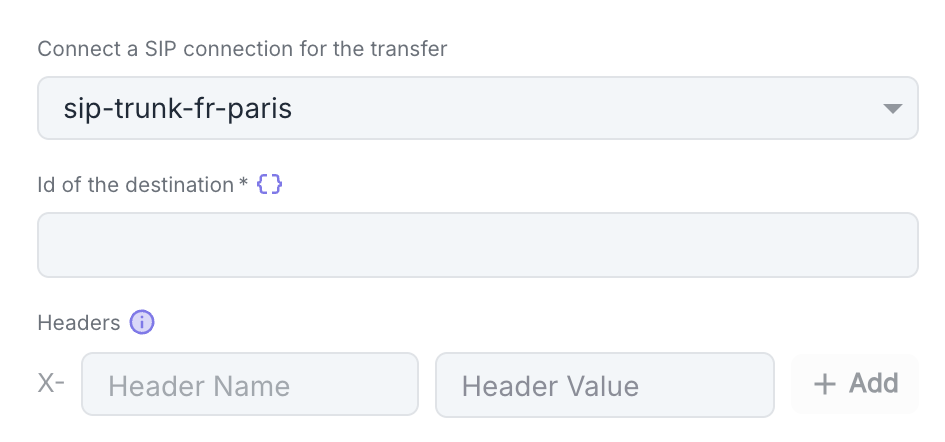 If you have one or more existing SIP configuration(s) (see [SIP Connection](/en/telephony/outgoing-calls#integration-sip)), you can use them as the destination for the transfer action. Alternatively, enter the SIP identifier of your destination instead of a standard phone number.
**Custom Headers**
You can configure additional SIP headers specific to this transfer:
1. Click **Add** to add a new header
2. For each header, specify:
* **Header Name**: Name of the SIP header
* **Header Value**: Value associated with this header
The destination ID and the value of a header can be dynamically injected by inserting a variable via the data selector. [Use dynamic variables](#variables-and-data-selector)
### Maximum Ring Duration
If you have one or more existing SIP configuration(s) (see [SIP Connection](/en/telephony/outgoing-calls#integration-sip)), you can use them as the destination for the transfer action. Alternatively, enter the SIP identifier of your destination instead of a standard phone number.
**Custom Headers**
You can configure additional SIP headers specific to this transfer:
1. Click **Add** to add a new header
2. For each header, specify:
* **Header Name**: Name of the SIP header
* **Header Value**: Value associated with this header
The destination ID and the value of a header can be dynamically injected by inserting a variable via the data selector. [Use dynamic variables](#variables-and-data-selector)
### Maximum Ring Duration
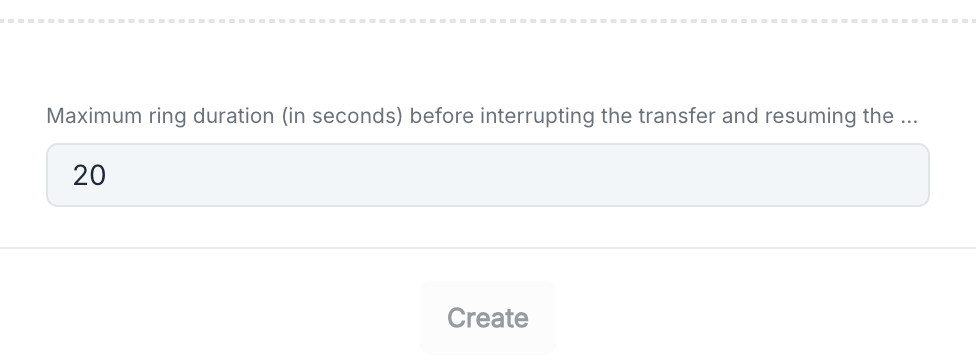 You can adjust the maximum wait time before considering the transfer to have failed. The default parameter is `20 seconds` (Min 5s, Max 45s).
#### Best Practices
* Define time slots aligned with the actual availability of your teams
* Use clear descriptions for each transfer destination
* Perform comprehensive testing of the transfer journey to ensure a smooth experience
### Transfer List
The Transfer List node enables the intelligent selection of a transfer recipient from a predefined list of contacts or services. This feature seamlessly integrates into the conversational graph to automatically guide the caller to the right interlocutor.
### Use Cases
* Automatic selection of the appropriate service based on the customer's request
* Transfer to a specialist according to predefined criteria
* Centralized management of transfer contacts by service category
### Configuration Parameters
You can adjust the maximum wait time before considering the transfer to have failed. The default parameter is `20 seconds` (Min 5s, Max 45s).
#### Best Practices
* Define time slots aligned with the actual availability of your teams
* Use clear descriptions for each transfer destination
* Perform comprehensive testing of the transfer journey to ensure a smooth experience
### Transfer List
The Transfer List node enables the intelligent selection of a transfer recipient from a predefined list of contacts or services. This feature seamlessly integrates into the conversational graph to automatically guide the caller to the right interlocutor.
### Use Cases
* Automatic selection of the appropriate service based on the customer's request
* Transfer to a specialist according to predefined criteria
* Centralized management of transfer contacts by service category
### Configuration Parameters
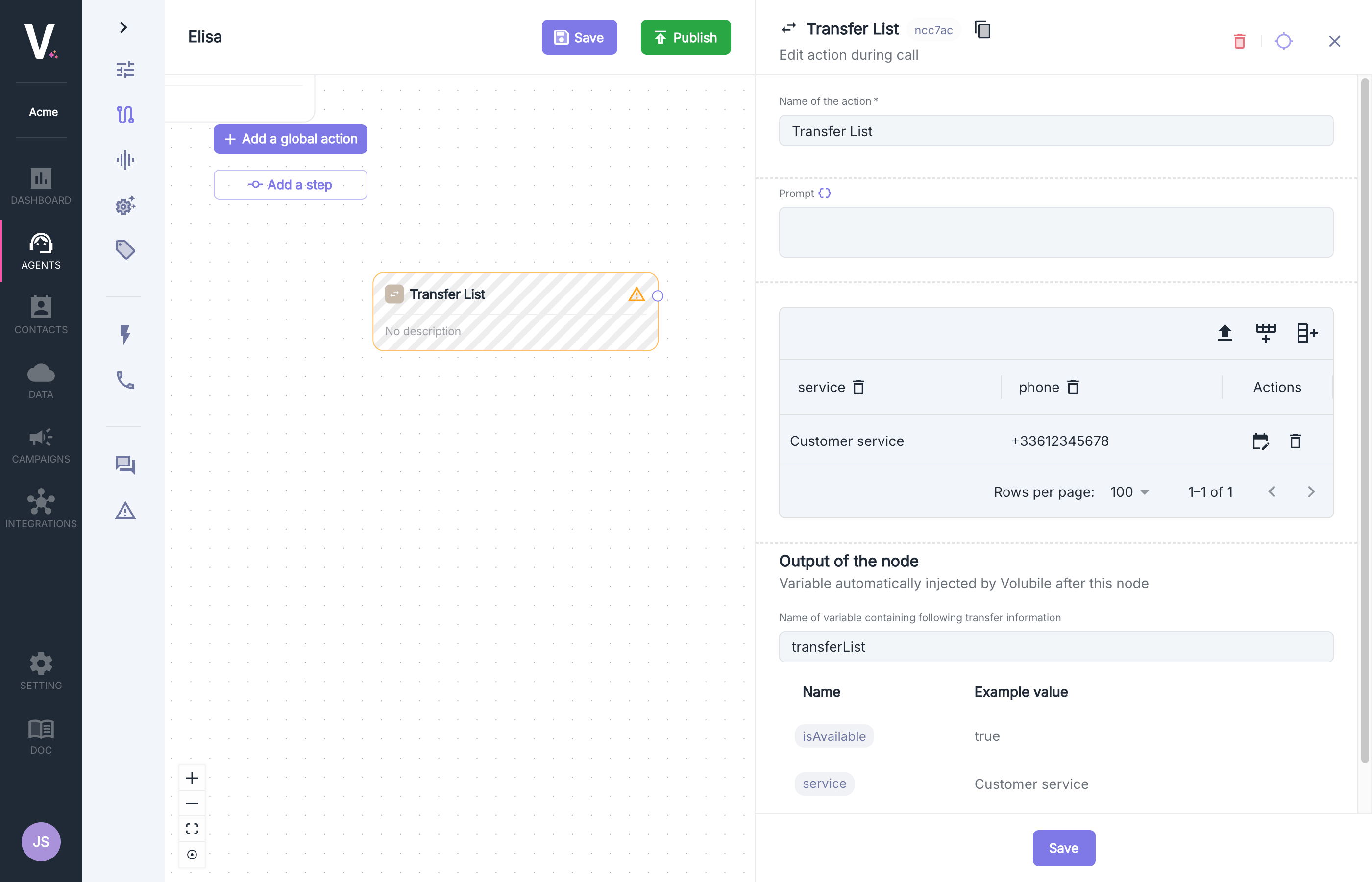 | Field | Description |
| ----------- | -------------------------------------------------------------------------- |
| Action Name | Name of the node |
| Prompt | Contextual instructions defining the activation conditions for this action |
## Transfer List
The interface allows you to configure a structured list of contacts with all the necessary information:
| Column | Description |
| ----------- | --------------------------------------------------- |
| **column1** | e.g., Name or description of the service/department |
| **column2** | e.g., Phone number in international format |
| **...** | |
| **Actions** | Options for modifying and deleting entries |
### Restricting Hours
| Field | Description |
| ----------- | -------------------------------------------------------------------------- |
| Action Name | Name of the node |
| Prompt | Contextual instructions defining the activation conditions for this action |
## Transfer List
The interface allows you to configure a structured list of contacts with all the necessary information:
| Column | Description |
| ----------- | --------------------------------------------------- |
| **column1** | e.g., Name or description of the service/department |
| **column2** | e.g., Phone number in international format |
| **...** | |
| **Actions** | Options for modifying and deleting entries |
### Restricting Hours
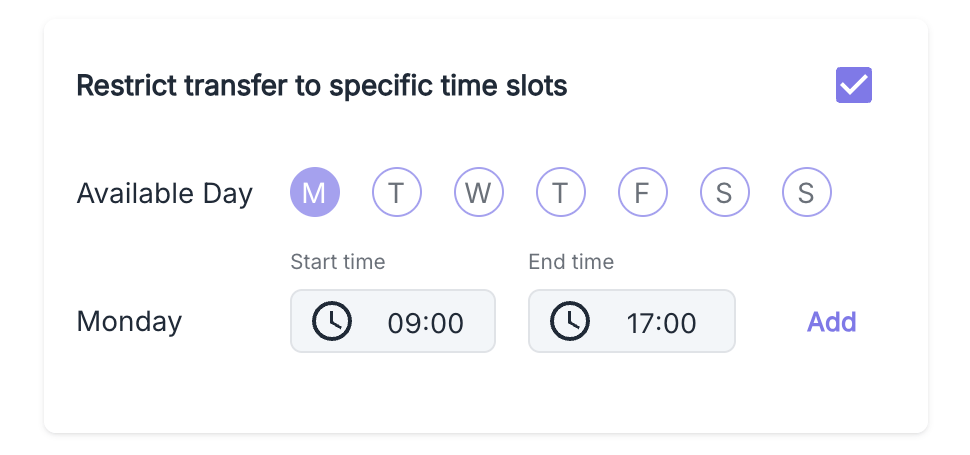 You can precisely define, by row of the table, the time slots that permit transfers:
1. Click on the **Edit Availability** icon in the corresponding row's actions
2. Select eligible days (Monday, Tuesday, Wednesday, Thursday, Friday, Saturday, Sunday)
3. Define the available hours (e.g., 09:00 - 17:00)
4. Click **Add** to validate this time slot.
1) You have the option to define multiple daily time slots by selecting new time slots and clicking **Add** again
2) A hidden column `isAvailable` will be automatically added to your row and as an output variable of the node to allow reusing the information in the following nodes
#### Best Practices
* Use clear and explicit service descriptions
* Regularly check the validity of phone numbers
* Organize your services by frequency of use
### Output Variables
The execution of this action automatically generates a `transferList` variable (the name of the variable is modifiable) that is an array of objects containing the previously configured information:
```json transferList theme={null}
[
{
"service": "Support",
"phone": "+33612345679",
"isAvailable": false
},
{
"service": "Customer service",
"phone": "+33612345678",
"isAvailable": false
}
]
```
The variable `transferList` will be reusable in subsequent nodes of your graph and can be dynamically injected via the data selector. [Use dynamic variables](#variables-and-data-selector)
## List
The List node allows the creation and management of structured data lists usable throughout the interaction. This feature offers maximum flexibility for organizing and processing static information.
### Configuration Parameters
Two operating modes are available:
Table mode allows for direct input of structured lists through a tabular interface.
You can precisely define, by row of the table, the time slots that permit transfers:
1. Click on the **Edit Availability** icon in the corresponding row's actions
2. Select eligible days (Monday, Tuesday, Wednesday, Thursday, Friday, Saturday, Sunday)
3. Define the available hours (e.g., 09:00 - 17:00)
4. Click **Add** to validate this time slot.
1) You have the option to define multiple daily time slots by selecting new time slots and clicking **Add** again
2) A hidden column `isAvailable` will be automatically added to your row and as an output variable of the node to allow reusing the information in the following nodes
#### Best Practices
* Use clear and explicit service descriptions
* Regularly check the validity of phone numbers
* Organize your services by frequency of use
### Output Variables
The execution of this action automatically generates a `transferList` variable (the name of the variable is modifiable) that is an array of objects containing the previously configured information:
```json transferList theme={null}
[
{
"service": "Support",
"phone": "+33612345679",
"isAvailable": false
},
{
"service": "Customer service",
"phone": "+33612345678",
"isAvailable": false
}
]
```
The variable `transferList` will be reusable in subsequent nodes of your graph and can be dynamically injected via the data selector. [Use dynamic variables](#variables-and-data-selector)
## List
The List node allows the creation and management of structured data lists usable throughout the interaction. This feature offers maximum flexibility for organizing and processing static information.
### Configuration Parameters
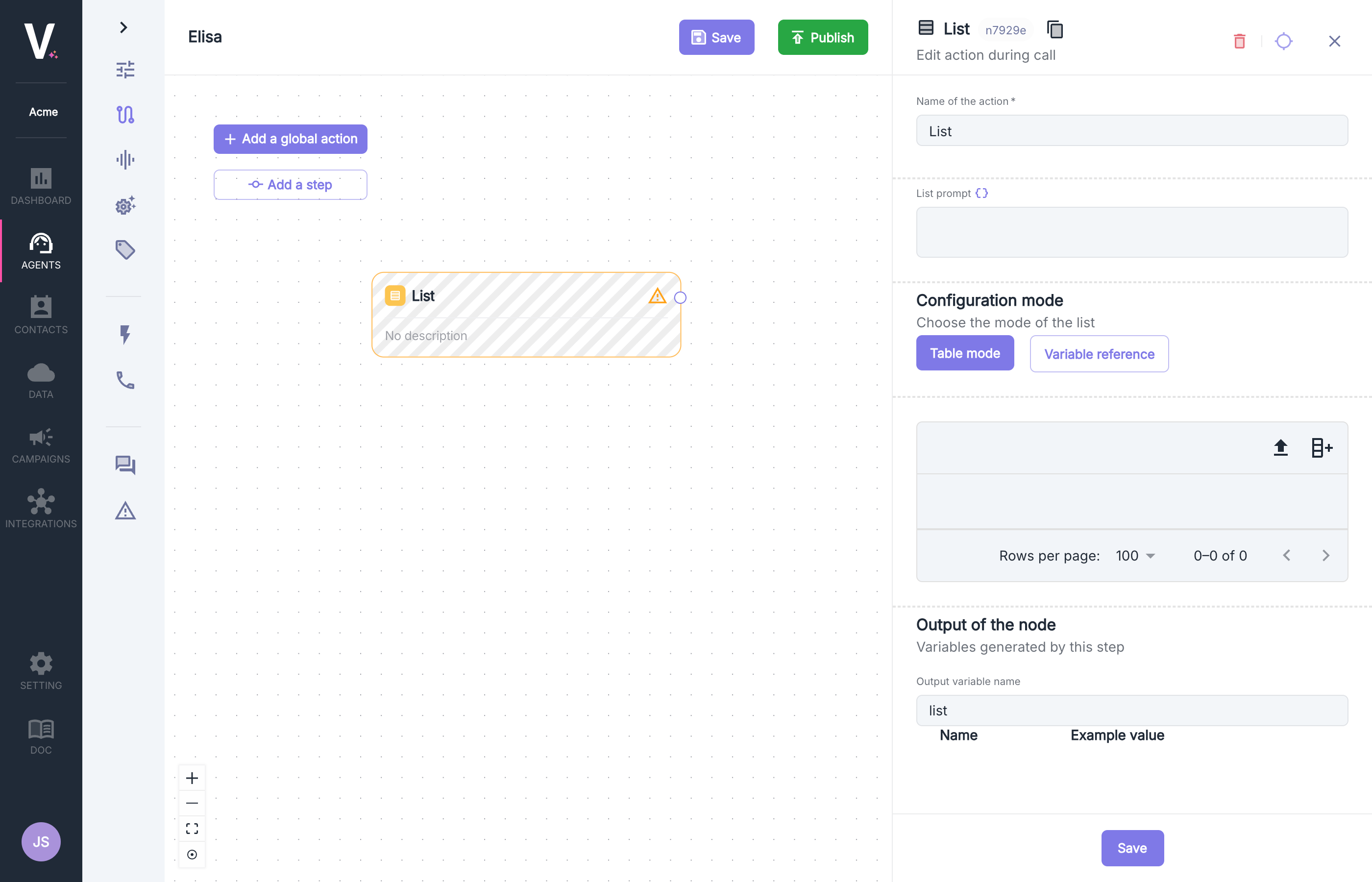
Two operating modes are available:
Table mode allows for direct input of structured lists through a tabular interface.
 Variable reference mode allows for the use of lists generated by other actions by referencing an `array` type variable from the data selector. [Use dynamic variables](#variables-and-data-selector)
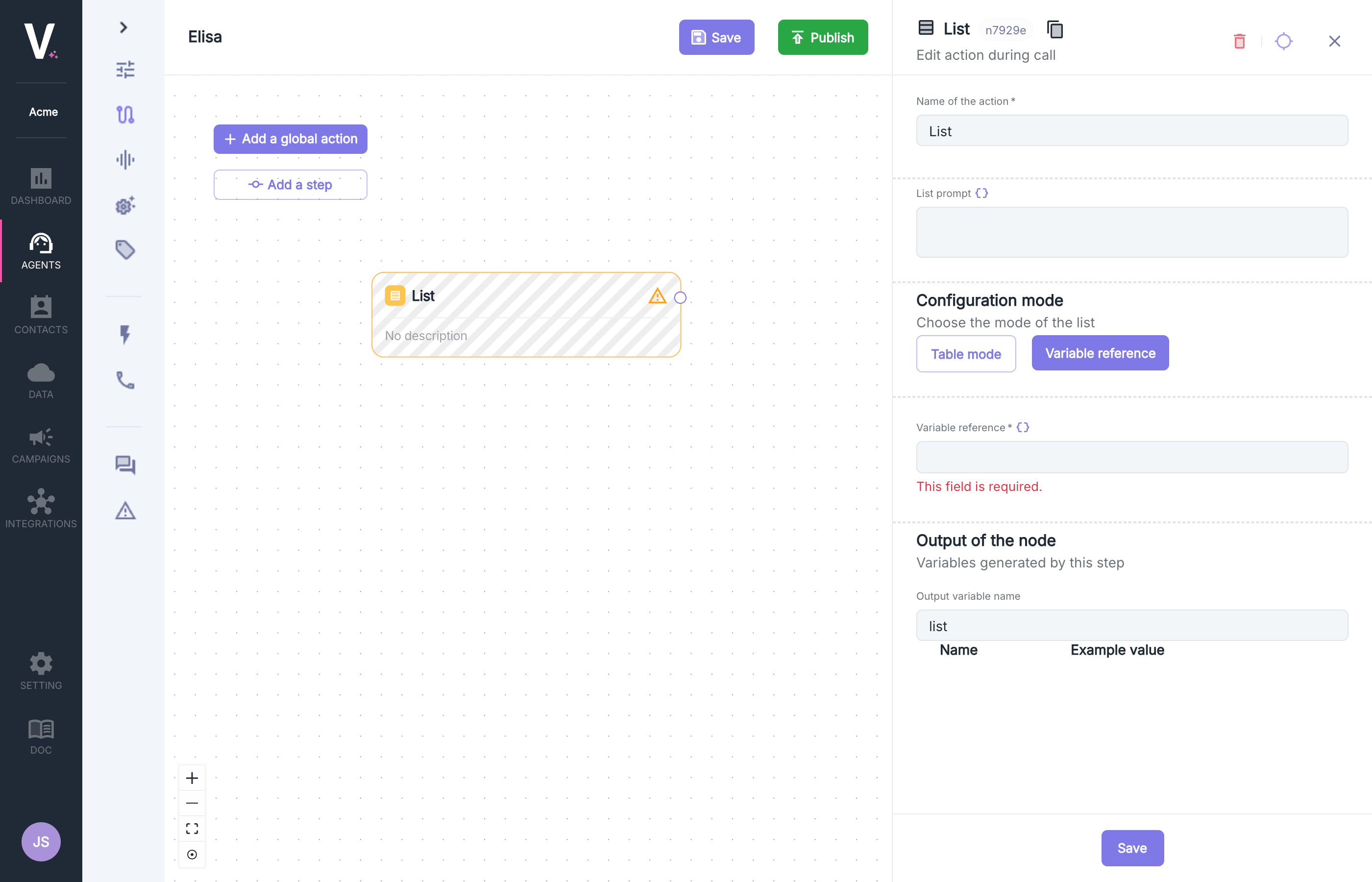 | Field | Description |
| ------------------ | ------------------------------------------------------- |
| Action Name | Name of the node |
| List Prompt | Contextual instructions for using this list |
| Configuration Mode | Selection between "Table Mode" and "Variable Reference" |
### List Configuration
The interface allows for configuring a structured list with all your specific information:
| Column | Description |
| ----------- | --------------------------------------------------- |
| **column1** | e.g., Name or description of the service/department |
| **column2** | e.g., Phone number in international format |
| **...** | |
| **Actions** | Options for modifying and deleting entries |
#### Best Practices
* Structure your data consistently
* Use explicit column names
### Output Variables
The execution of this action automatically generates a `list` variable (modifiable) that is an array of objects containing the previously configured information:
```json list theme={null}
[
{
"service": "Support",
"phone": "+33612345679"
},
{
"service": "Customer service",
"phone": "+33612345678"
}
]
```
The variable `list` will be reusable in subsequent nodes of your graph and can be dynamically injected via the data selector. [Use dynamic variables](#variables-and-data-selector)
## Workflow
This feature allows for developing sophisticated integrations with your external systems during the course of your communications.
### Configuration Parameters
| Field | Description |
| ------------------ | ------------------------------------------------------- |
| Action Name | Name of the node |
| List Prompt | Contextual instructions for using this list |
| Configuration Mode | Selection between "Table Mode" and "Variable Reference" |
### List Configuration
The interface allows for configuring a structured list with all your specific information:
| Column | Description |
| ----------- | --------------------------------------------------- |
| **column1** | e.g., Name or description of the service/department |
| **column2** | e.g., Phone number in international format |
| **...** | |
| **Actions** | Options for modifying and deleting entries |
#### Best Practices
* Structure your data consistently
* Use explicit column names
### Output Variables
The execution of this action automatically generates a `list` variable (modifiable) that is an array of objects containing the previously configured information:
```json list theme={null}
[
{
"service": "Support",
"phone": "+33612345679"
},
{
"service": "Customer service",
"phone": "+33612345678"
}
]
```
The variable `list` will be reusable in subsequent nodes of your graph and can be dynamically injected via the data selector. [Use dynamic variables](#variables-and-data-selector)
## Workflow
This feature allows for developing sophisticated integrations with your external systems during the course of your communications.
### Configuration Parameters
 | Field | Description |
| ----------------- | ---------------------------------------------------------------- |
| Action Name | Name of the node |
| Select a Workflow | Selection of the workflow to call that was previously configured |
| var1 | Variable var1 requested as input for the workflow |
| var2 | Variable var2 requested as input for the workflow |
| ... | |
Input variables for the workflow (var1, var2, ...) can be dynamically injected by inserting a variable via the data selector. [Use dynamic variables](#variables-and-data-selector)
See how to configure workflows
### Output Variables
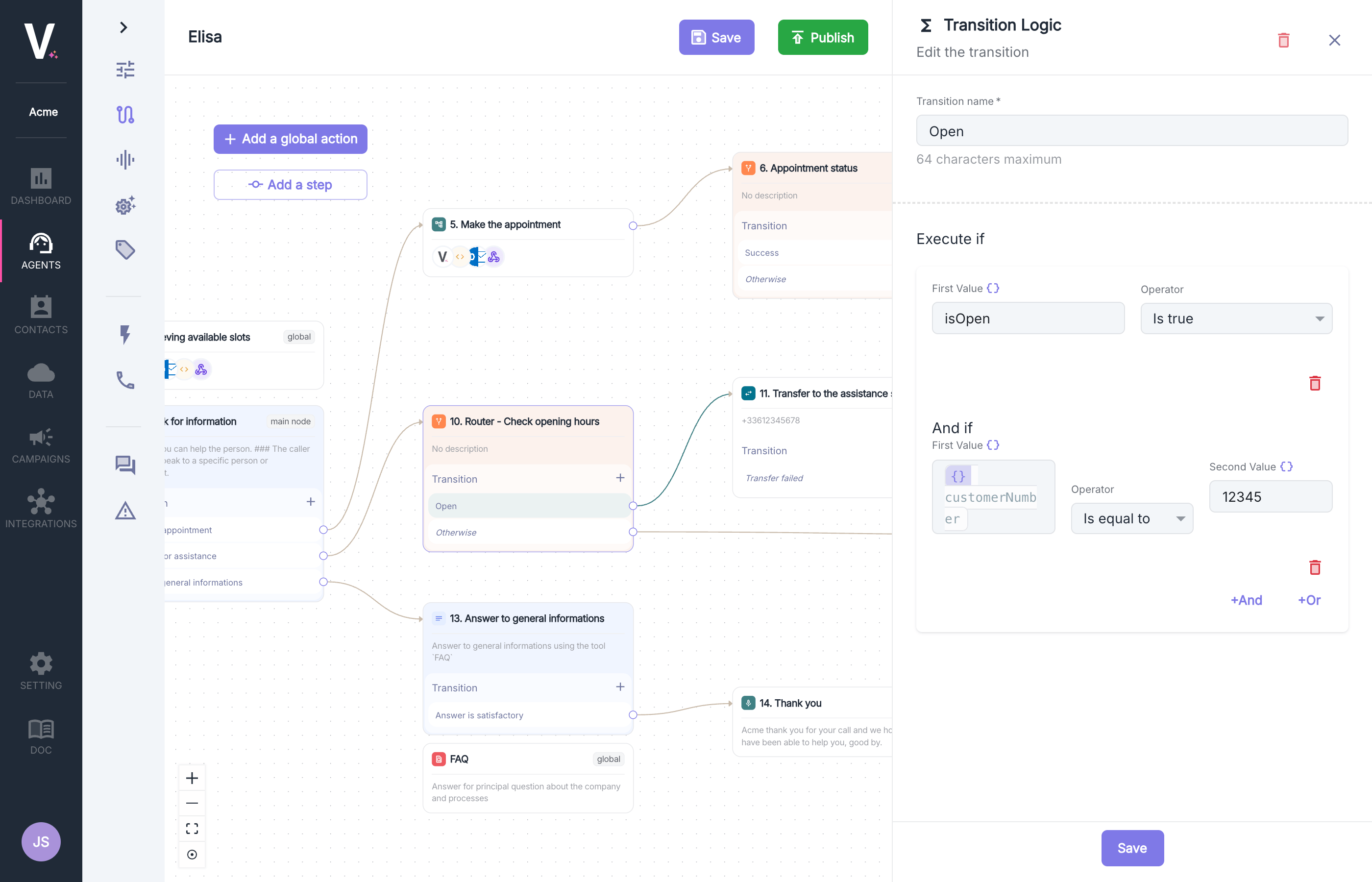
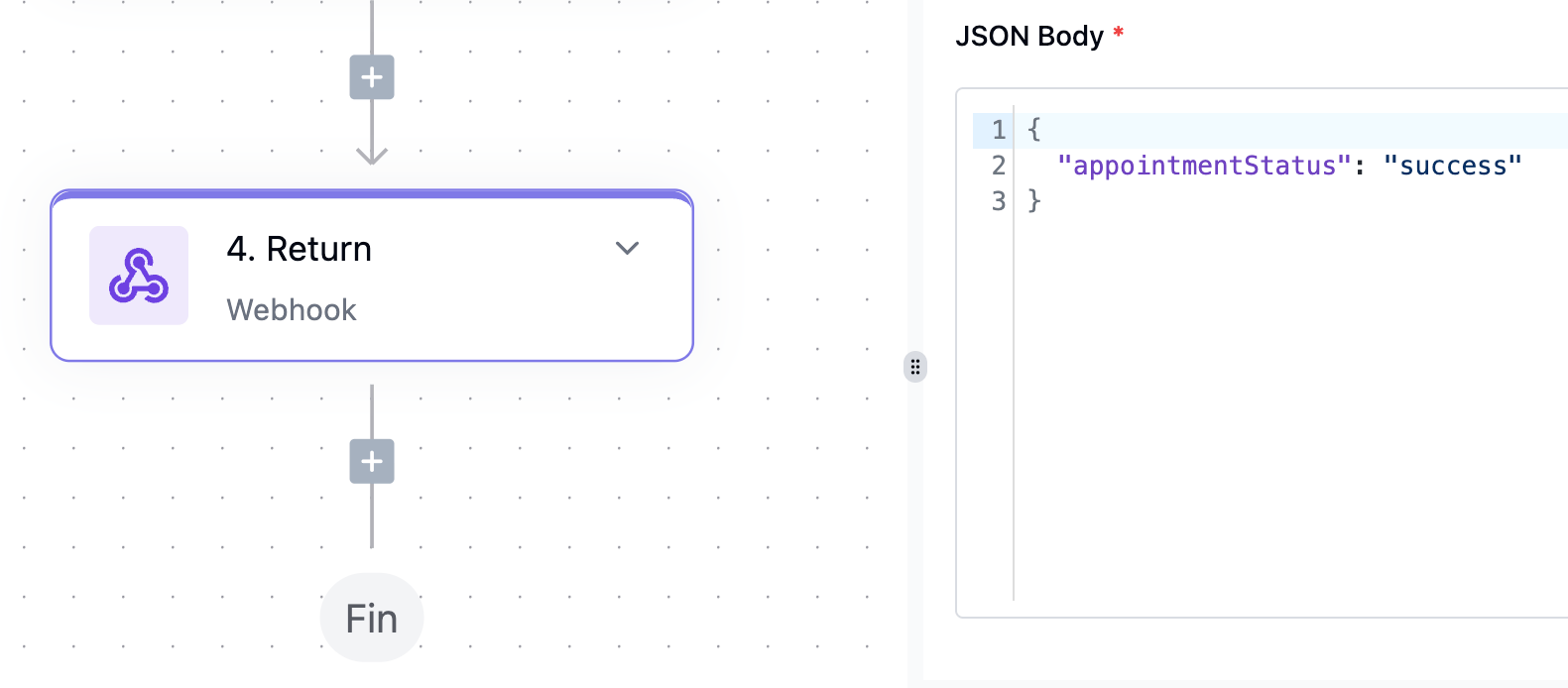
The execution of this workflow must generate a `json` data structure as output to be used as a variable in subsequent nodes.
You will be able to copy this return in the last step of your workflow and paste it here so that this data structure is taken into account in the data selector. [Use dynamic variables](#variables-and-data-selector).
| Field | Description |
| ----------------- | ---------------------------------------------------------------- |
| Action Name | Name of the node |
| Select a Workflow | Selection of the workflow to call that was previously configured |
| var1 | Variable var1 requested as input for the workflow |
| var2 | Variable var2 requested as input for the workflow |
| ... | |
Input variables for the workflow (var1, var2, ...) can be dynamically injected by inserting a variable via the data selector. [Use dynamic variables](#variables-and-data-selector)
See how to configure workflows
### Output Variables
The execution of this workflow must generate a `json` data structure as output to be used as a variable in subsequent nodes.
You will be able to copy this return in the last step of your workflow and paste it here so that this data structure is taken into account in the data selector. [Use dynamic variables](#variables-and-data-selector).
 ## Router
Configuring a hang-up action requires defining the following parameters:
### Configuration Parameters
## Router
Configuring a hang-up action requires defining the following parameters:
### Configuration Parameters
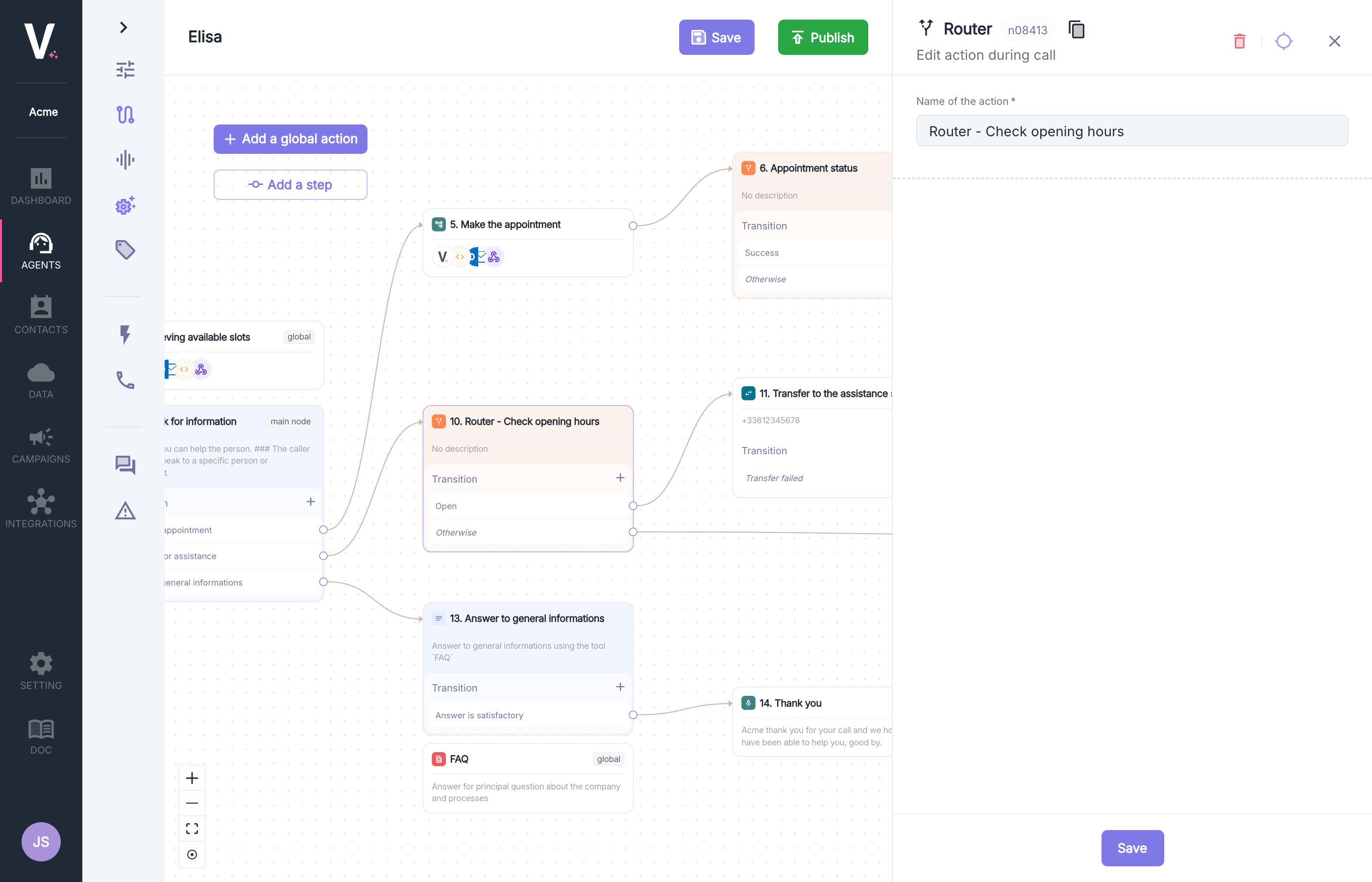 | Parameter | Description |
| ----------- | ---------------- |
| Action Name | Name of the node |
### Use Cases
* Creation of conditional branches based on the interlocutor's responses
* Intelligent routing based on customer or contextual data
* Implementation of complex business logic with multiple conditions
* Personalization of conversation pathways based on variable parameters
### Transition Conditions
The Router action allows creating conditional branches in your conversation graph by defining complex logical rules. This strategic feature gives you the opportunity to guide your agent's behavior based on specific criteria and multiple conditions.
| Parameter | Description |
| ----------- | ---------------- |
| Action Name | Name of the node |
### Use Cases
* Creation of conditional branches based on the interlocutor's responses
* Intelligent routing based on customer or contextual data
* Implementation of complex business logic with multiple conditions
* Personalization of conversation pathways based on variable parameters
### Transition Conditions
The Router action allows creating conditional branches in your conversation graph by defining complex logical rules. This strategic feature gives you the opportunity to guide your agent's behavior based on specific criteria and multiple conditions.
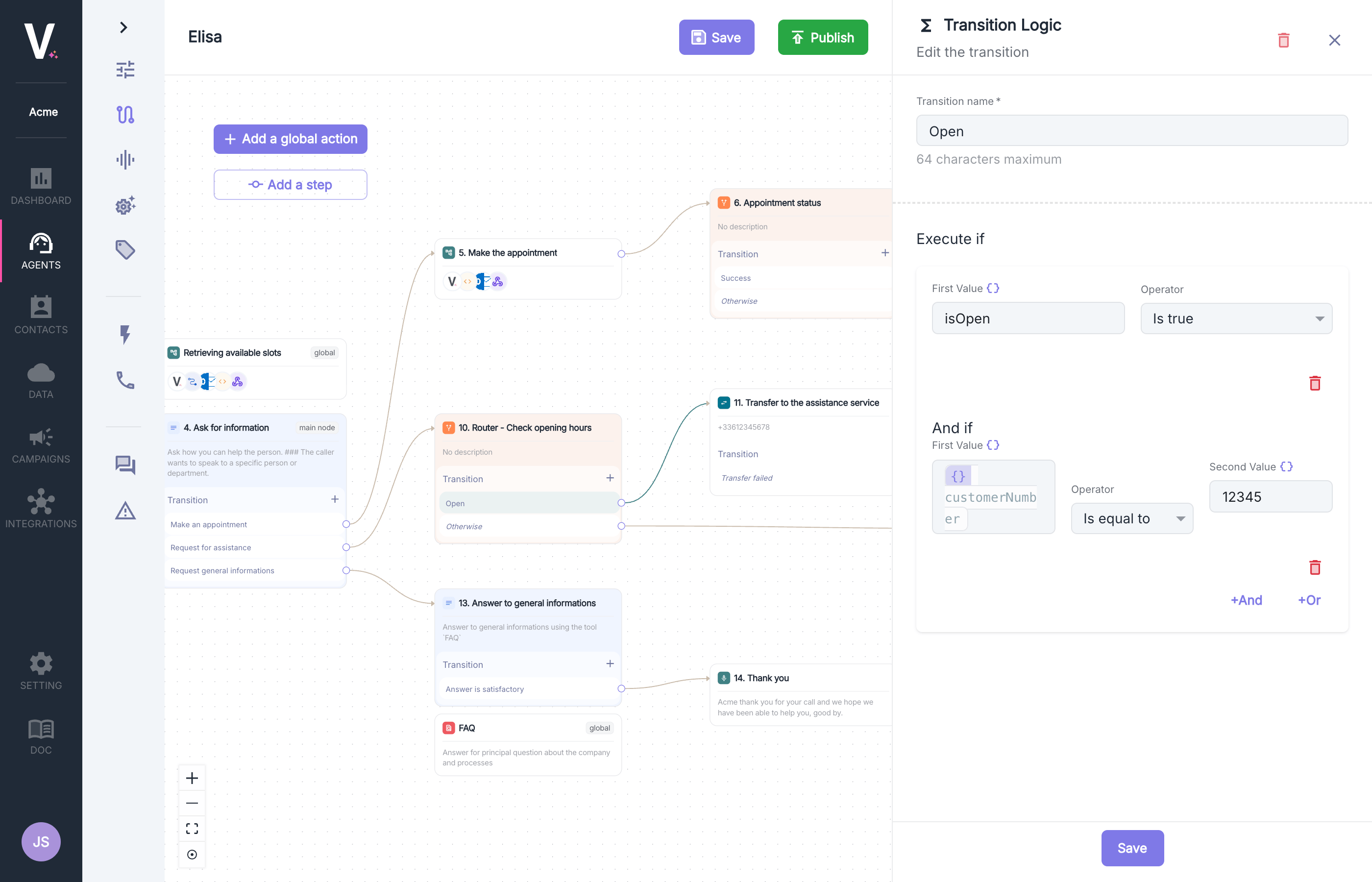 **Execute If (primary condition)**
Defines the primary condition that determines the execution of this branch:
* **First Value**: Enter the variable or value to evaluate (e.g., `isOpen`, `customerNumber`)
* **Operator**: Select the comparison operator appropriate for the data type
* **Second Value (optional depending on the operator)**: Reference value for comparison (e.g., `12345`)
**And If (additional conditions)**
Allows you to add additional conditions to refine the logic.
The first and second values can be dynamic by inserting a variable via the data selector. [Use dynamic variables](#variables-and-data-selector)
### Available Operators
The platform offers a complete range of operators for building your conditions:
**Boolean Operators**
* `Is false`: Checks if the value is false
* `Is true`: Checks if the value is true
**Date Operators**
* `Is after`: Checks if the date is later
* `Is before`: Checks if the date is earlier
* `Is equal to`: Checks date equality
**Field Operators**
* `Does not exist`: Checks for the absence of the field
* `Exists`: Checks for the presence of the field
**List Operators**
* `Contains`: Checks if the list contains the item
* `Does not contain`: Checks for the absence of the item
* `Is empty`: Checks if the list is empty
* `Is not empty`: Checks if the list contains items
**Temporal Operators (relative to now, at the time of the call)**
* `In timeslot`: Checks if within the time slot
* `Not in timeslot`: Checks if outside the time slot
**Numeric Operators**
* `Is equal to`: Numeric equality
* `Is greater than`: Strict superiority
* `Is less than`: Strict inferiority
**Text Operators**
* `Contains`: Contains the substring
* `Does not contain`: Does not contain the substring
* `Does not end with`: Does not end with
* `Does not exactly match`: Does not match exactly
* `Does not start with`: Does not start with
* `Ends with`: Ends with
* `Exactly matches`: Matches exactly
* `Starts with`: Starts with
### Advanced Conditional Logic
**Combining Conditions**
* Use the `+And` and `+Or` buttons to create complex logics
* Combine multiple conditions with boolean operators
* Create sophisticated routing rules for complex business scenarios
**Example Configuration:**
```
Transition Name: "Open"
Execute if:
- First Value: isOpen
- Operator: Is true
And if:
- First Value: customerNumber
- Operator: Is equal to
- Second Value: 12345
```
#### Best Practices
* Use explicit transition names for easier maintenance
* Test each conditional branch individually
* Document business logic for easier future modifications
* Avoid overly complex conditions that could create errors
## Hang Up
The hang-up action allows for controlled termination of a communication under specifically defined conditions. This feature can be implemented at various stages of the interaction.
A default hang-up mechanism (not visible in this interface) is already integrated to avoid interaction loops while preserving the quality of the user experience.
**Execute If (primary condition)**
Defines the primary condition that determines the execution of this branch:
* **First Value**: Enter the variable or value to evaluate (e.g., `isOpen`, `customerNumber`)
* **Operator**: Select the comparison operator appropriate for the data type
* **Second Value (optional depending on the operator)**: Reference value for comparison (e.g., `12345`)
**And If (additional conditions)**
Allows you to add additional conditions to refine the logic.
The first and second values can be dynamic by inserting a variable via the data selector. [Use dynamic variables](#variables-and-data-selector)
### Available Operators
The platform offers a complete range of operators for building your conditions:
**Boolean Operators**
* `Is false`: Checks if the value is false
* `Is true`: Checks if the value is true
**Date Operators**
* `Is after`: Checks if the date is later
* `Is before`: Checks if the date is earlier
* `Is equal to`: Checks date equality
**Field Operators**
* `Does not exist`: Checks for the absence of the field
* `Exists`: Checks for the presence of the field
**List Operators**
* `Contains`: Checks if the list contains the item
* `Does not contain`: Checks for the absence of the item
* `Is empty`: Checks if the list is empty
* `Is not empty`: Checks if the list contains items
**Temporal Operators (relative to now, at the time of the call)**
* `In timeslot`: Checks if within the time slot
* `Not in timeslot`: Checks if outside the time slot
**Numeric Operators**
* `Is equal to`: Numeric equality
* `Is greater than`: Strict superiority
* `Is less than`: Strict inferiority
**Text Operators**
* `Contains`: Contains the substring
* `Does not contain`: Does not contain the substring
* `Does not end with`: Does not end with
* `Does not exactly match`: Does not match exactly
* `Does not start with`: Does not start with
* `Ends with`: Ends with
* `Exactly matches`: Matches exactly
* `Starts with`: Starts with
### Advanced Conditional Logic
**Combining Conditions**
* Use the `+And` and `+Or` buttons to create complex logics
* Combine multiple conditions with boolean operators
* Create sophisticated routing rules for complex business scenarios
**Example Configuration:**
```
Transition Name: "Open"
Execute if:
- First Value: isOpen
- Operator: Is true
And if:
- First Value: customerNumber
- Operator: Is equal to
- Second Value: 12345
```
#### Best Practices
* Use explicit transition names for easier maintenance
* Test each conditional branch individually
* Document business logic for easier future modifications
* Avoid overly complex conditions that could create errors
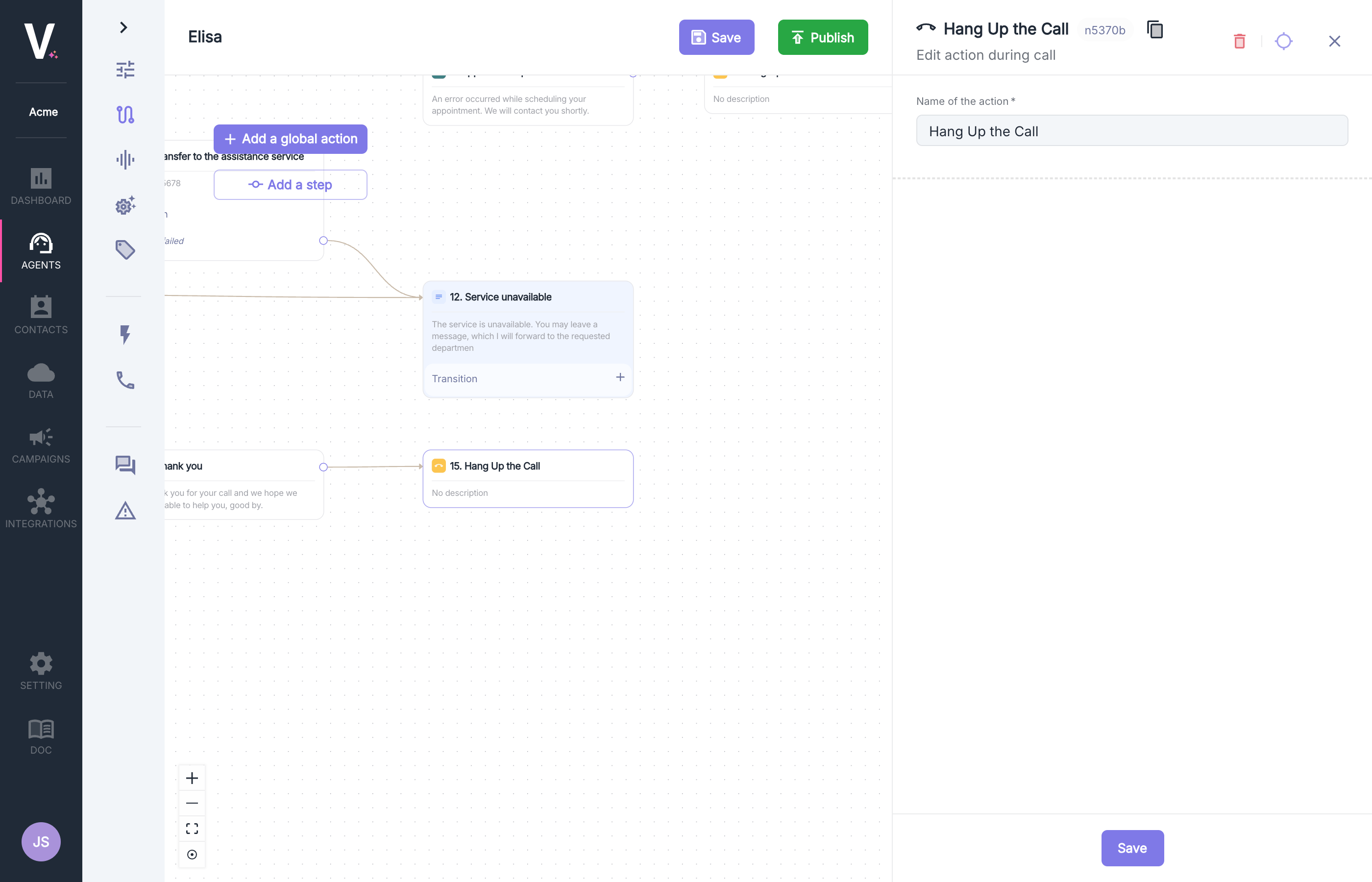
## Hang Up
The hang-up action allows for controlled termination of a communication under specifically defined conditions. This feature can be implemented at various stages of the interaction.
A default hang-up mechanism (not visible in this interface) is already integrated to avoid interaction loops while preserving the quality of the user experience.
 ### Use Cases
The hang-up action is particularly relevant when all conversation objectives have been achieved.
### Configuration Parameters
Configuring a hang-up action requires defining the following parameters:
| Parameter | Description |
| ----------- | ---------------- |
| Action Name | Name of the node |
### Use Cases
The hang-up action is particularly relevant when all conversation objectives have been achieved.
### Configuration Parameters
Configuring a hang-up action requires defining the following parameters:
| Parameter | Description |
| ----------- | ---------------- |
| Action Name | Name of the node |