> ## Documentation Index
> Fetch the complete documentation index at: https://docs.volubile.ai/llms.txt
> Use this file to discover all available pages before exploring further.
# Introduction
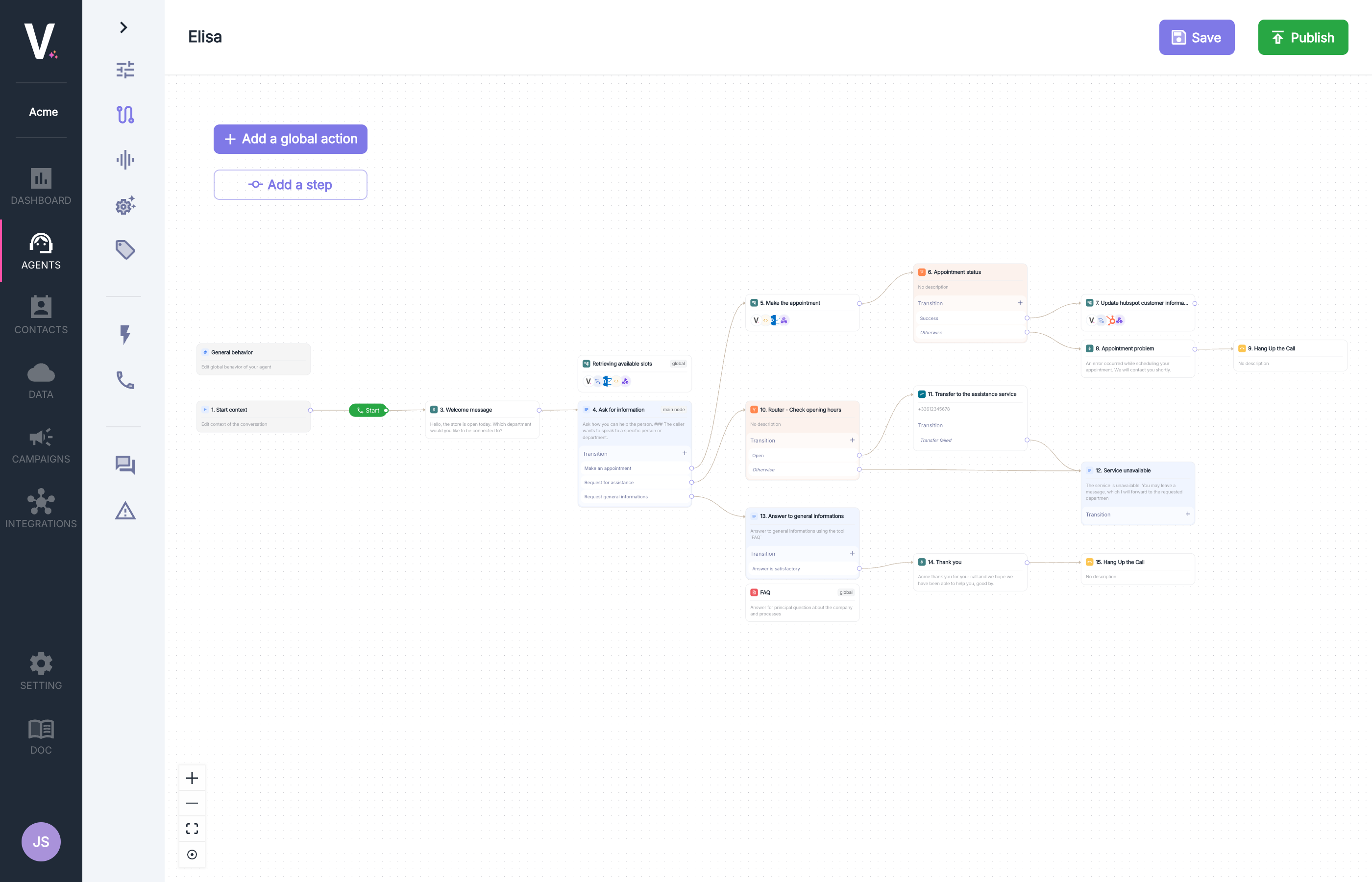
> TruePath is an advanced feature of the Volubile platform that allows you to design and deploy complex and deterministic conversational graphs for your voice telephony agents. This intuitive graphical interface offers granular control over your agents' behavior through a system of interconnected nodes.
 ## Overview
The TruePath interface consists of three main elements:
* **Design Area**: The main workspace for creating and organizing your conversational graph.
* **Action Panel**: An interface for adding and configuring the various available actions.
* **Navigation Toolbar**: Access to essential features to optimize your design experience.
TruePath offers two types of actions to structure your conversational graphs: [**global actions**](./global-actions) and [**step nodes**](./step-nodes).
## Design Interface
### Creating a Graph
To create your conversational graph:
1. **Adding Global Actions**: Use the `+ Add a Global Action` button to integrate cross-cutting behaviors.
2. **Step-by-Step Construction**: Click `+ Add a Step` to add sequential steps to your graph.
3. **Interconnecting Nodes**: Connect different elements to create the desired conversational logic by adding transitions.
### Action Toolbar
The action toolbar offers several features located at the top right of the panel.
Deletes the action currently being edited.
Allows you to enable or disable the currently edited global action. It will not be visible to the agent.
Allows you to set the currently edited node as the main node.
If the node is set as the main node, each `prompt` node will automatically benefit from an implicit transition to this base prompt. Without a main node, `prompt` nodes will need to define an explicit transition to another node and will not have a default output.
Only one main node is allowed per graph.
### Navigation Toolbar
The toolbar located at the bottom left of the interface offers several essential features to optimize your design experience:
Increases the zoom level for precise work on the details of your graph.
Decreases the zoom level for an overview of your conversational graph.
Automatically adjusts the view to display your entire graph within the workspace.
Harmoniously rearranges the graph in the workspace.
These tools allow you to navigate efficiently through complex graphs with many nodes and connections, ensuring a smooth design experience regardless of the size of your project.
## Best Practices
Organize your graph logically by grouping similar actions and using explicit names
to facilitate maintenance.
Always test your graphs before publication to ensure all conditional branches
work correctly.
TruePath transforms the creation of complex conversational agents into a visual and intuitive process, allowing you to quickly deploy intelligent phone solutions tailored to your business needs.
## Overview
The TruePath interface consists of three main elements:
* **Design Area**: The main workspace for creating and organizing your conversational graph.
* **Action Panel**: An interface for adding and configuring the various available actions.
* **Navigation Toolbar**: Access to essential features to optimize your design experience.
TruePath offers two types of actions to structure your conversational graphs: [**global actions**](./global-actions) and [**step nodes**](./step-nodes).
## Design Interface
### Creating a Graph
To create your conversational graph:
1. **Adding Global Actions**: Use the `+ Add a Global Action` button to integrate cross-cutting behaviors.
2. **Step-by-Step Construction**: Click `+ Add a Step` to add sequential steps to your graph.
3. **Interconnecting Nodes**: Connect different elements to create the desired conversational logic by adding transitions.
### Action Toolbar
The action toolbar offers several features located at the top right of the panel.
Deletes the action currently being edited.
Allows you to enable or disable the currently edited global action. It will not be visible to the agent.
Allows you to set the currently edited node as the main node.
If the node is set as the main node, each `prompt` node will automatically benefit from an implicit transition to this base prompt. Without a main node, `prompt` nodes will need to define an explicit transition to another node and will not have a default output.
Only one main node is allowed per graph.
### Navigation Toolbar
The toolbar located at the bottom left of the interface offers several essential features to optimize your design experience:
Increases the zoom level for precise work on the details of your graph.
Decreases the zoom level for an overview of your conversational graph.
Automatically adjusts the view to display your entire graph within the workspace.
Harmoniously rearranges the graph in the workspace.
These tools allow you to navigate efficiently through complex graphs with many nodes and connections, ensuring a smooth design experience regardless of the size of your project.
## Best Practices
Organize your graph logically by grouping similar actions and using explicit names
to facilitate maintenance.
Always test your graphs before publication to ensure all conditional branches
work correctly.
TruePath transforms the creation of complex conversational agents into a visual and intuitive process, allowing you to quickly deploy intelligent phone solutions tailored to your business needs.