> ## Documentation Index
> Fetch the complete documentation index at: https://docs.volubile.ai/llms.txt
> Use this file to discover all available pages before exploring further.
# Global Actions
> Global actions can be accessed from any point in your graph and allow you to manage the cross-cutting behaviors of your agent.
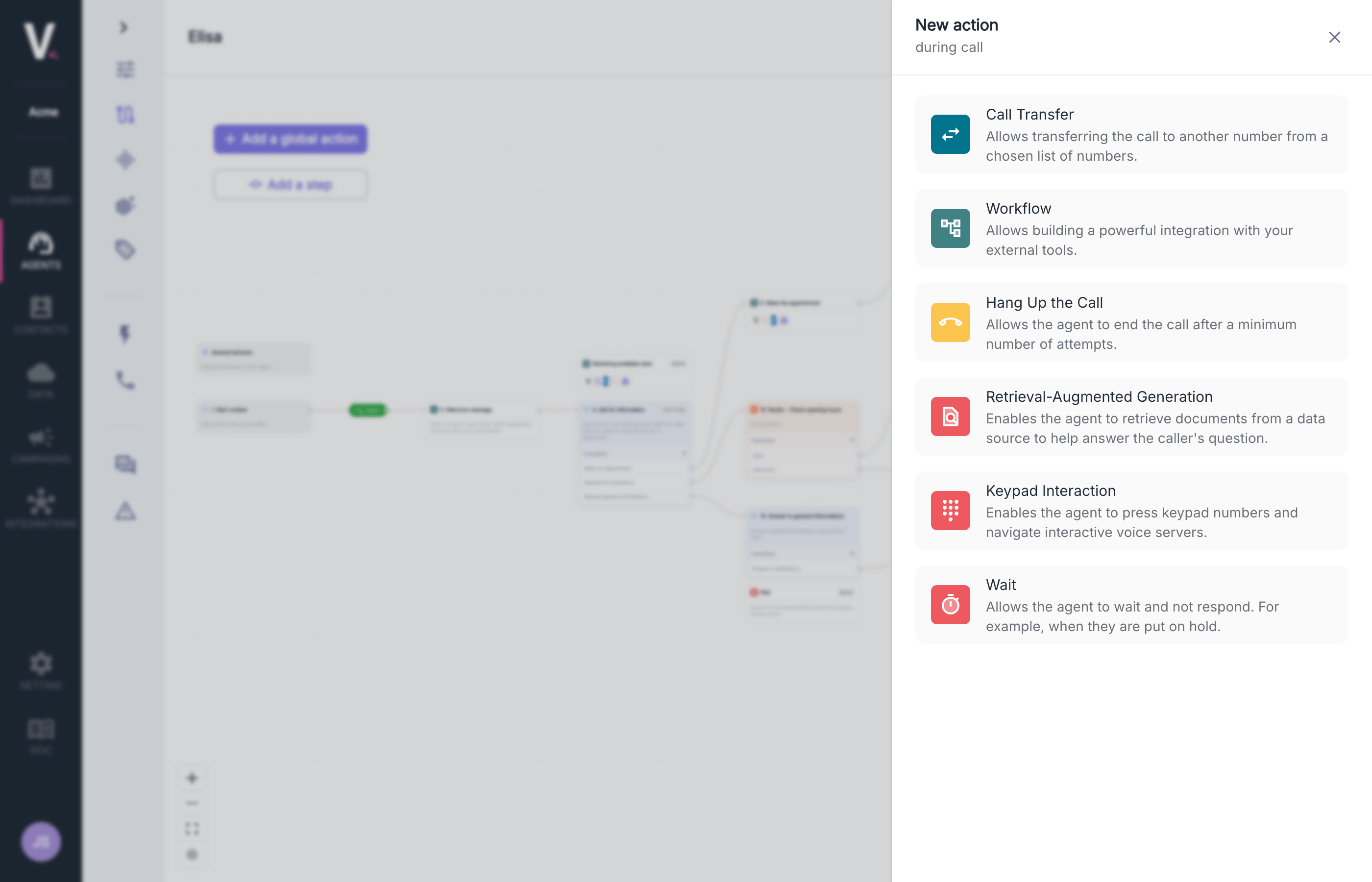 Global actions can be activated in any [step node of type `prompt`](./step-nodes#prompt)
### Call Transfer
The transfer action allows for the intelligent redirection of a call to another agent or an external number. This strategic feature can be configured to execute at different moments during the interaction.
#### Use Cases
* Transfer to a specialized agent when a particular request is identified
* Redirect to an external service outside of business hours
* Automatic escalation to technical support for complex issues
#### Call Transfer Action Parameters
Global actions can be activated in any [step node of type `prompt`](./step-nodes#prompt)
### Call Transfer
The transfer action allows for the intelligent redirection of a call to another agent or an external number. This strategic feature can be configured to execute at different moments during the interaction.
#### Use Cases
* Transfer to a specialized agent when a particular request is identified
* Redirect to an external service outside of business hours
* Automatic escalation to technical support for complex issues
#### Call Transfer Action Parameters
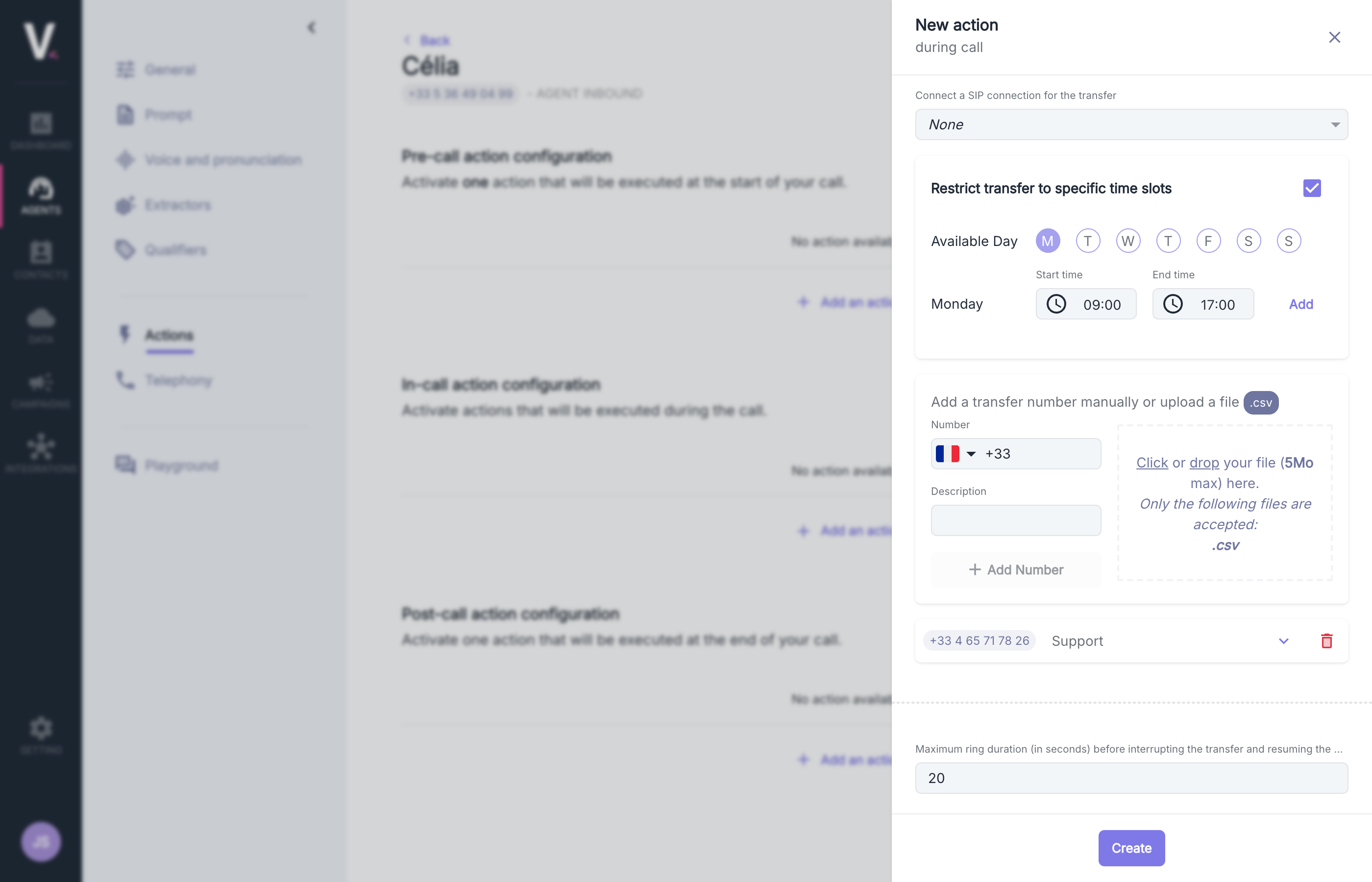 When configuring a transfer action, please provide the following information:
| Field | Description |
| --------------------- | ---------------------------------------------------------------------------------------------------------------------------------------- |
| Action Name | Explicit identifier such as "Transfer" or a more specific name according to your needs |
| Description | Precise definition of the purpose and mechanism of this transfer action |
| SIP Connection | Selection of an existing SIP connection for the transfer (optional) |
| Maximum Ring Duration | Maximum ringing duration (in seconds) before interrupting the transfer and resuming the call by the agent (Min 5s, Max 45s, Default 20s) |
#### SIP Connection
When configuring a transfer action, please provide the following information:
| Field | Description |
| --------------------- | ---------------------------------------------------------------------------------------------------------------------------------------- |
| Action Name | Explicit identifier such as "Transfer" or a more specific name according to your needs |
| Description | Precise definition of the purpose and mechanism of this transfer action |
| SIP Connection | Selection of an existing SIP connection for the transfer (optional) |
| Maximum Ring Duration | Maximum ringing duration (in seconds) before interrupting the transfer and resuming the call by the agent (Min 5s, Max 45s, Default 20s) |
#### SIP Connection
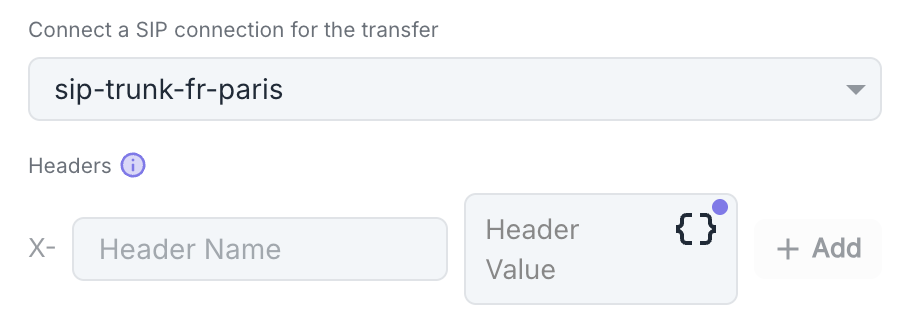 If you have one or more existing SIP configuration(s) (see [SIP Connection](/en/telephony/outgoing-calls#sip-integration)), you can use them as a destination for the transfer action instead of a standard phone number.
**Custom Headers**
You can configure additional SIP headers specific to this transfer:
1. Click on **Add** to add a new header.
2. For each header, specify:
* **Header name**: Name of the SIP header.
* **Header Value**: Value associated with this header.
#### Transfer Timing Restrictions
If you have one or more existing SIP configuration(s) (see [SIP Connection](/en/telephony/outgoing-calls#sip-integration)), you can use them as a destination for the transfer action instead of a standard phone number.
**Custom Headers**
You can configure additional SIP headers specific to this transfer:
1. Click on **Add** to add a new header.
2. For each header, specify:
* **Header name**: Name of the SIP header.
* **Header Value**: Value associated with this header.
#### Transfer Timing Restrictions
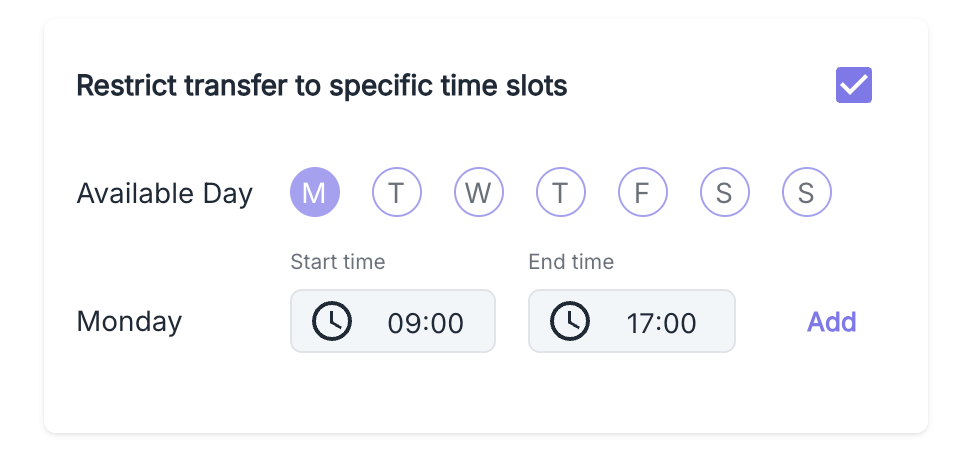 You can precisely define the time slots allowing transfers:
1. Enable the option **Restrict transfer to time slots**
2. Select eligible days (Monday, Tuesday, Wednesday, Thursday, Friday, Saturday, Sunday)
3. Define the availability hours (e.g., 09:00 - 17:00)
4. Click on **Add** to validate this time slot.
You can set multiple daily time slots by selecting new time ranges and clicking **Add** again.
#### Adding Transfer Numbers
You can precisely define the time slots allowing transfers:
1. Enable the option **Restrict transfer to time slots**
2. Select eligible days (Monday, Tuesday, Wednesday, Thursday, Friday, Saturday, Sunday)
3. Define the availability hours (e.g., 09:00 - 17:00)
4. Click on **Add** to validate this time slot.
You can set multiple daily time slots by selecting new time ranges and clicking **Add** again.
#### Adding Transfer Numbers
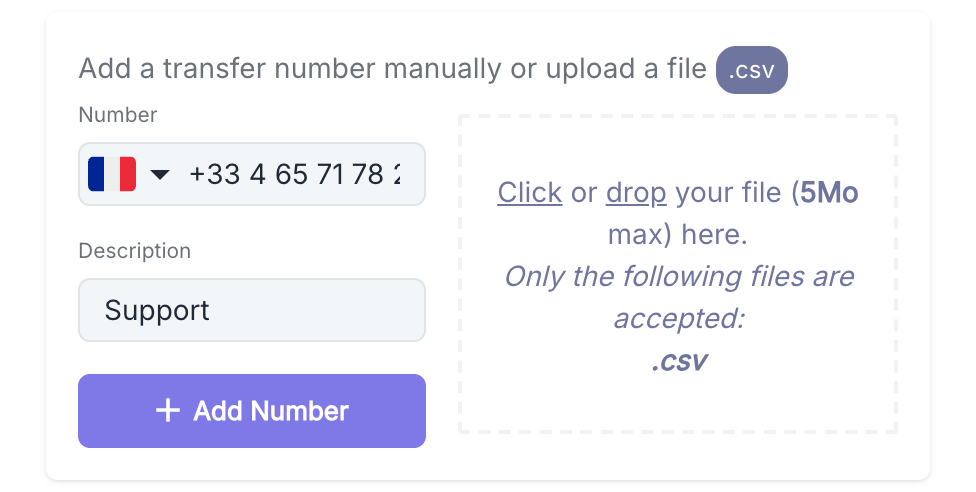 Two methods are available for adding transfer numbers:
##### **Manual Addition**
1. Select the country from the dropdown menu (country code)
2. Enter the phone number
3. Add a description to identify this number (e.g., "Technical Support")
##### **Import**
**Allowed File**
| Specification | Description |
| ---------------------- | ----------------------- |
| **Accepted Format** | `.csv` file (max. 5 MB) |
| **Required Structure** | See the table below |
**File Format**
| Column | Type | Required | Description |
| ------------- | ---- | -------- | ------------------------------------ |
| `phone` | Text | Yes | E.164 format (e.g., `+33612345678`) |
| `description` | Text | No | Description of the person or service |
Download our standardized import template to facilitate your data preparation.
#### Maximum Ring Duration
Two methods are available for adding transfer numbers:
##### **Manual Addition**
1. Select the country from the dropdown menu (country code)
2. Enter the phone number
3. Add a description to identify this number (e.g., "Technical Support")
##### **Import**
**Allowed File**
| Specification | Description |
| ---------------------- | ----------------------- |
| **Accepted Format** | `.csv` file (max. 5 MB) |
| **Required Structure** | See the table below |
**File Format**
| Column | Type | Required | Description |
| ------------- | ---- | -------- | ------------------------------------ |
| `phone` | Text | Yes | E.164 format (e.g., `+33612345678`) |
| `description` | Text | No | Description of the person or service |
Download our standardized import template to facilitate your data preparation.
#### Maximum Ring Duration
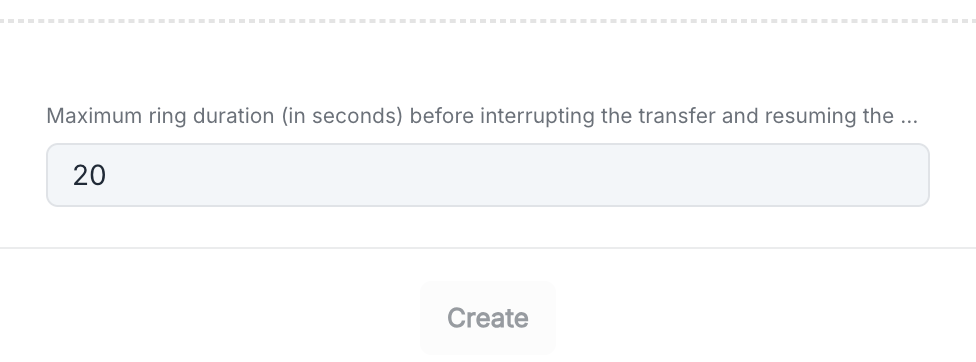 You can adjust the maximum wait duration before considering the transfer failure. The default setting is `20 seconds` (Min 5s, Max 45s).
#### Best Practices
* Set time slots aligned with the actual availability of your teams
* Use clear descriptions for each transfer destination
* Conduct thorough transfer path tests to ensure a smooth experience
### Workflow
This feature is not enabled by default. Please contact support to activate it on your account.
This feature allows for the development of sophisticated integrations with your external systems during the course of your communications.
As with pre-call actions, the workflow must end with a **Respond to the agent** step to return the result to the
agent during the call.
See how to configure workflows
### Hang Up
The hang-up action allows for controlled termination of a communication under specifically defined conditions. This feature can be implemented at different stages of the interaction.
A default hang-up mechanism (not visible in this interface) is already integrated to avoid interaction loops while maintaining user experience quality. There is already a default hang-up action (not visible here) so that my agent does not loop while not hanging up on the user.
Only one **Hang Up** action can be configured for an agent. Adding a custom hang-up action overrides the default hang-up configuration.
You can adjust the maximum wait duration before considering the transfer failure. The default setting is `20 seconds` (Min 5s, Max 45s).
#### Best Practices
* Set time slots aligned with the actual availability of your teams
* Use clear descriptions for each transfer destination
* Conduct thorough transfer path tests to ensure a smooth experience
### Workflow
This feature is not enabled by default. Please contact support to activate it on your account.
This feature allows for the development of sophisticated integrations with your external systems during the course of your communications.
As with pre-call actions, the workflow must end with a **Respond to the agent** step to return the result to the
agent during the call.
See how to configure workflows
### Hang Up
The hang-up action allows for controlled termination of a communication under specifically defined conditions. This feature can be implemented at different stages of the interaction.
A default hang-up mechanism (not visible in this interface) is already integrated to avoid interaction loops while maintaining user experience quality. There is already a default hang-up action (not visible here) so that my agent does not loop while not hanging up on the user.
Only one **Hang Up** action can be configured for an agent. Adding a custom hang-up action overrides the default hang-up configuration.
 #### Use Cases
The hang-up action is particularly relevant in the following scenarios:
* When all conversation objectives have been achieved
* Upon detecting interaction with an automated system (machine/IVR)
* When the conversation reaches a stalemate without progression
#### Configuration Parameters
Configuring a hang-up action requires defining the following parameters:
| Parameter | Description |
| -------------------------- | ---------------------------------------------------------------------------------- |
| Action Name | Unique and descriptive identifier of the action |
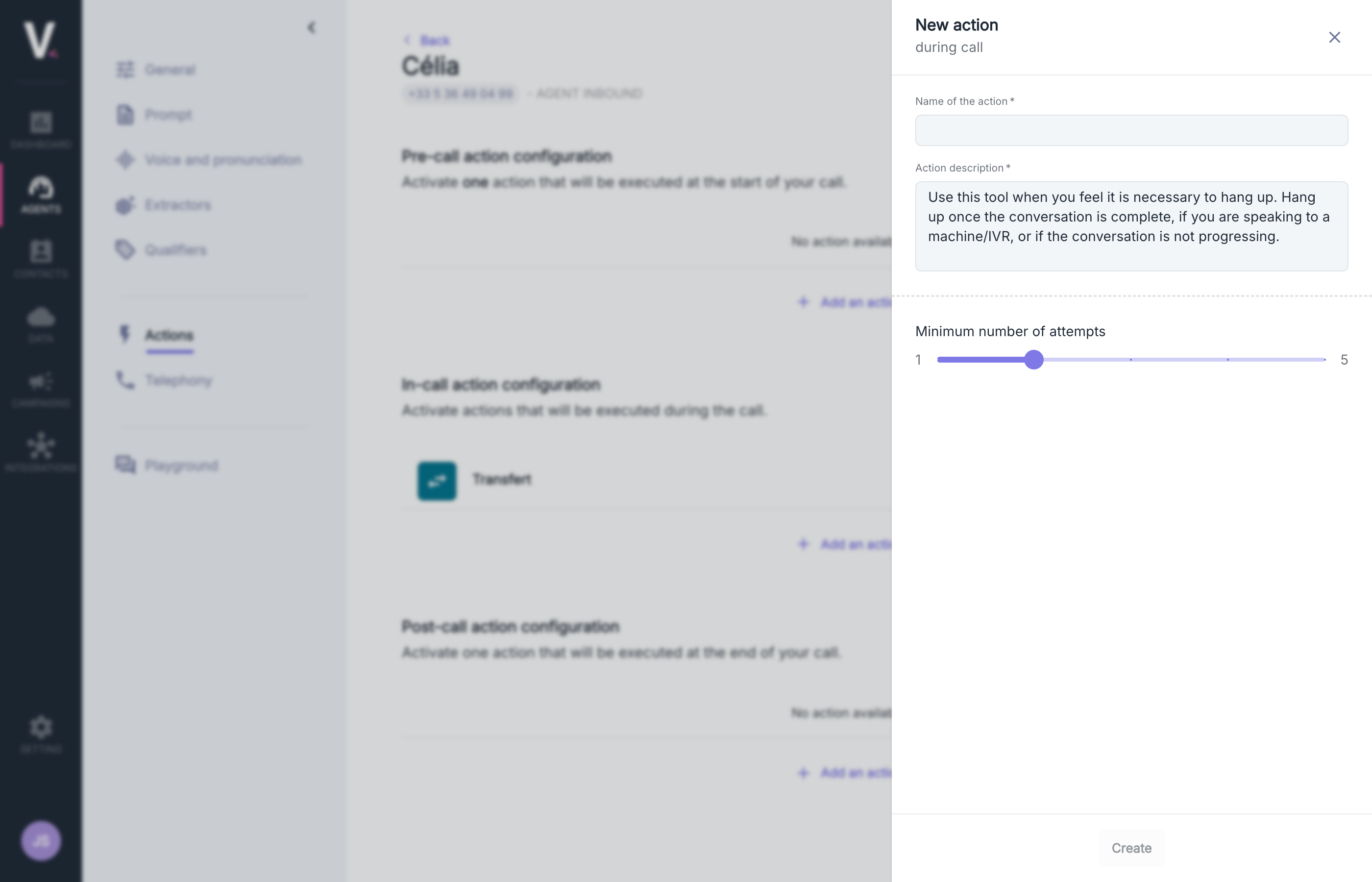
| Action Description | Detailed explanation specifying the goal and functioning of the action |
| Minimum Number of Attempts | Calibration of the minimum attempt threshold before activation (scale from 1 to 5) |
#### Description
Specify in natural language the precise conditions under which the agent should terminate the communication.
#### Attempt Configuration
The configuration control allows you to adjust the minimum number of attempts before triggering (Min 1, Max 5).
#### Best Practices
* Use precise descriptions detailing the exact termination conditions
* Configure an appropriate number of attempts suitable for your operational context
* Conduct thorough testing before deployment in production
* Optimize parameters based on conversation analysis and feedback
### RAG
The integration of RAG (Retrieval Augmented Generation) data sources allows you to enrich your agent with specific knowledge to deliver contextualized and precise responses.
#### Use Cases
The hang-up action is particularly relevant in the following scenarios:
* When all conversation objectives have been achieved
* Upon detecting interaction with an automated system (machine/IVR)
* When the conversation reaches a stalemate without progression
#### Configuration Parameters
Configuring a hang-up action requires defining the following parameters:
| Parameter | Description |
| -------------------------- | ---------------------------------------------------------------------------------- |
| Action Name | Unique and descriptive identifier of the action |
| Action Description | Detailed explanation specifying the goal and functioning of the action |
| Minimum Number of Attempts | Calibration of the minimum attempt threshold before activation (scale from 1 to 5) |
#### Description
Specify in natural language the precise conditions under which the agent should terminate the communication.
#### Attempt Configuration
The configuration control allows you to adjust the minimum number of attempts before triggering (Min 1, Max 5).
#### Best Practices
* Use precise descriptions detailing the exact termination conditions
* Configure an appropriate number of attempts suitable for your operational context
* Conduct thorough testing before deployment in production
* Optimize parameters based on conversation analysis and feedback
### RAG
The integration of RAG (Retrieval Augmented Generation) data sources allows you to enrich your agent with specific knowledge to deliver contextualized and precise responses.
 #### Required Fields
| Field | Description |
| ---------------------------- | ----------------------------------------------------------------------------- |
| **Action Name** | Unique and descriptive identifier of the action |
| **Action Description** | Detailed explanation specifying the objective and functionality of the action |
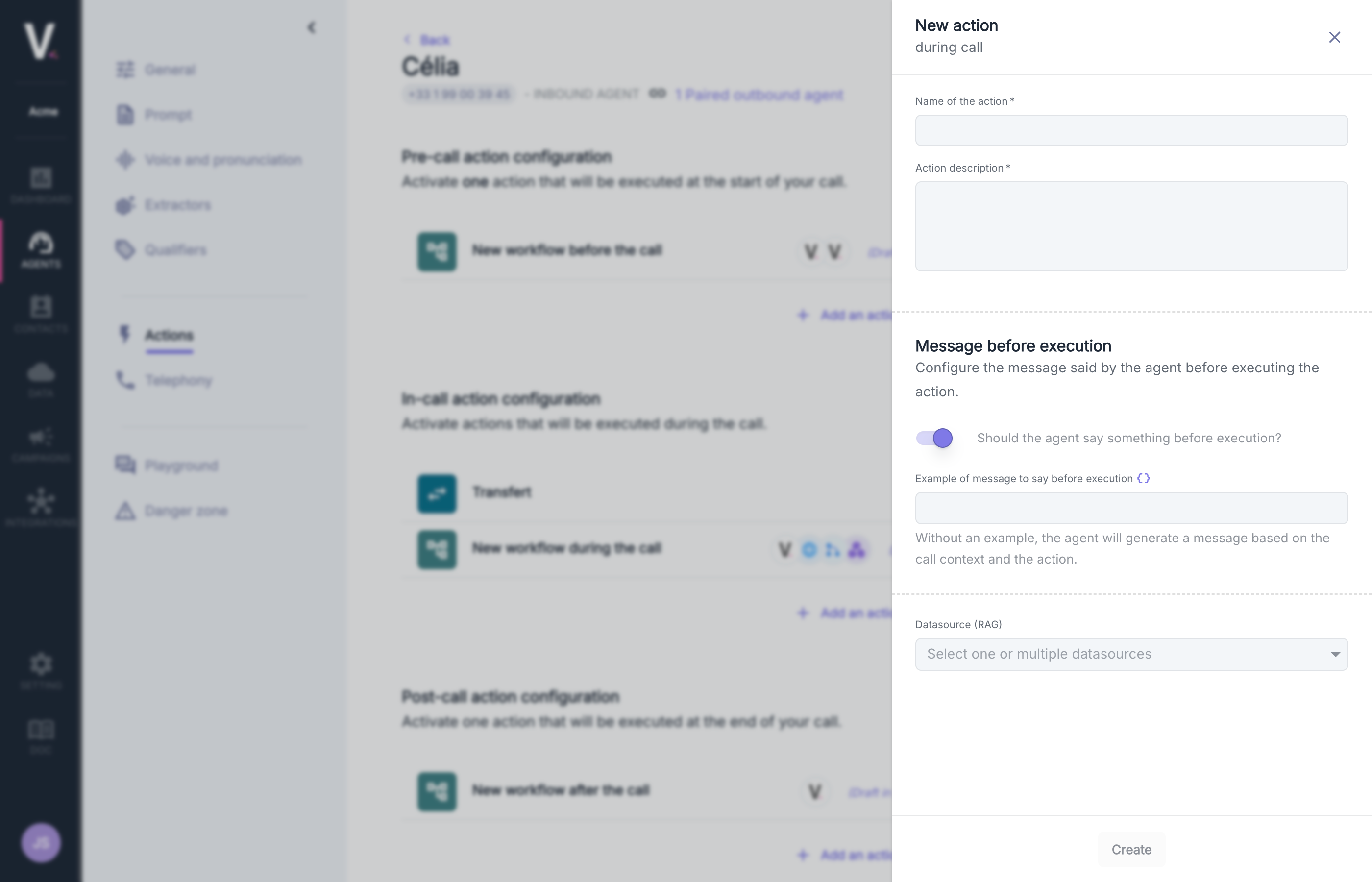
| **Message before execution** | Configure the message said by the agent before executing the action |
| **Data Source (RAG)** | Selection of a data source to enrich the interaction |
#### Description
Specify in natural language the exact circumstances under which the agent should activate this functionality.
#### Message before execution
Enable or disable the message that the agent will say before executing the RAG action. You can add an example phrase to be spoken if the option is enabled.
#### Data Source (RAG)
The dropdown menu allows you to select from the data sources configured in your environment.
Configure your first RAG database
### Keyboard Interaction
This feature allows the agent to emit tones (DTMF) by simulating key presses on a telephone keypad, thus facilitating interaction with interactive voice response systems (IVR).
Only one **Keyboard Interaction** action can be configured for an agent.
#### Required Fields
| Field | Description |
| ---------------------------- | ----------------------------------------------------------------------------- |
| **Action Name** | Unique and descriptive identifier of the action |
| **Action Description** | Detailed explanation specifying the objective and functionality of the action |
| **Message before execution** | Configure the message said by the agent before executing the action |
| **Data Source (RAG)** | Selection of a data source to enrich the interaction |
#### Description
Specify in natural language the exact circumstances under which the agent should activate this functionality.
#### Message before execution
Enable or disable the message that the agent will say before executing the RAG action. You can add an example phrase to be spoken if the option is enabled.
#### Data Source (RAG)
The dropdown menu allows you to select from the data sources configured in your environment.
Configure your first RAG database
### Keyboard Interaction
This feature allows the agent to emit tones (DTMF) by simulating key presses on a telephone keypad, thus facilitating interaction with interactive voice response systems (IVR).
Only one **Keyboard Interaction** action can be configured for an agent.
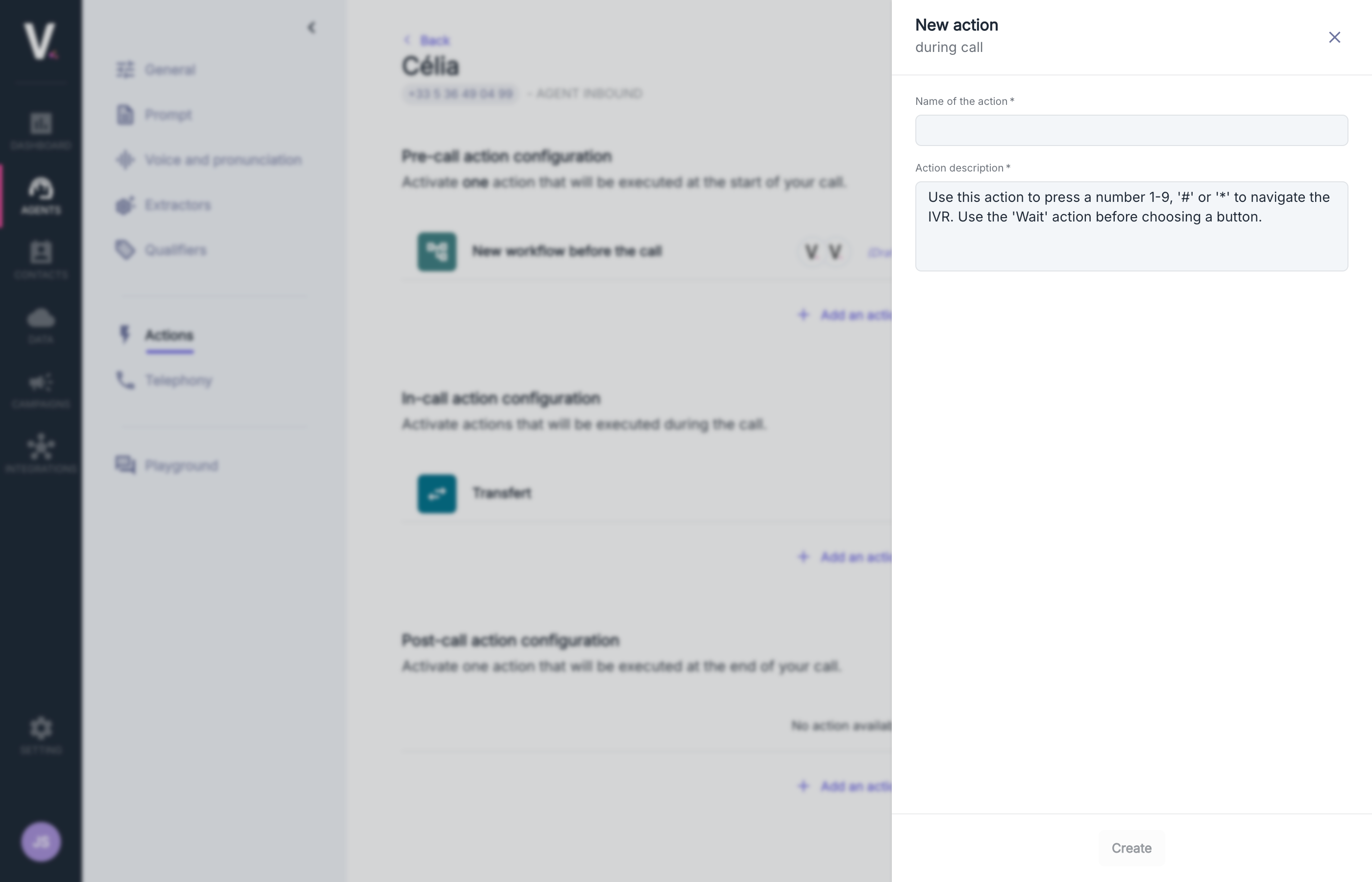 #### Required Fields
| Field | Description |
| ---------------------- | ----------------------------------------------------------------------------- |
| **Action Name** | Unique and descriptive identifier of the action |
| **Action Description** | Detailed explanation specifying the objective and functionality of the action |
#### Description
In most implementations, the default description proves adequate, but you can enrich or customize it using natural language suited to your operational context.
For optimal management of IVR systems, it is recommended to use the **Wait** and **Keyboard Interaction** actions together.
### Wait
This feature allows the agent to temporarily suspend its responses, which is essential during holds (welcome music) or to detect IVR systems and wait for the complete announcement of menu options.
Only one **Wait** action can be configured for an agent.
#### Required Fields
| Field | Description |
| ---------------------- | ----------------------------------------------------------------------------- |
| **Action Name** | Unique and descriptive identifier of the action |
| **Action Description** | Detailed explanation specifying the objective and functionality of the action |
#### Description
In most implementations, the default description proves adequate, but you can enrich or customize it using natural language suited to your operational context.
For optimal management of IVR systems, it is recommended to use the **Wait** and **Keyboard Interaction** actions together.
### Wait
This feature allows the agent to temporarily suspend its responses, which is essential during holds (welcome music) or to detect IVR systems and wait for the complete announcement of menu options.
Only one **Wait** action can be configured for an agent.
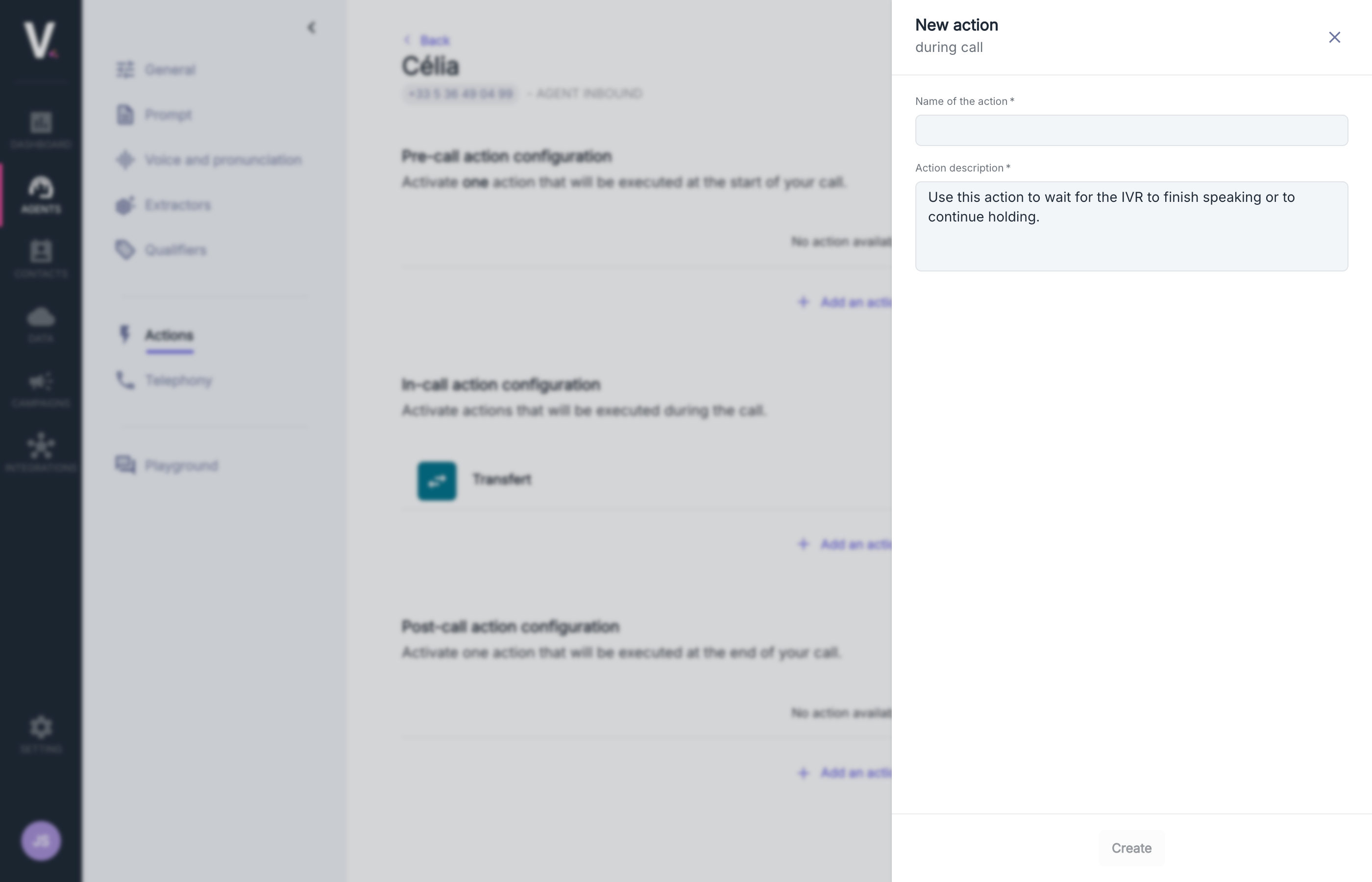 #### Required Fields
| Field | Description |
| ---------------------- | ----------------------------------------------------------------------------- |
| **Action Name** | Unique and descriptive identifier of the action |
| **Action Description** | Detailed explanation specifying the objective and functionality of the action |
#### Description
In most implementations, the default description proves adequate, but you can enrich or customize it using natural language suited to your operational context.
For optimal management of IVR systems, it is recommended to use the **Wait** and **Keyboard Interaction** actions together.
#### Required Fields
| Field | Description |
| ---------------------- | ----------------------------------------------------------------------------- |
| **Action Name** | Unique and descriptive identifier of the action |
| **Action Description** | Detailed explanation specifying the objective and functionality of the action |
#### Description
In most implementations, the default description proves adequate, but you can enrich or customize it using natural language suited to your operational context.
For optimal management of IVR systems, it is recommended to use the **Wait** and **Keyboard Interaction** actions together.