> ## Documentation Index
> Fetch the complete documentation index at: https://docs.volubile.ai/llms.txt
> Use this file to discover all available pages before exploring further.
# Tags
> Tags are an essential tool for effectively organizing and categorizing phone calls on the Volubile platform. They allow descriptive labels to be associated with calls, making it easier to sort, track, and analyze them.
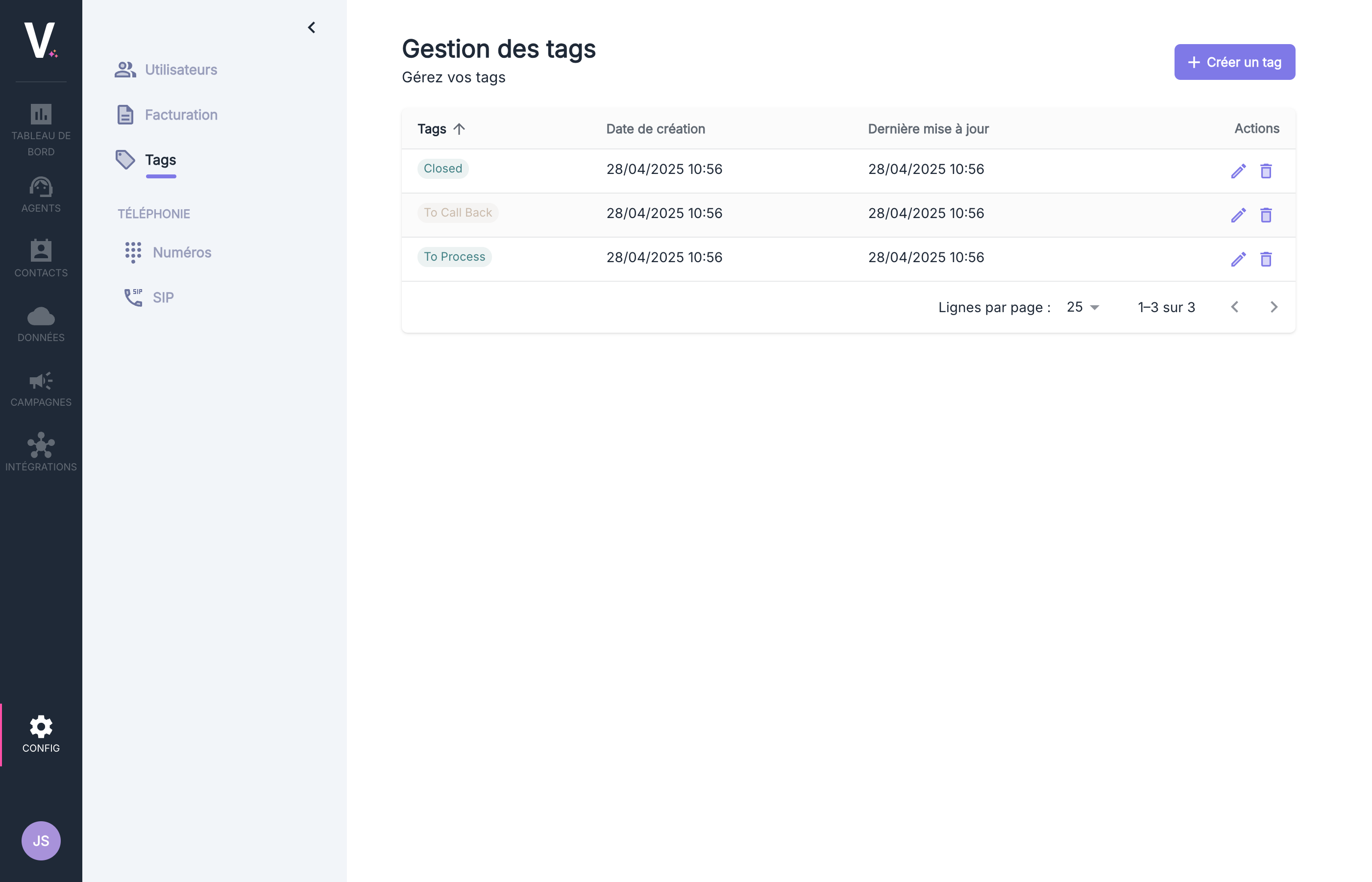 ## Tag Management Interface
This interface displays the following information:
| Column | Description |
| ------------ | -------------------------------------- |
| Tags | Name of the tag |
| Date Created | Date and time the tag was created |
| Last Updated | Date and time of the last modification |
| Actions | Buttons to edit or delete the tag |
## Managing Tags
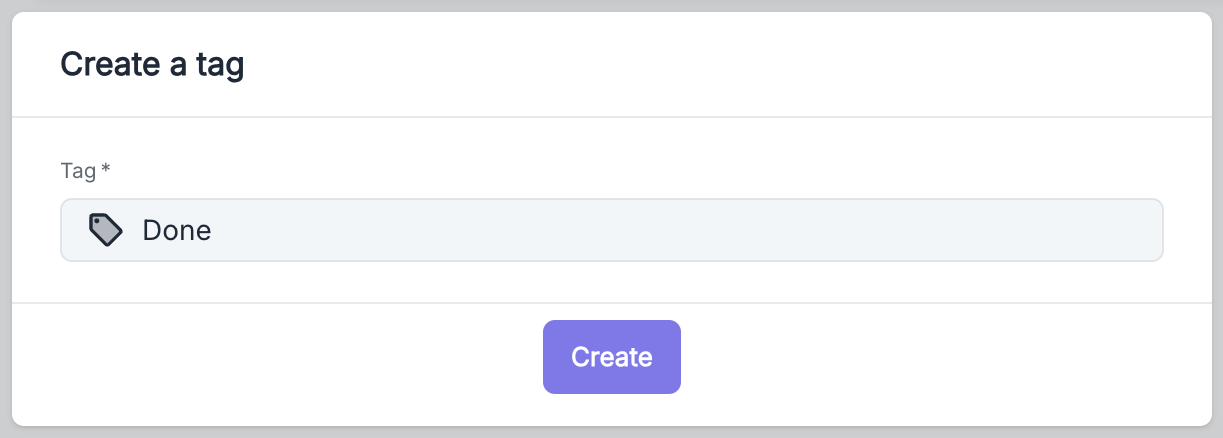
To add a new tag, click the purple button **Create a tag**, located at the top right of the interface. Once the name is entered in the designated field, creation can be confirmed by submitting.
## Tag Management Interface
This interface displays the following information:
| Column | Description |
| ------------ | -------------------------------------- |
| Tags | Name of the tag |
| Date Created | Date and time the tag was created |
| Last Updated | Date and time of the last modification |
| Actions | Buttons to edit or delete the tag |
## Managing Tags
To add a new tag, click the purple button **Create a tag**, located at the top right of the interface. Once the name is entered in the designated field, creation can be confirmed by submitting.
 ## Applying Segmentation Tags
### Automatic Assignment via API
Segmentation tags can be automatically applied during calls using the Volubile API. This feature allows contextual tags to be associated.
### Assignment via SIP Headers
It is also possible to send a list of tags directly through the SIP header `X-Volubile-System-Tags` during call setup. This method enables seamless integration with your existing systems.
```text Examples theme={null}
X-Volubile-System-Tags = To be processed
X-Volubile-System-Tags = city:Grenoble
X-Volubile-System-Tags = city:Grenoble,To be processed
```
## Using Tags on the Platform
Tags form a flexible system, adaptable to the specific needs of each business. They can be used as an integrated mini-CRM, allowing for tracking the status and evolution of customer interactions.
### Common Use Cases
"To be processed", "In progress", "Done", "Urgent"
"Technical support", "Sales", "Complaint"
### Tag Visibility
Tags are visible in several key areas of the platform:
The tags associated with a call can be viewed directly from its detailed record.
[See the Call Detail documentation](../calls)
An agent's call history can be filtered based on tags.
[See the call history documentation](../agents)
A clear and consistent naming convention for custom tags contributes to better organization.
### Categorization System
Tags support a categorization system using the format `category:value`. This structure allows for hierarchical organization of tags:
* `campaign:christmas-promo`
* `priority:high`
* `segment:premium`
* `source:website`
On the dashboard, categories appear as organized groups, making selection and analysis easier.
## Applying Segmentation Tags
### Automatic Assignment via API
Segmentation tags can be automatically applied during calls using the Volubile API. This feature allows contextual tags to be associated.
### Assignment via SIP Headers
It is also possible to send a list of tags directly through the SIP header `X-Volubile-System-Tags` during call setup. This method enables seamless integration with your existing systems.
```text Examples theme={null}
X-Volubile-System-Tags = To be processed
X-Volubile-System-Tags = city:Grenoble
X-Volubile-System-Tags = city:Grenoble,To be processed
```
## Using Tags on the Platform
Tags form a flexible system, adaptable to the specific needs of each business. They can be used as an integrated mini-CRM, allowing for tracking the status and evolution of customer interactions.
### Common Use Cases
"To be processed", "In progress", "Done", "Urgent"
"Technical support", "Sales", "Complaint"
### Tag Visibility
Tags are visible in several key areas of the platform:
The tags associated with a call can be viewed directly from its detailed record.
[See the Call Detail documentation](../calls)
An agent's call history can be filtered based on tags.
[See the call history documentation](../agents)
A clear and consistent naming convention for custom tags contributes to better organization.
### Categorization System
Tags support a categorization system using the format `category:value`. This structure allows for hierarchical organization of tags:
* `campaign:christmas-promo`
* `priority:high`
* `segment:premium`
* `source:website`
On the dashboard, categories appear as organized groups, making selection and analysis easier.