> ## Documentation Index
> Fetch the complete documentation index at: https://docs.volubile.ai/llms.txt
> Use this file to discover all available pages before exploring further.
# Campaigns
> The Campaigns section allows you to manage your automated outbound telephone communications on the Volubile platform. Precisely configure who you are contacting, when you are calling, and how many attempts are made for each contact.
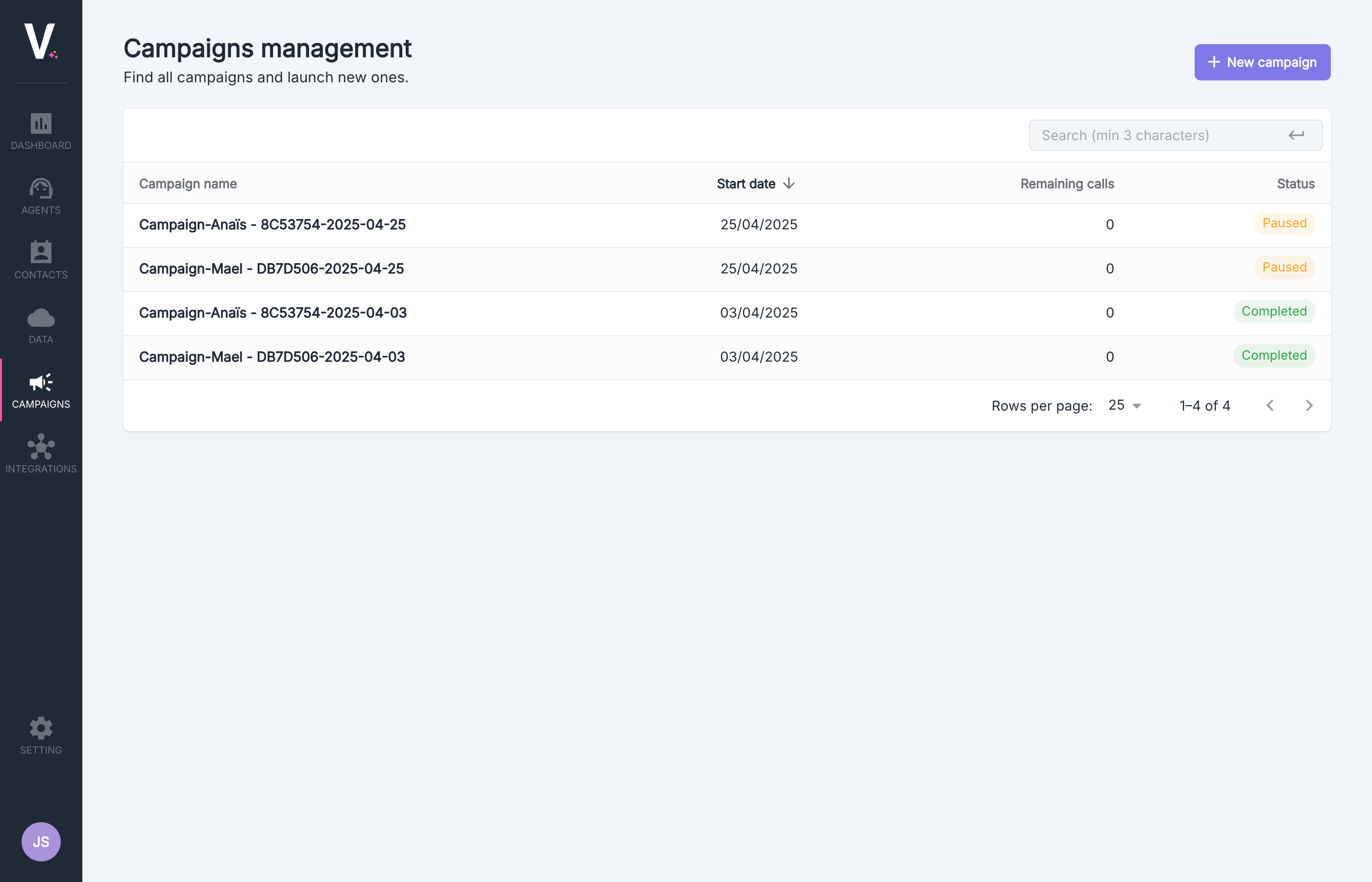 ## Campaign List
The dashboard centralizes the management of all your active and completed campaigns.
## Campaign List
The dashboard centralizes the management of all your active and completed campaigns.
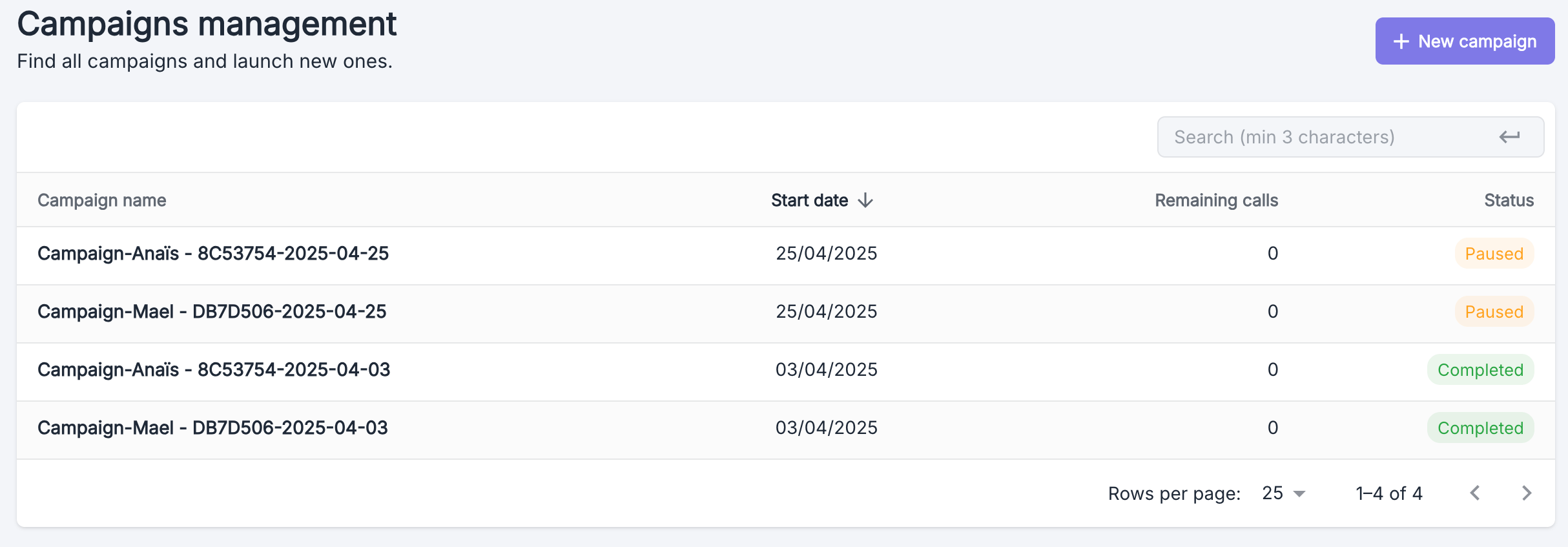 | Column | Description |
| ------------------- | ------------------------------------------------------ |
| **Campaign Name** | Unique identifier for your campaign |
| **Start Date** | Activation date of the campaign |
| **Remaining Calls** | Number of calls still to execute |
| **Status** | Current state: `In Progress`, `Paused`, or `Completed` |
To access the detailed interface of a specific campaign, simply click on the corresponding row.
## Creating a Campaign
To set up a new campaign, click on the **New Campaign** button located at the top right of the interface.
| Column | Description |
| ------------------- | ------------------------------------------------------ |
| **Campaign Name** | Unique identifier for your campaign |
| **Start Date** | Activation date of the campaign |
| **Remaining Calls** | Number of calls still to execute |
| **Status** | Current state: `In Progress`, `Paused`, or `Completed` |
To access the detailed interface of a specific campaign, simply click on the corresponding row.
## Creating a Campaign
To set up a new campaign, click on the **New Campaign** button located at the top right of the interface.
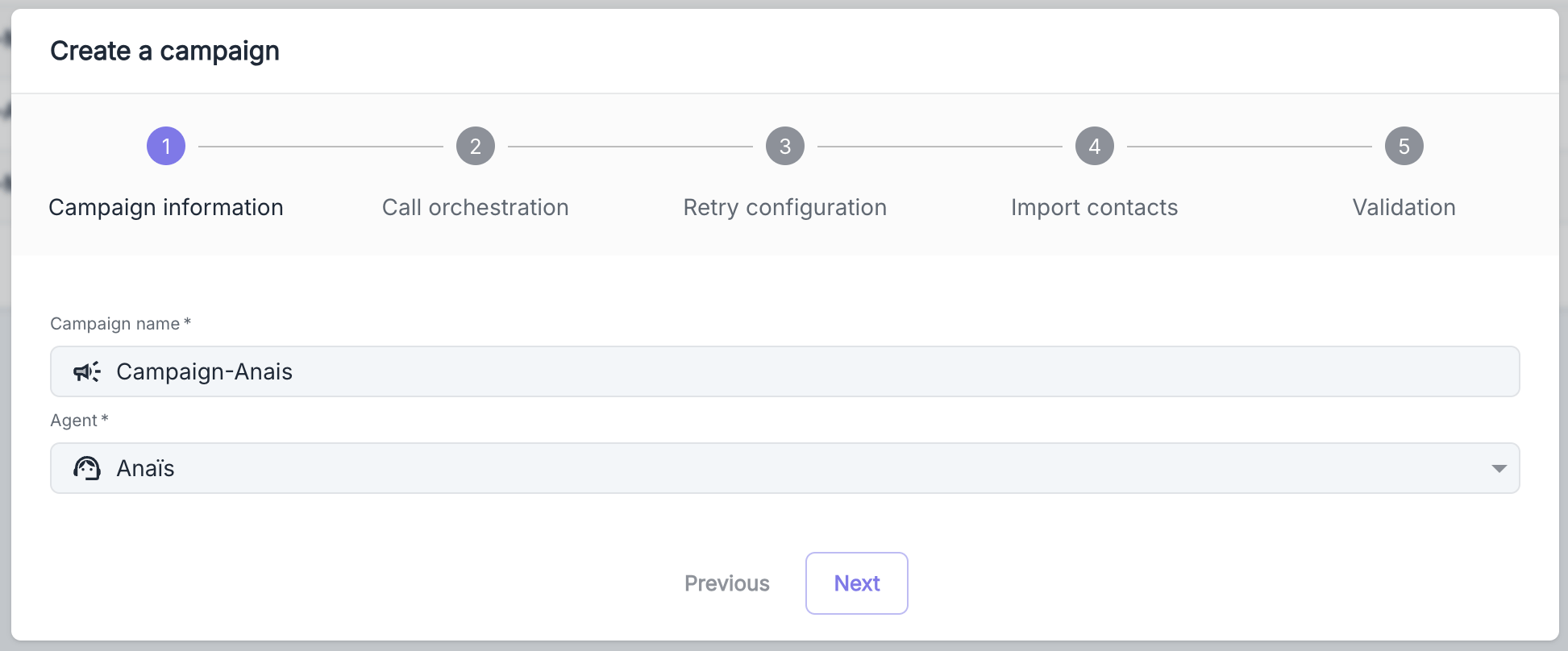 | Parameter | Description |
| ------------------ | --------------------------------------------------------------------- |
| **Campaign Name** | Unique identifier within your organization |
| **Outbound Agent** | Agent configured for outbound calls associated with a compatible line |
To configure your agents and phone lines, refer to the [Telephony](../telephony/phone-numbers) section of the documentation.
| Parameter | Description |
| ------------------ | --------------------------------------------------------------------- |
| **Campaign Name** | Unique identifier within your organization |
| **Outbound Agent** | Agent configured for outbound calls associated with a compatible line |
To configure your agents and phone lines, refer to the [Telephony](../telephony/phone-numbers) section of the documentation.
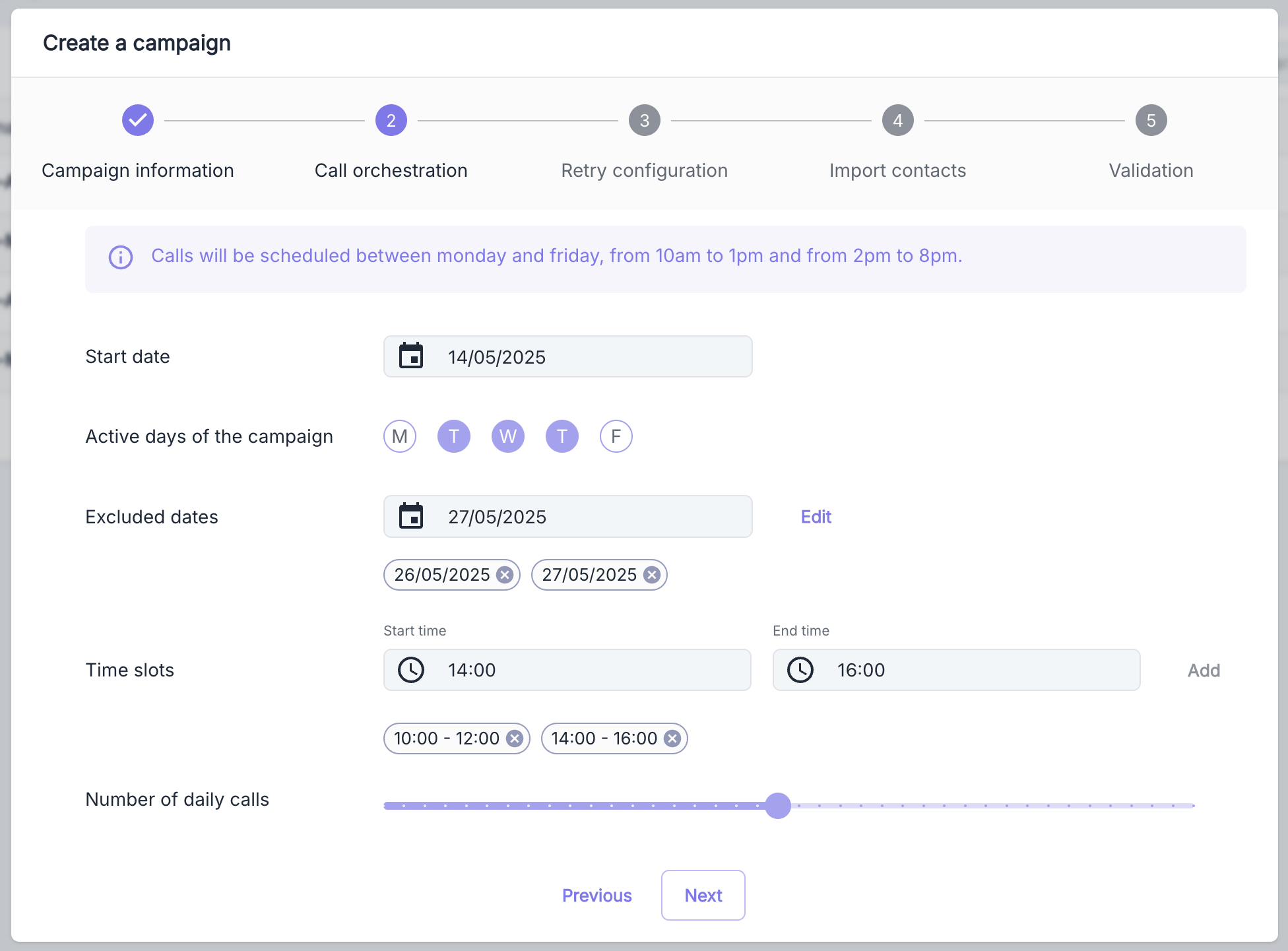 | Parameter | Description |
| ------------------ | ------------------------------------------------ |
| **Start Date** | Activation date for calls |
| **Active Days** | Days of the week allowed |
| **Excluded Dates** | Specific days to exclude (holidays, leave, etc.) |
| **Time Slots** | Up to 2 time slots per day |
| **Daily Volume** | Number of calls per day (25 to 1,000) |
Campaign time slots are strictly limited to the legal prospecting windows: **10 AM – 1 PM** and **2 PM – 8 PM**.
Be sure to systematically exclude all holidays in the **Excluded Dates** section to comply with regulations in your calling areas.
| Parameter | Description |
| ------------------ | ------------------------------------------------ |
| **Start Date** | Activation date for calls |
| **Active Days** | Days of the week allowed |
| **Excluded Dates** | Specific days to exclude (holidays, leave, etc.) |
| **Time Slots** | Up to 2 time slots per day |
| **Daily Volume** | Number of calls per day (25 to 1,000) |
Campaign time slots are strictly limited to the legal prospecting windows: **10 AM – 1 PM** and **2 PM – 8 PM**.
Be sure to systematically exclude all holidays in the **Excluded Dates** section to comply with regulations in your calling areas.
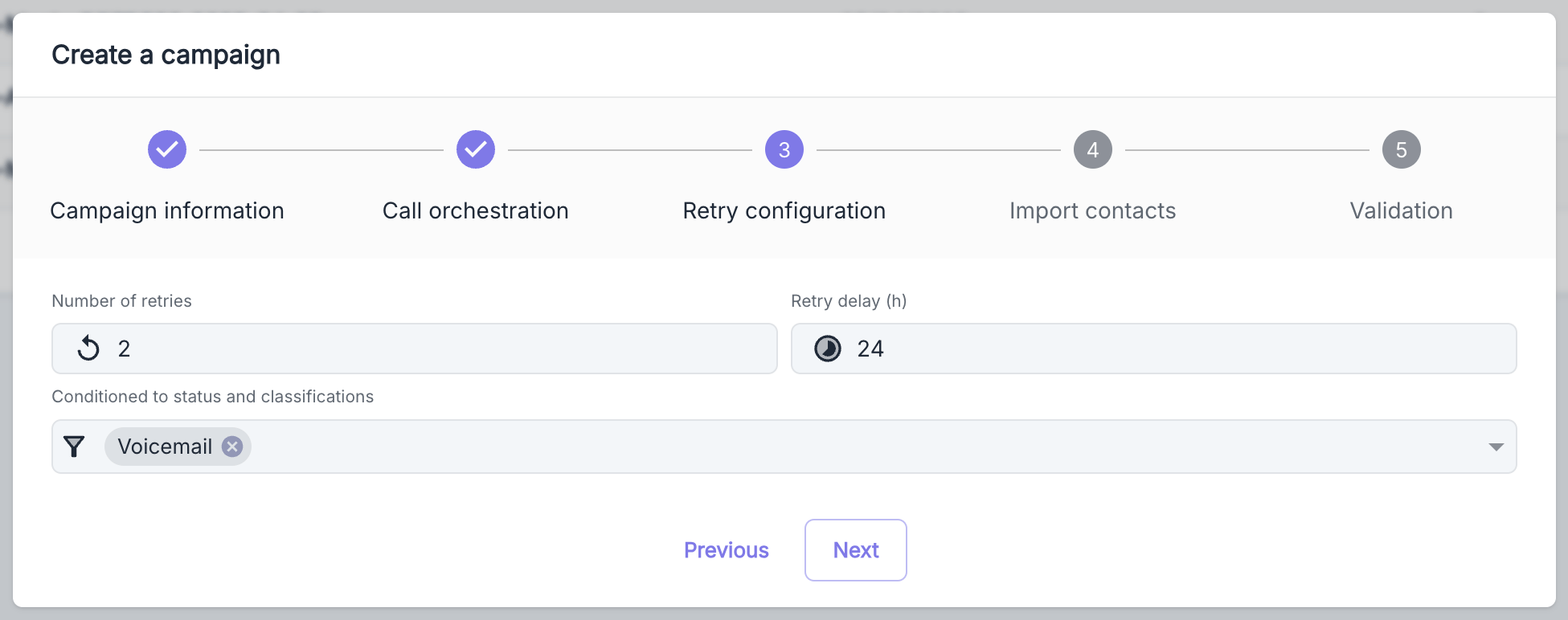 | Parameter | Description |
| ---------------------------- | ----------------------------------------- |
| **Max Follow-ups** | Number of additional attempts |
| **Delay Between Follow-ups** | Time interval in hours |
| **Conditions** | Filtering by call status or qualification |
The system integrates smart logic for managing callbacks: if a prospect calls you back following an initial attempt, they will automatically be excluded from the follow-up cycle.
For more information on statuses and qualifications, refer to the [Calls](/en/product/calls) and [Classification](/en/product/calls/classifiers) sections.
| Parameter | Description |
| ---------------------------- | ----------------------------------------- |
| **Max Follow-ups** | Number of additional attempts |
| **Delay Between Follow-ups** | Time interval in hours |
| **Conditions** | Filtering by call status or qualification |
The system integrates smart logic for managing callbacks: if a prospect calls you back following an initial attempt, they will automatically be excluded from the follow-up cycle.
For more information on statuses and qualifications, refer to the [Calls](/en/product/calls) and [Classification](/en/product/calls/classifiers) sections.
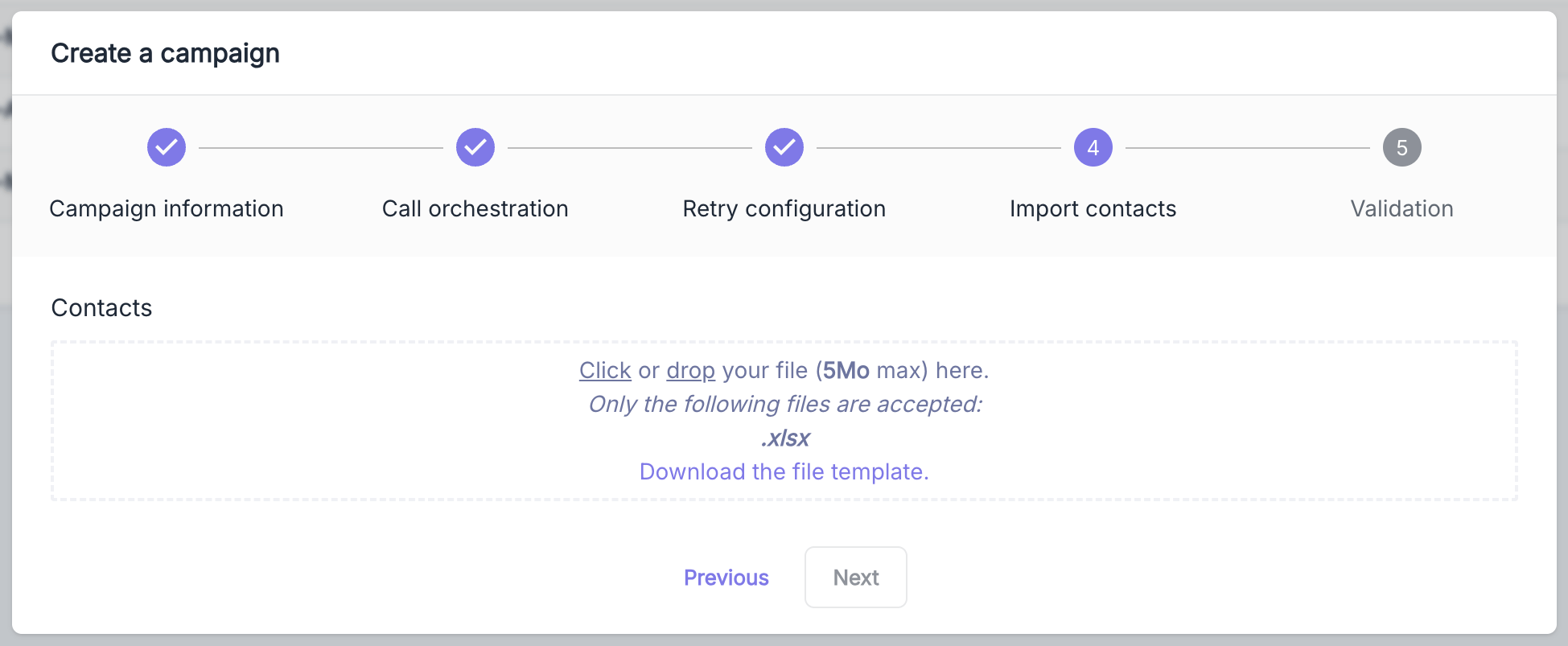 **Allowed File**
| Specification | Description |
| ---------------------- | ------------------------ |
| **Accepted Format** | `.xlsx` file (max. 5 MB) |
| **Required Structure** | See table below |
**File Format**
| Column | Type | Required | Description |
| ----------- | ---- | -------- | ----------------------------------- |
| `Phone` | Text | Yes | E.164 format (e.g., `+33612345678`) |
| `Firstname` | Text | No | Contact's first name |
| `Lastname` | Text | No | Contact's last name |
Download our
standardized import template
to facilitate the preparation of your data.
### Import the file
**Allowed File**
| Specification | Description |
| ---------------------- | ------------------------ |
| **Accepted Format** | `.xlsx` file (max. 5 MB) |
| **Required Structure** | See table below |
**File Format**
| Column | Type | Required | Description |
| ----------- | ---- | -------- | ----------------------------------- |
| `Phone` | Text | Yes | E.164 format (e.g., `+33612345678`) |
| `Firstname` | Text | No | Contact's first name |
| `Lastname` | Text | No | Contact's last name |
Download our
standardized import template
to facilitate the preparation of your data.
### Import the file
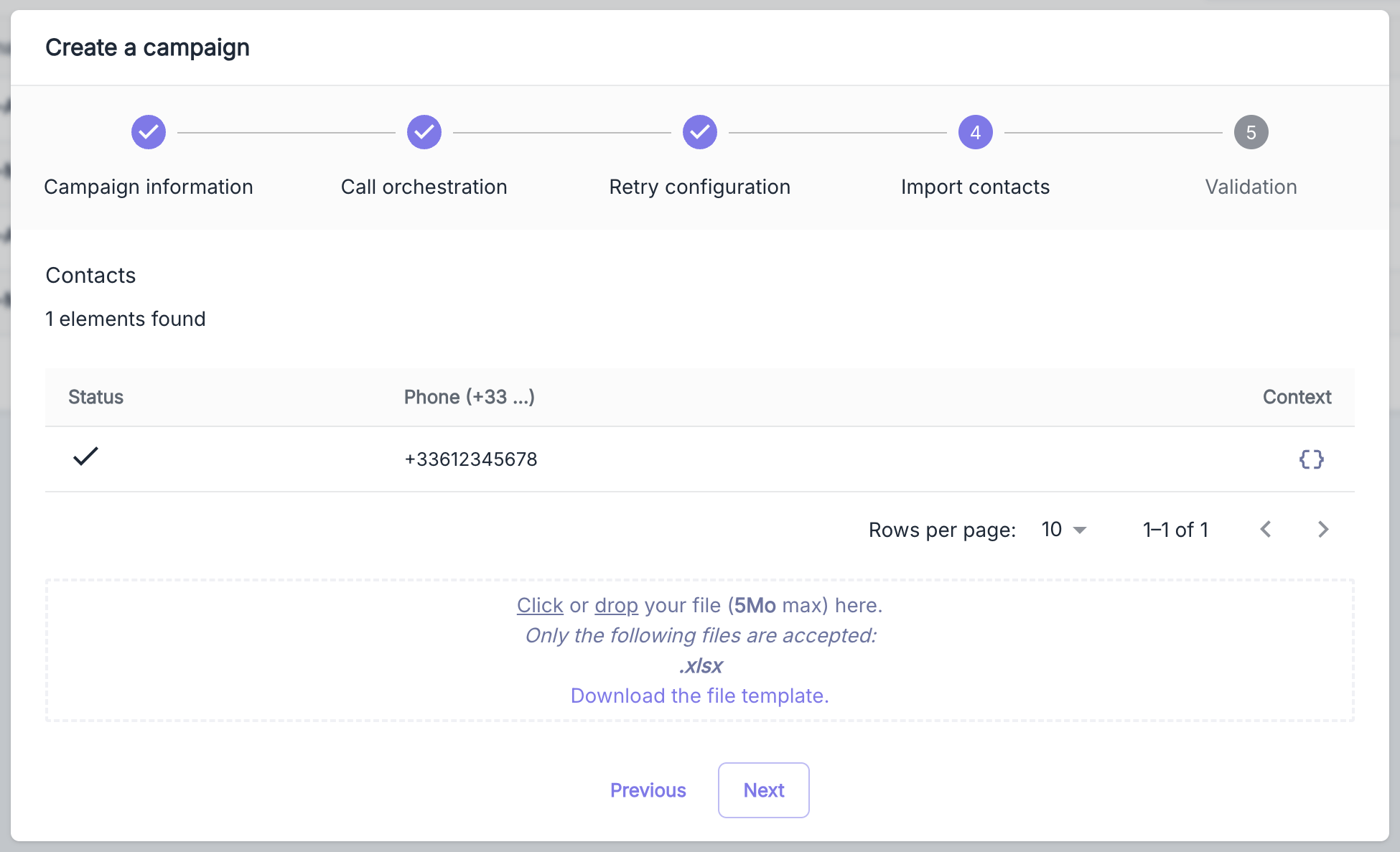 | Status | Description |
| ----------- | ----------------------------------------------------------------------- |
| **Success** | Contact correctly formatted and validated |
| **Error** | Entry rejected (duplicate, incorrect format, or missing required field) |
The E.164 format starts with the "+" character followed by the country code and national number without spaces or special characters.
| Status | Description |
| ----------- | ----------------------------------------------------------------------- |
| **Success** | Contact correctly formatted and validated |
| **Error** | Entry rejected (duplicate, incorrect format, or missing required field) |
The E.164 format starts with the "+" character followed by the country code and national number without spaces or special characters.
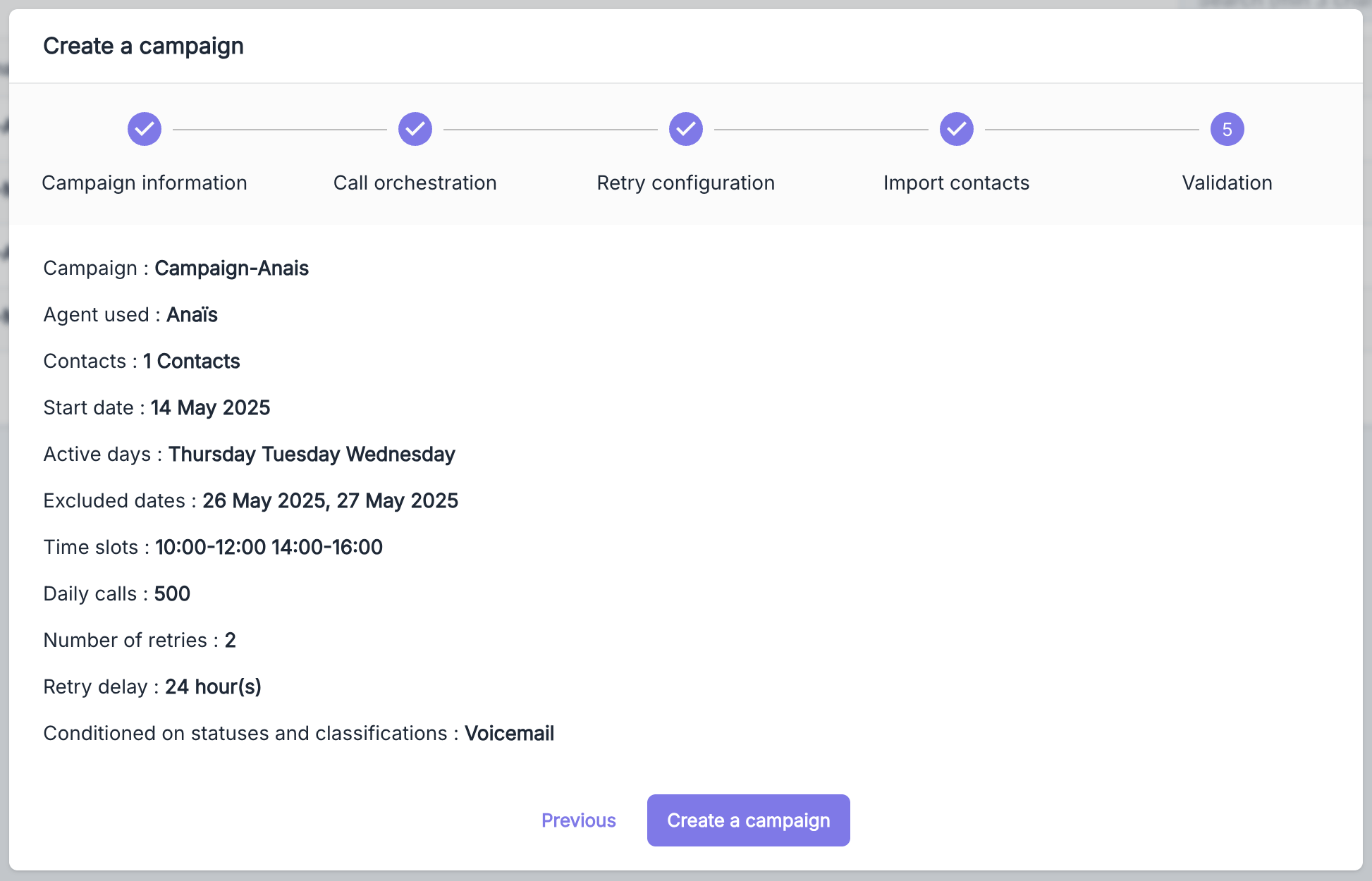 Carefully check the summary of the configured parameters before finalizing the creation by clicking the **Create Campaign** button.
***
## Campaign Details
The detailed interface provides a comprehensive view of the performance, communications made, and scheduled actions for each campaign.
Carefully check the summary of the configured parameters before finalizing the creation by clicking the **Create Campaign** button.
***
## Campaign Details
The detailed interface provides a comprehensive view of the performance, communications made, and scheduled actions for each campaign.
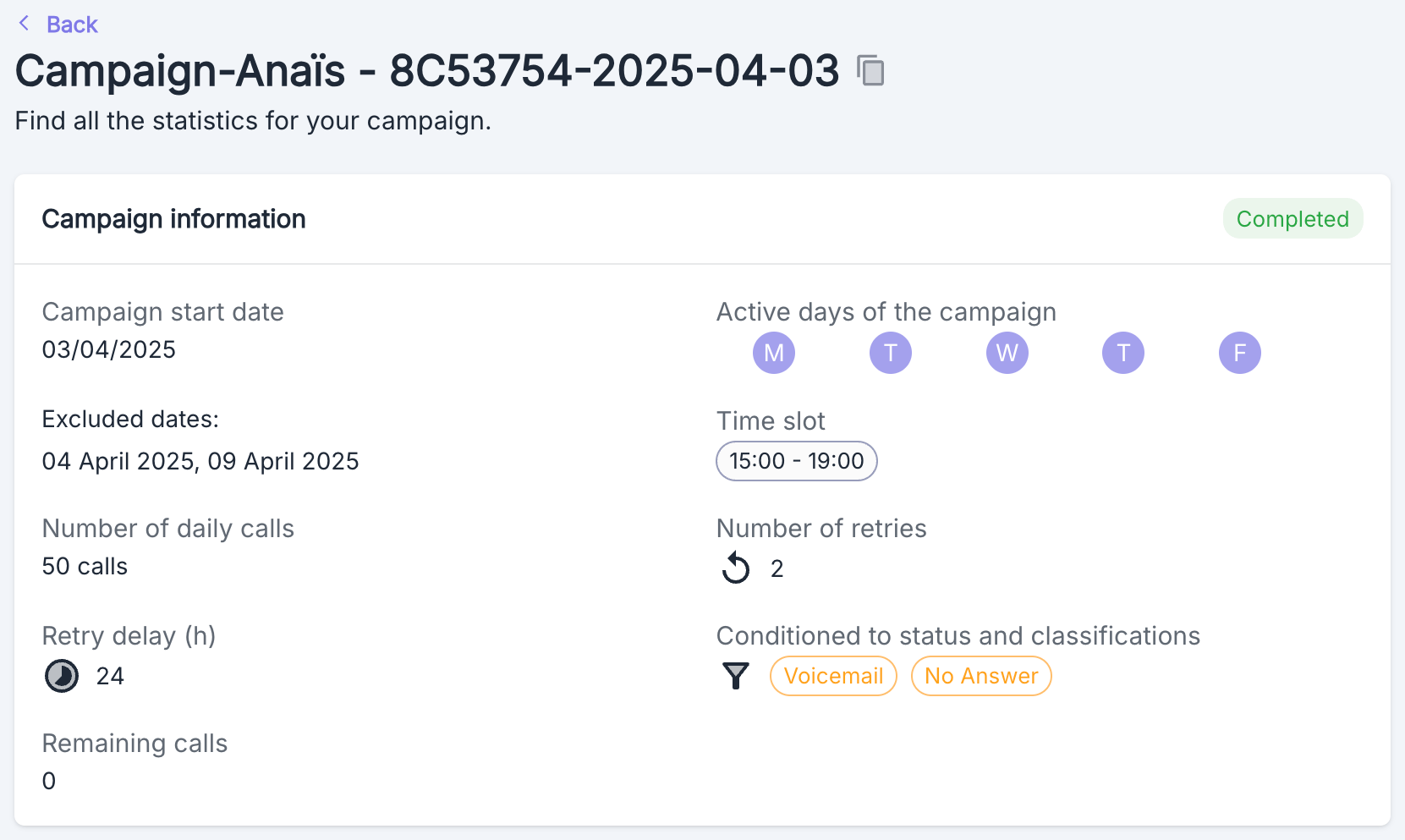 ### General Information
This section presents the fundamental parameters of your campaign:
* Launch dates and exclusion periods
* Configured time slots and active days
* Daily volume and maximum number of attempts
* Counter of remaining calls to be made
* Parameters for additional attempts
### Activity & Statistics
Visualize and analyze your campaign's performance with:
* Interactive daily activity chart
* Total and average call duration indicators
* Detailed segmentation by status and qualification
### Call History
This table presents the complete history of communications made:
| Column | Description |
| ------------- | ------------------------------------------ |
| **Agent** | Identifier of the agent who made the call |
| **Number** | Contacted phone number |
| **Date** | Timestamp of the communication |
| **Duration** | Conversation time |
| **Status** | Result of the call |
| **Qualifier** | Qualitative classification (if configured) |
### Scheduled Calls
This section displays upcoming planned communications:
| Column | Description |
| ---------------- | -------------------------- |
| **Number** | Phone number to contact |
| **Context** | Associated contextual data |
| **Scheduled at** | Precise time schedule |
| **Status** | Current state of the task |
In the absence of scheduled calls, a visual indicator signals that the queue is empty.
### Action Menu
The context menu allows you to effectively manage your campaign:
### General Information
This section presents the fundamental parameters of your campaign:
* Launch dates and exclusion periods
* Configured time slots and active days
* Daily volume and maximum number of attempts
* Counter of remaining calls to be made
* Parameters for additional attempts
### Activity & Statistics
Visualize and analyze your campaign's performance with:
* Interactive daily activity chart
* Total and average call duration indicators
* Detailed segmentation by status and qualification
### Call History
This table presents the complete history of communications made:
| Column | Description |
| ------------- | ------------------------------------------ |
| **Agent** | Identifier of the agent who made the call |
| **Number** | Contacted phone number |
| **Date** | Timestamp of the communication |
| **Duration** | Conversation time |
| **Status** | Result of the call |
| **Qualifier** | Qualitative classification (if configured) |
### Scheduled Calls
This section displays upcoming planned communications:
| Column | Description |
| ---------------- | -------------------------- |
| **Number** | Phone number to contact |
| **Context** | Associated contextual data |
| **Scheduled at** | Precise time schedule |
| **Status** | Current state of the task |
In the absence of scheduled calls, a visual indicator signals that the queue is empty.
### Action Menu
The context menu allows you to effectively manage your campaign:
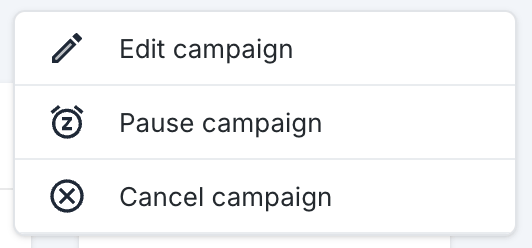 | Action | Description |
| -------------------- | ---------------------------------------------- |
| **Suspend Campaign** | Temporarily suspends the call operations |
| **Resume Campaign** | Reactivates a previously paused campaign |
| **Cancel Campaign** | Permanently halts all operations |
| **Modify Campaign** | Opens the configuration form for modifications |
A canceled campaign cannot be reactivated later.
A paused campaign retains its entire call queue and can be resumed at any time.
## Export Call Data
You have the option to export your campaign calls data in `.xlsx` format by clicking the download button in the top right corner of the campaign call lists.
Data export is limited to 30,000 rows. Use filters to narrow down your request.
| Action | Description |
| -------------------- | ---------------------------------------------- |
| **Suspend Campaign** | Temporarily suspends the call operations |
| **Resume Campaign** | Reactivates a previously paused campaign |
| **Cancel Campaign** | Permanently halts all operations |
| **Modify Campaign** | Opens the configuration form for modifications |
A canceled campaign cannot be reactivated later.
A paused campaign retains its entire call queue and can be resumed at any time.
## Export Call Data
You have the option to export your campaign calls data in `.xlsx` format by clicking the download button in the top right corner of the campaign call lists.
Data export is limited to 30,000 rows. Use filters to narrow down your request.