> ## Documentation Index
> Fetch the complete documentation index at: https://docs.volubile.ai/llms.txt
> Use this file to discover all available pages before exploring further.
# Text-to-Speech
> Configuration of voices for your phone agents
## Agent Voice
Text-to-speech allows you to customize the user experience by selecting a voice that suits your linguistic needs
and your brand identity.
### Voice Catalog
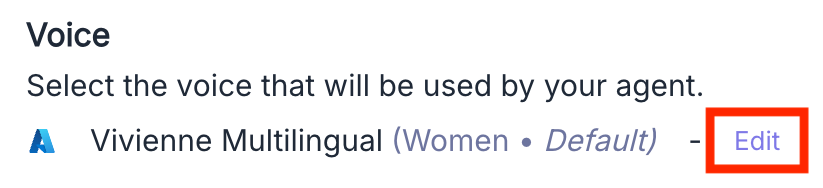
To access the catalog of available voices, click the **Edit** button next to the voice currently configured for your agent.
 ### Voice Selection
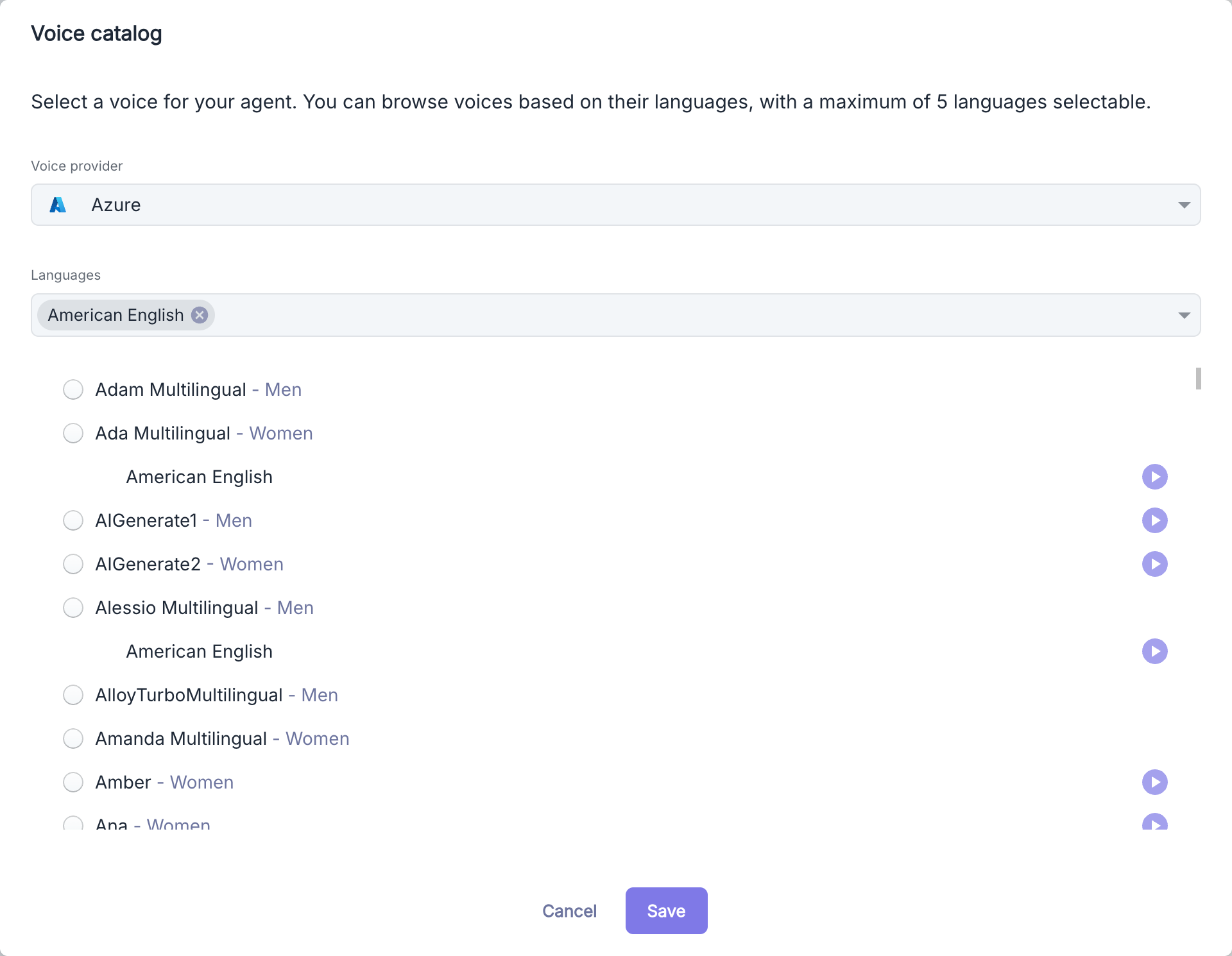 Choose the voice technology provider from the dropdown menu. Each provider offers distinct voice features.
Select the languages your agent should master. These languages will determine the available voices in the next step.
Browse through the voice options that match your linguistic criteria and select the one that best suits your needs.
Click the **Save** button to apply your selection and enable the chosen voice.
A maximum of 5 languages can be selected to filter the available voices. This limitation helps optimize your agent's performance.
Before finalizing your choice, use the play buttons to listen to a sample of each voice in the different selected languages.
## Languages
### Language Selection
Choose the voice technology provider from the dropdown menu. Each provider offers distinct voice features.
Select the languages your agent should master. These languages will determine the available voices in the next step.
Browse through the voice options that match your linguistic criteria and select the one that best suits your needs.
Click the **Save** button to apply your selection and enable the chosen voice.
A maximum of 5 languages can be selected to filter the available voices. This limitation helps optimize your agent's performance.
Before finalizing your choice, use the play buttons to listen to a sample of each voice in the different selected languages.
## Languages
### Language Selection
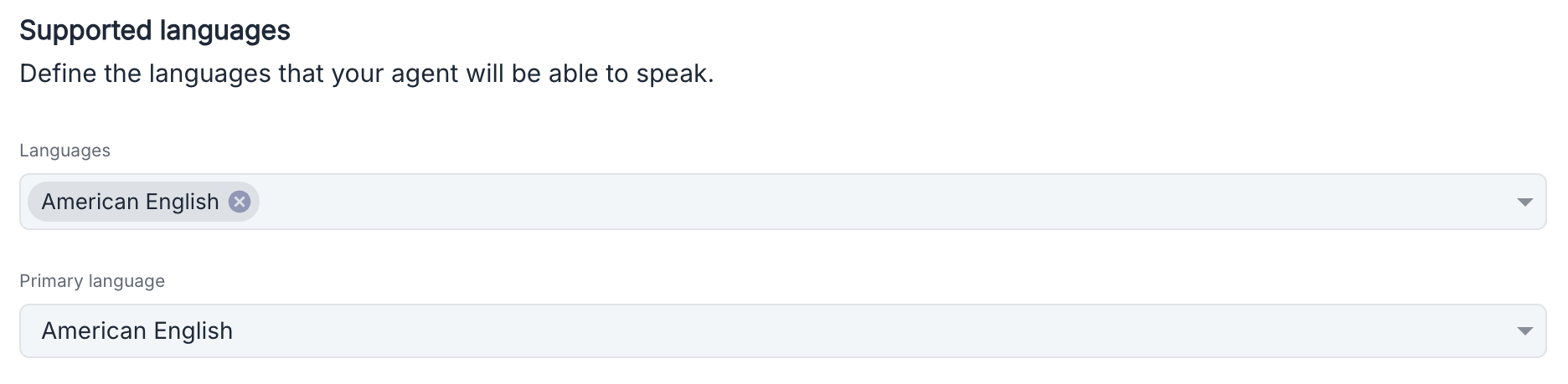 Configure the languages your agent can understand and express itself in.
Select all the languages your agent should master from the **Languages** dropdown menu. Each language is identified with its regional variant.
Select the primary language that will be used by default when the agent cannot determine the user's language.
A maximum of 5 languages can be configured for each agent. This limitation helps optimize the performance and accuracy of interactions.
### Multilingual Operation
The agent uses automatic language detection to adapt its response to the user:
The agent automatically identifies the language used by the interlocutor and responds in the same language if it is among the configured languages.
If the detected language is not supported, the agent will use the primary language defined in the configuration.
### Troubleshooting Common Issues
If your agent does not correctly detect the user's language:
* Ensure that the language is included in the list of supported languages.
* Make sure that the spoken phrases contain enough words to enable reliable detection.
## Speech Rate
Configure the languages your agent can understand and express itself in.
Select all the languages your agent should master from the **Languages** dropdown menu. Each language is identified with its regional variant.
Select the primary language that will be used by default when the agent cannot determine the user's language.
A maximum of 5 languages can be configured for each agent. This limitation helps optimize the performance and accuracy of interactions.
### Multilingual Operation
The agent uses automatic language detection to adapt its response to the user:
The agent automatically identifies the language used by the interlocutor and responds in the same language if it is among the configured languages.
If the detected language is not supported, the agent will use the primary language defined in the configuration.
### Troubleshooting Common Issues
If your agent does not correctly detect the user's language:
* Ensure that the language is included in the list of supported languages.
* Make sure that the spoken phrases contain enough words to enable reliable detection.
## Speech Rate
 Adjust your agent's speech rate by moving the slider on the scale:
Slower pace for better understanding during complex concepts or for those with hearing difficulties.
Standard pace calibrated for natural conversation.
Accelerated pace for users to deliver information quickly.
The ideal setting depends on your audience and context of use. Test different configurations to find the optimal rate for your use case.
## Phonemes
Adjust your agent's speech rate by moving the slider on the scale:
Slower pace for better understanding during complex concepts or for those with hearing difficulties.
Standard pace calibrated for natural conversation.
Accelerated pace for users to deliver information quickly.
The ideal setting depends on your audience and context of use. Test different configurations to find the optimal rate for your use case.
## Phonemes
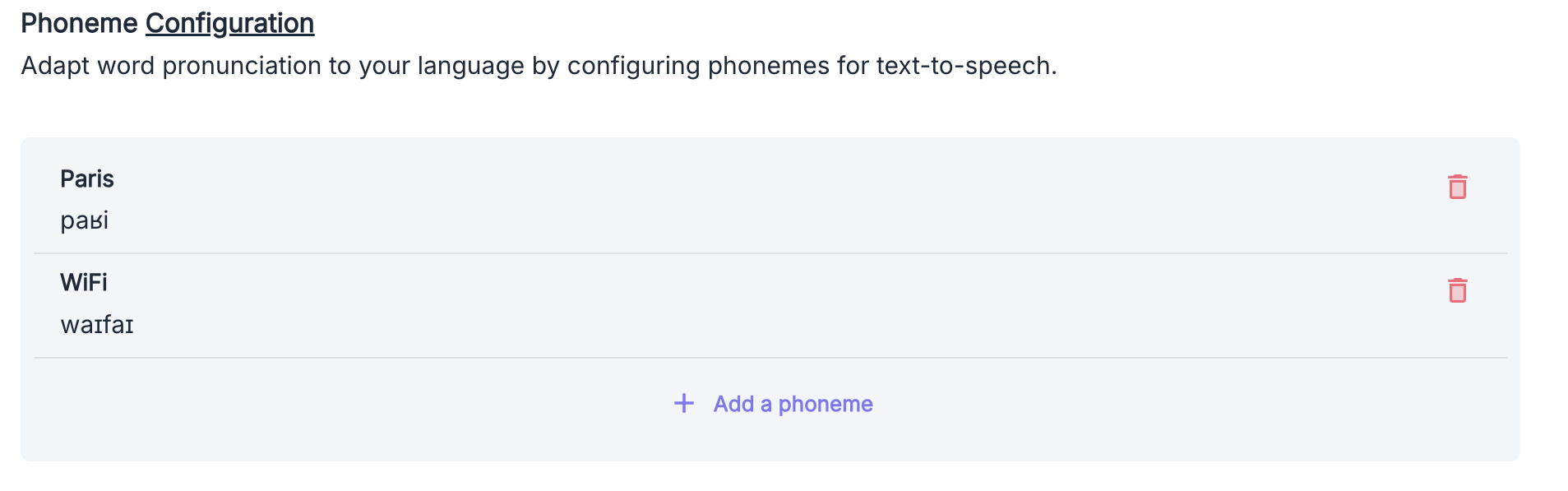 This feature allows you to define a custom phonetic transcription for specific words, particularly useful for:
* Proper names
* Technical terms
* Acronyms and abbreviations
* Foreign words
It is important to note that this feature is only available for the Azure provider.
### Adding a Custom Phoneme
From the "Phoneme Configuration" section, click the Add Phoneme button to open the configuration window.
This feature allows you to define a custom phonetic transcription for specific words, particularly useful for:
* Proper names
* Technical terms
* Acronyms and abbreviations
* Foreign words
It is important to note that this feature is only available for the Azure provider.
### Adding a Custom Phoneme
From the "Phoneme Configuration" section, click the Add Phoneme button to open the configuration window.

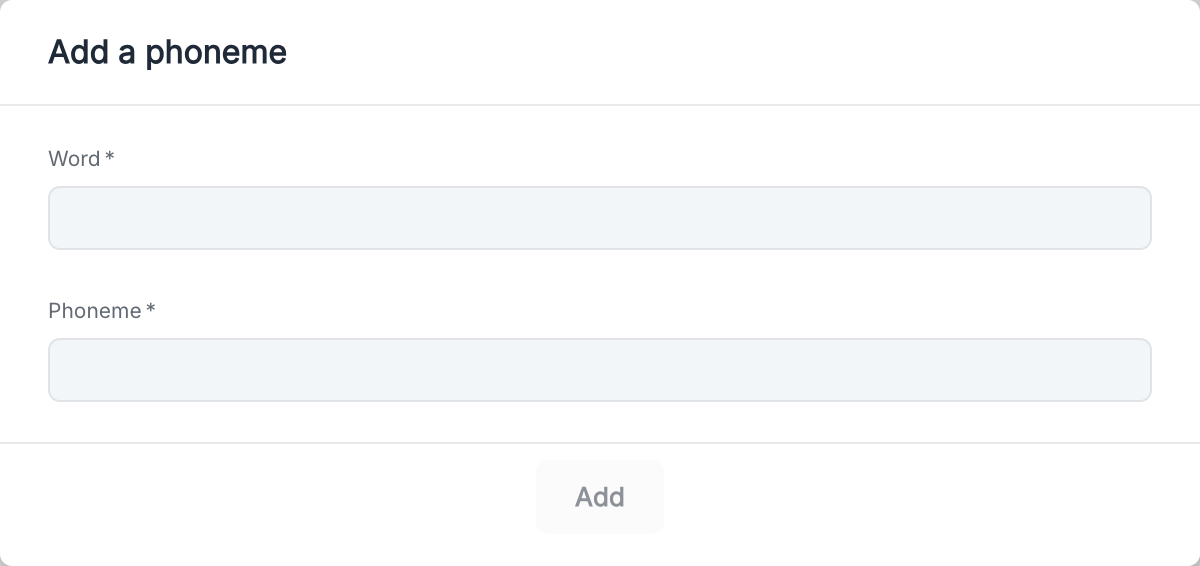 Fill in the required fields:
- Word: Enter the word to customize
- Phoneme: Enter the corresponding phonetic transcription
### Phonetic Notation
Phonemes should be entered according to the International Phonetic Alphabet (IPA) standard.
```
"Paris" → /paʁi/
"WiFi" → /waɪfaɪ/
```
### Use Cases
Ensure that your agent correctly pronounces your company and product names.
Optimize the pronunciation of technical terms specific to your industry.
Phoneme configuration is specific to each language. The same word may require different phonetic transcriptions depending on the languages configured for your agent.
### Practical Recommendations
* After adding a custom phoneme, conduct a test call to check that the pronunciation meets your expectations.
* Start by configuring phonemes for the most frequently used terms by your agent.
## Voice Substitutions
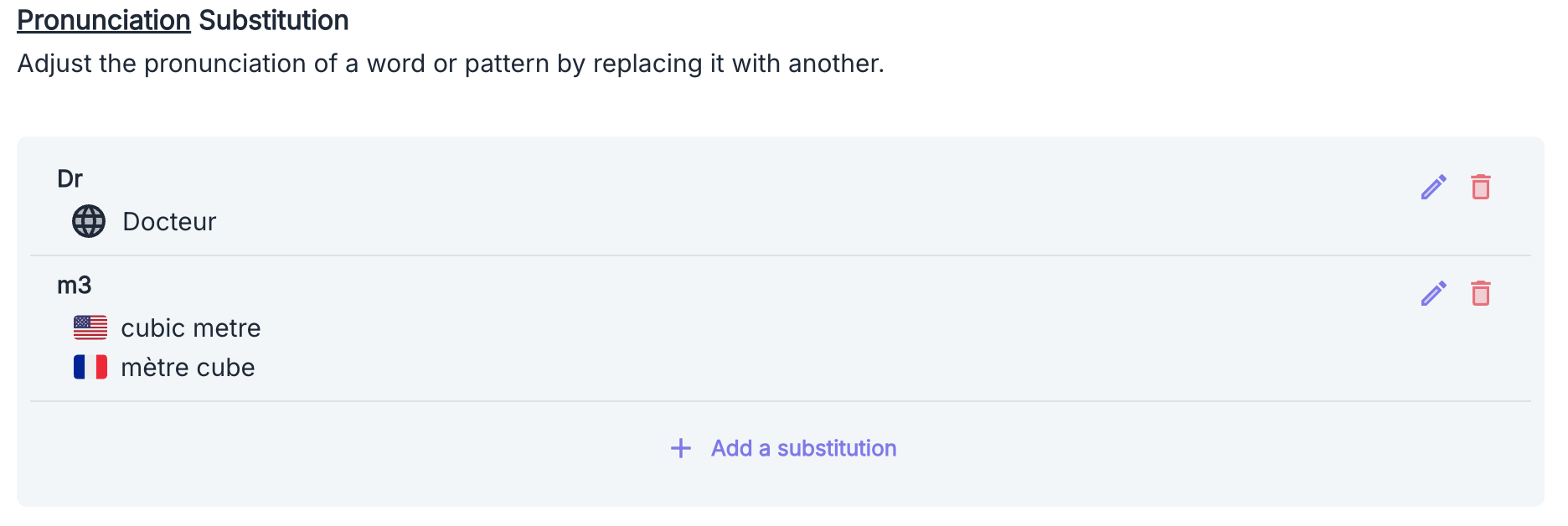
When your voice agent encounters certain abbreviations, acronyms, or technical terms in text, it may sometimes pronounce them incorrectly or unnaturally. The substitution module allows you to set replacement rules to optimize the user experience.
 ### Common Use Cases
* **Units of Measure**: "cm" → "centimeter", "kg" → "kilogram"
* **Mathematical Symbols**: "+" → "plus", "=" → "equals", ">" → "greater than"
* **Titles and Courtesy Titles**: "Dr" → "Doctor", "Mr." → "Mister"
* **Geographical Abbreviations**: "St" → "Saint", "Av." → "Avenue"
* **Acronyms**: "TVA" → "Value Added Tax", "SNCF" → "S N C F"
* **Technical Terms**: Adapt the pronunciation of terms specific to your industry
* **Special Characters**: "€" → "euros", "@" → "at symbol", "&" → "and"
* **Regular Expressions**: Create advanced substitution rules to manage complex cases
### Configuring Substitutions
To configure a new substitution:
From the "Pronunciation Substitution" section, click the Add Substitution button to open the configuration window.
### Common Use Cases
* **Units of Measure**: "cm" → "centimeter", "kg" → "kilogram"
* **Mathematical Symbols**: "+" → "plus", "=" → "equals", ">" → "greater than"
* **Titles and Courtesy Titles**: "Dr" → "Doctor", "Mr." → "Mister"
* **Geographical Abbreviations**: "St" → "Saint", "Av." → "Avenue"
* **Acronyms**: "TVA" → "Value Added Tax", "SNCF" → "S N C F"
* **Technical Terms**: Adapt the pronunciation of terms specific to your industry
* **Special Characters**: "€" → "euros", "@" → "at symbol", "&" → "and"
* **Regular Expressions**: Create advanced substitution rules to manage complex cases
### Configuring Substitutions
To configure a new substitution:
From the "Pronunciation Substitution" section, click the Add Substitution button to open the configuration window.
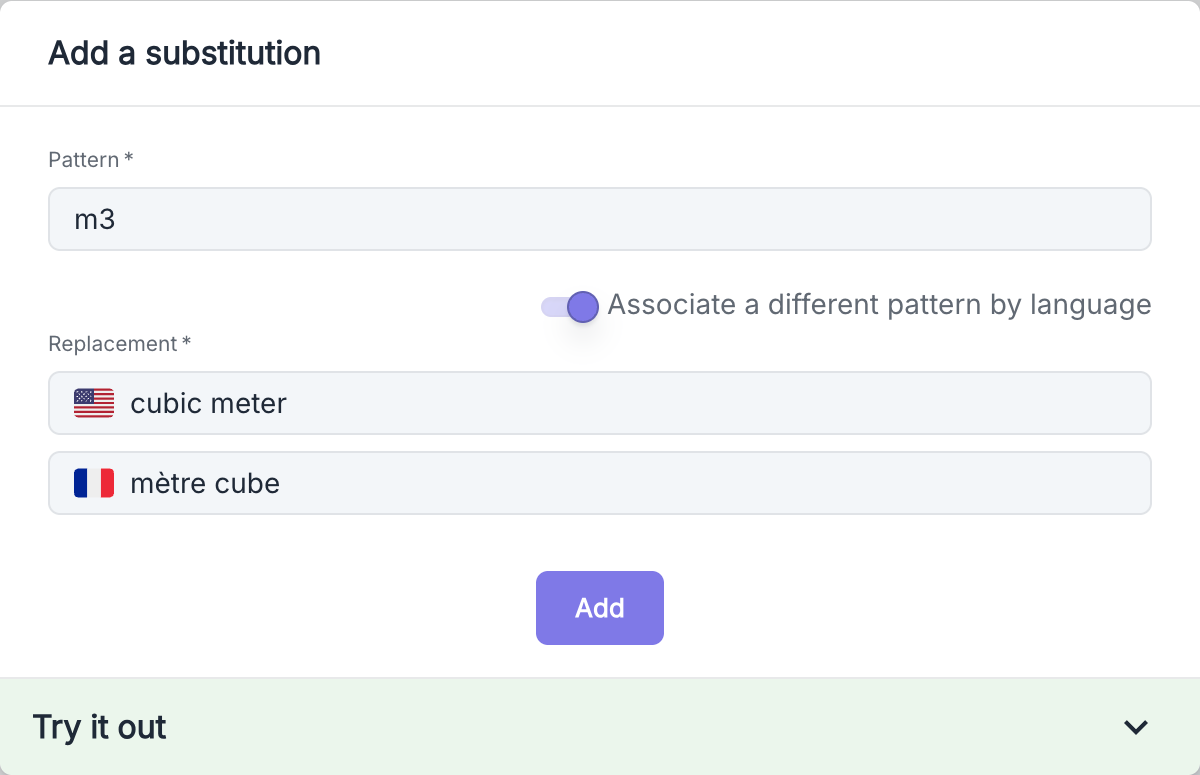 Fill in the following fields in the form:
| Field | Description |
| ----------------------------------------- | ------------------------------------------------------------------------------------------------ |
| Pattern | The textual pattern to replace (e.g., "cm", "Dr", "St") |
| Replacement | The replacement text that will be used for pronunciation (e.g., "centimeter", "Doctor", "Saint") |
| Associate a different pattern by language | Option to define specific substitutions for each language supported by your agent |
### Testing Substitutions
After configuring your substitutions, use the "Try" function to check how your agent will pronounce certain phrases containing the defined patterns.
The Volubile platform offers a testing feature right below the substitution form:
Fill in the following fields in the form:
| Field | Description |
| ----------------------------------------- | ------------------------------------------------------------------------------------------------ |
| Pattern | The textual pattern to replace (e.g., "cm", "Dr", "St") |
| Replacement | The replacement text that will be used for pronunciation (e.g., "centimeter", "Doctor", "Saint") |
| Associate a different pattern by language | Option to define specific substitutions for each language supported by your agent |
### Testing Substitutions
After configuring your substitutions, use the "Try" function to check how your agent will pronounce certain phrases containing the defined patterns.
The Volubile platform offers a testing feature right below the substitution form:
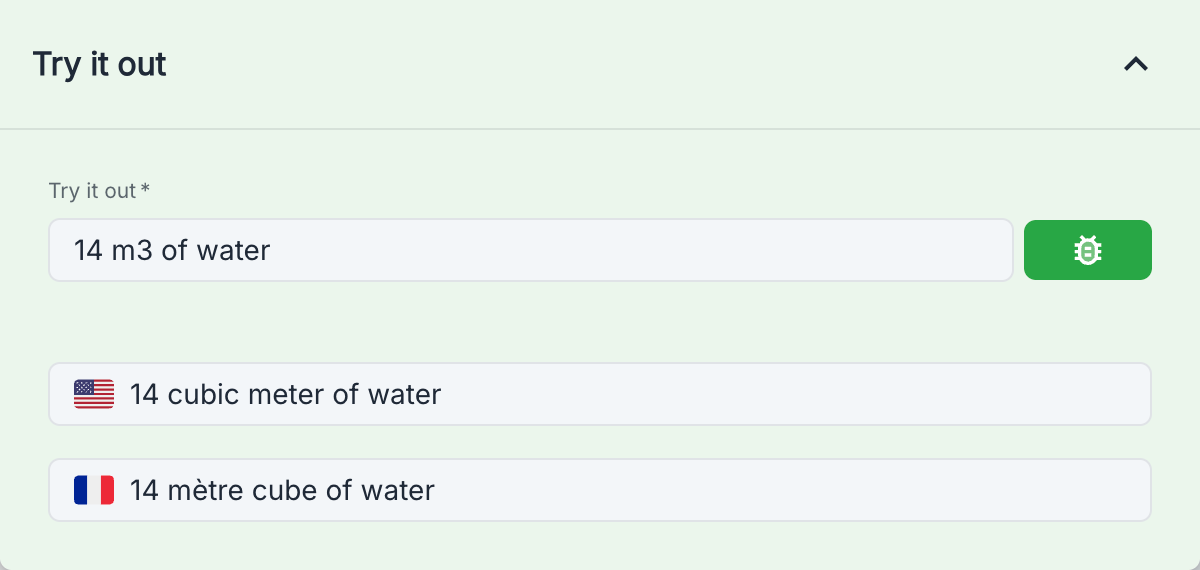 Expand the "Test" section located at the bottom of the form.
Enter a sample text containing the pattern you want to test.
See how your pattern will be detected in different languages (French, English, etc.).
This feature is particularly useful for validating complex regular expressions that may be difficult to test without a dedicated environment.
### Rules and Best Practices
* For complex acronyms, prefer spelling them out (e.g., "IBM" → "I B M") if the natural pronunciation is ambiguous.
* Test your substitutions to ensure their effectiveness.
* Limit to strictly necessary substitutions to maintain optimal performance.
* Use the "Associate a different pattern by language" option to set specific substitutions for each language when pronunciation or abbreviation differs by language (for example, "cm" could be replaced by "centimeter" in English and "centimètre" in French).
Expand the "Test" section located at the bottom of the form.
Enter a sample text containing the pattern you want to test.
See how your pattern will be detected in different languages (French, English, etc.).
This feature is particularly useful for validating complex regular expressions that may be difficult to test without a dedicated environment.
### Rules and Best Practices
* For complex acronyms, prefer spelling them out (e.g., "IBM" → "I B M") if the natural pronunciation is ambiguous.
* Test your substitutions to ensure their effectiveness.
* Limit to strictly necessary substitutions to maintain optimal performance.
* Use the "Associate a different pattern by language" option to set specific substitutions for each language when pronunciation or abbreviation differs by language (for example, "cm" could be replaced by "centimeter" in English and "centimètre" in French).