> ## Documentation Index
> Fetch the complete documentation index at: https://docs.volubile.ai/llms.txt
> Use this file to discover all available pages before exploring further.
# Telephony
> Configure the telephony settings for your voice agent, whether it is incoming or outgoing, by establishing the necessary connections for your agent to receive or make calls.
## Types of Agents
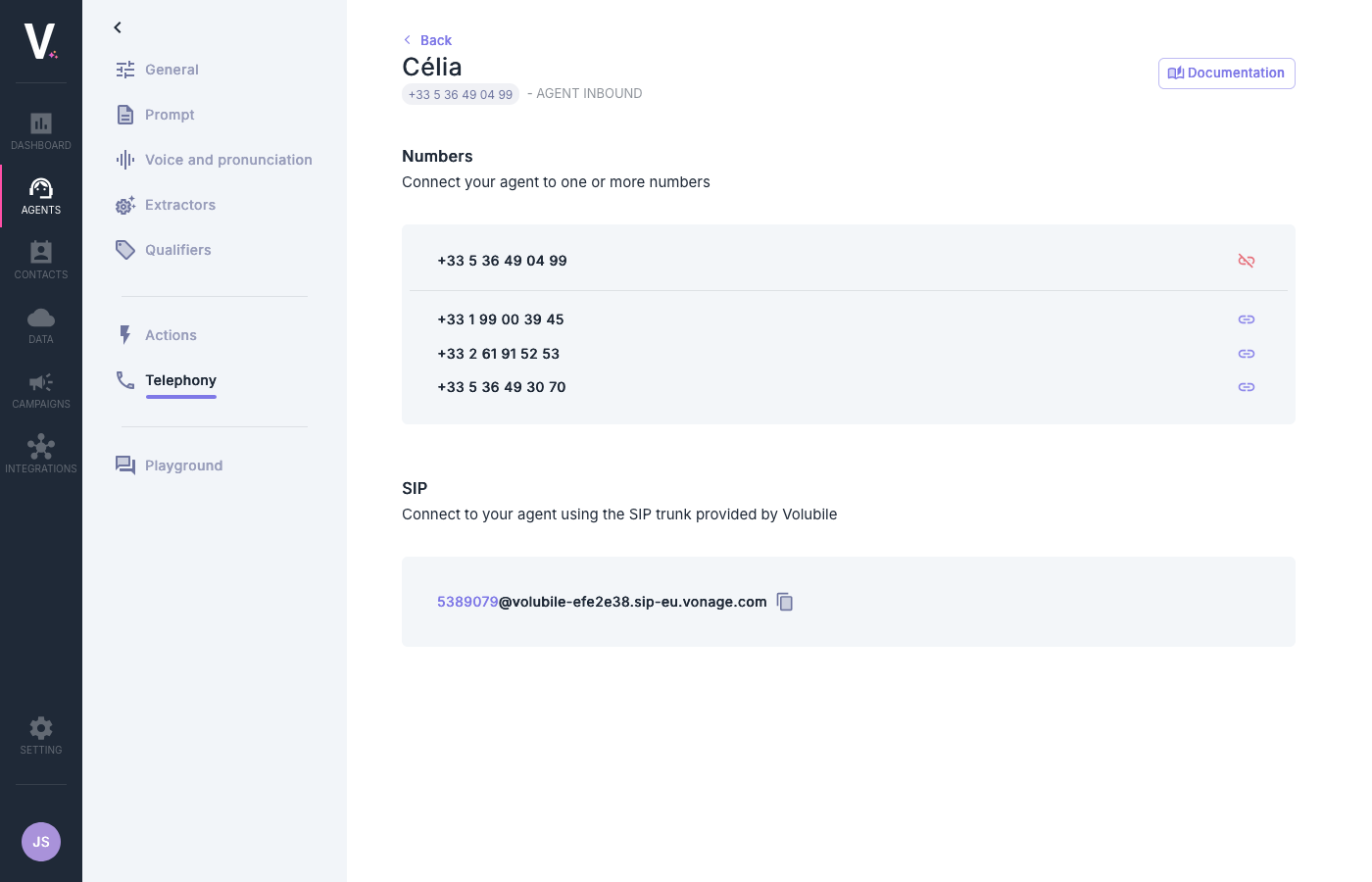 An incoming agent answers calls coming from outside.
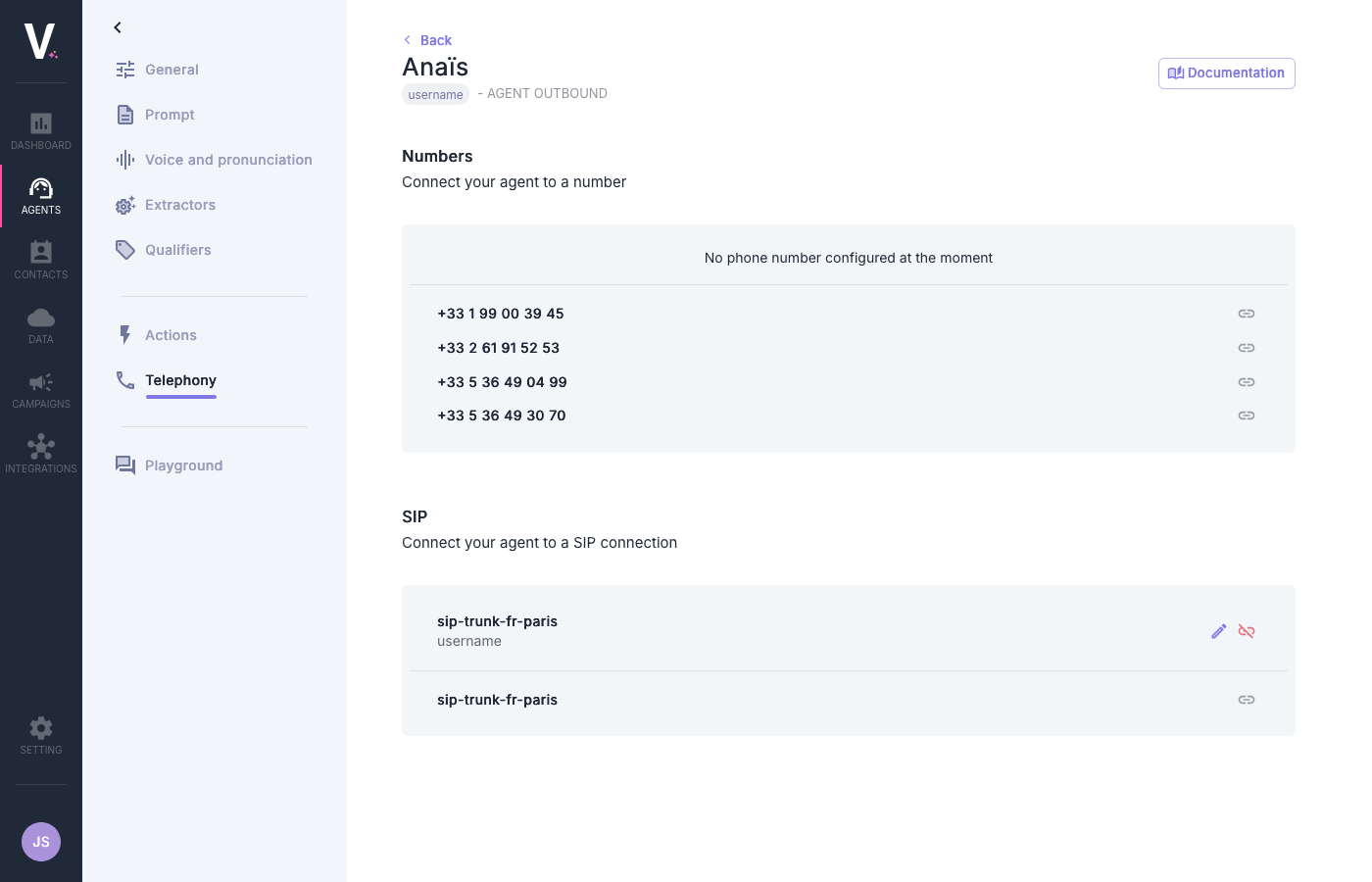 An outgoing agent makes calls to the outside.
## Connection by Phone Number
The numbers displayed in this section are those assigned by the Volubile team upon the creation of your account. If you need additional numbers for your agents, please contact Volubile technical support.
### For an Incoming Agent
1. Go to the configuration page of your incoming agent.
2. In the **Numbers** section, view the list of available numbers.
3. The number currently associated with the agent is displayed at the top of the page:
```
+33 5 36 49 04 99 • INCOMING AGENT
```
4. To add additional numbers:
* Click on the link icon next to the desired number.
5. To disconnect a number:
* Click on the disconnect icon .
### For an Outgoing Agent
1. Go to the configuration page of your outgoing agent.
2. Review the list of available numbers.
3. Select the desired number by clicking on the corresponding link icon .
If no number is configured for an agent, the message "No phone number configured at this time" will be displayed, and the agent will not be able to make calls.
## Connection via SIP Protocol
SIP (Session Initiation Protocol) is a signaling protocol used for establishing, modifying, and terminating multimedia sessions such as voice and video calls over IP networks.
### For an Incoming Agent
To connect your incoming agent via SIP, go to the **SIP** section:
In the "SIP" section, you will see the SIP trunk provided by Volubile.
The SIP address is presented in the form of an identifier and a domain:
```
5389075@volubile-efe2e38.sip-eu.vonage.com
```
You can copy this address by clicking on the copy icon .
Use this address to configure your phone system to redirect calls to your agent.
### For an Outgoing Agent
To connect your outgoing agent to a system using the SIP protocol:
1. Locate the pre-configured SIP connection (e.g., `sip-trunk-fr-paris`).
2. Use the link icon to establish the connection .
### Configuring a SIP Connection for an Outgoing Agent
For an outgoing agent, you can modify the settings of your SIP connection by clicking on the edit icon (pencil). This will open an editing form with the following options:
#### SIP Identification
* **SIP CLI: phone number / username**: Enter the SIP username or the phone number that will be used to identify your agent.
#### Custom Headers
You can configure additional SIP headers specific to this agent:
1. Click on **Add** to add a new header.
2. For each header, specify:
* **Header name**: Name of the SIP header.
* **Header Value**: Value associated with this header.
An outgoing agent makes calls to the outside.
## Connection by Phone Number
The numbers displayed in this section are those assigned by the Volubile team upon the creation of your account. If you need additional numbers for your agents, please contact Volubile technical support.
### For an Incoming Agent
1. Go to the configuration page of your incoming agent.
2. In the **Numbers** section, view the list of available numbers.
3. The number currently associated with the agent is displayed at the top of the page:
```
+33 5 36 49 04 99 • INCOMING AGENT
```
4. To add additional numbers:
* Click on the link icon next to the desired number.
5. To disconnect a number:
* Click on the disconnect icon .
### For an Outgoing Agent
1. Go to the configuration page of your outgoing agent.
2. Review the list of available numbers.
3. Select the desired number by clicking on the corresponding link icon .
If no number is configured for an agent, the message "No phone number configured at this time" will be displayed, and the agent will not be able to make calls.
## Connection via SIP Protocol
SIP (Session Initiation Protocol) is a signaling protocol used for establishing, modifying, and terminating multimedia sessions such as voice and video calls over IP networks.
### For an Incoming Agent
To connect your incoming agent via SIP, go to the **SIP** section:
In the "SIP" section, you will see the SIP trunk provided by Volubile.
The SIP address is presented in the form of an identifier and a domain:
```
5389075@volubile-efe2e38.sip-eu.vonage.com
```
You can copy this address by clicking on the copy icon .
Use this address to configure your phone system to redirect calls to your agent.
### For an Outgoing Agent
To connect your outgoing agent to a system using the SIP protocol:
1. Locate the pre-configured SIP connection (e.g., `sip-trunk-fr-paris`).
2. Use the link icon to establish the connection .
### Configuring a SIP Connection for an Outgoing Agent
For an outgoing agent, you can modify the settings of your SIP connection by clicking on the edit icon (pencil). This will open an editing form with the following options:
#### SIP Identification
* **SIP CLI: phone number / username**: Enter the SIP username or the phone number that will be used to identify your agent.
#### Custom Headers
You can configure additional SIP headers specific to this agent:
1. Click on **Add** to add a new header.
2. For each header, specify:
* **Header name**: Name of the SIP header.
* **Header Value**: Value associated with this header.
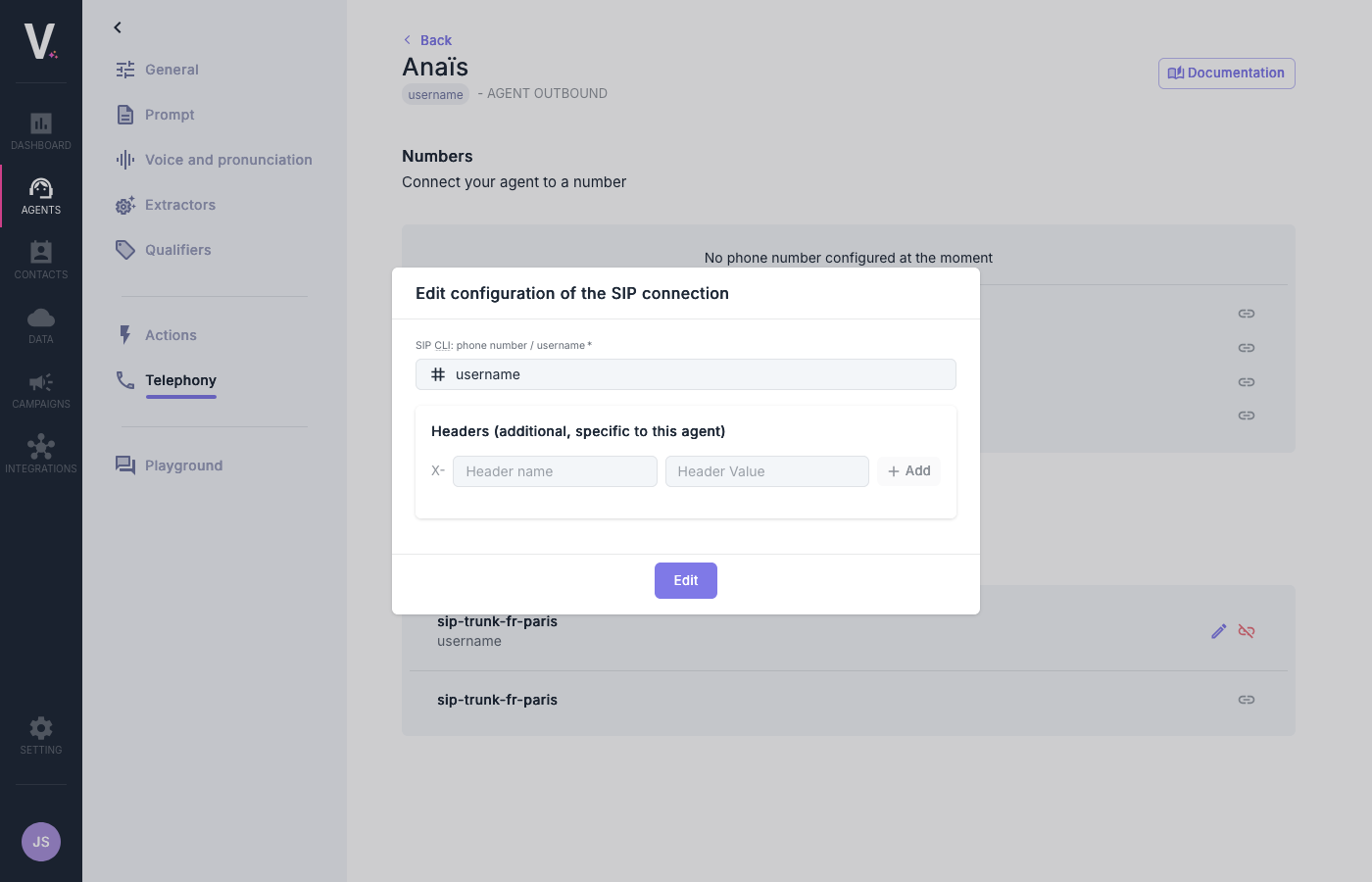 Once you have finished your modifications, click the **Edit** button to save your configuration.