> ## Documentation Index
> Fetch the complete documentation index at: https://docs.volubile.ai/llms.txt
> Use this file to discover all available pages before exploring further.
# After the call
> Once the communication is complete, post-call actions can be executed to ensure necessary follow-ups: automatic sending of confirmation emails, synchronization with your management system, updating databases, and other integration processes.
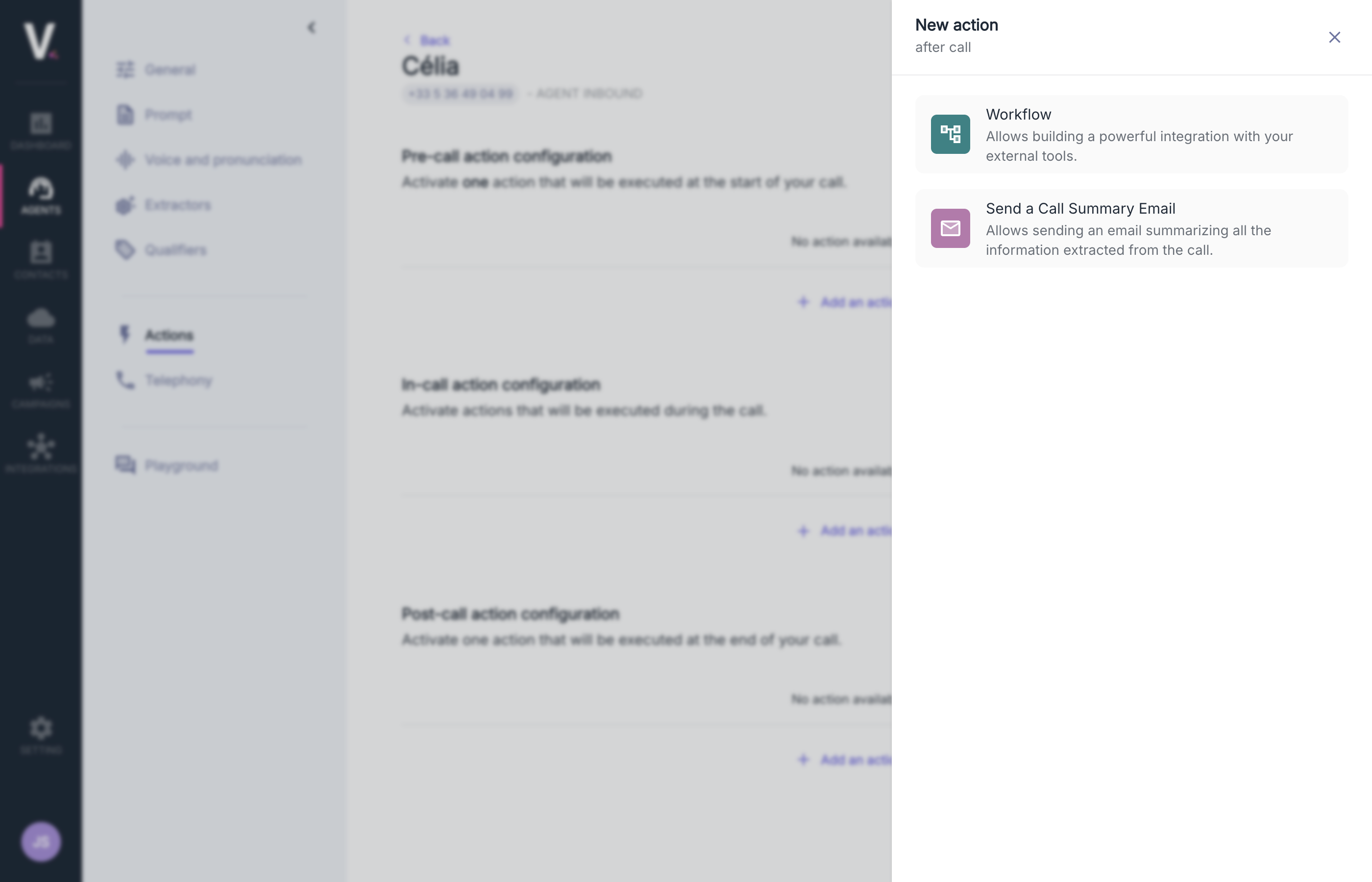 The following actions are available after the call:
## Email
The following actions are available after the call:
## Email
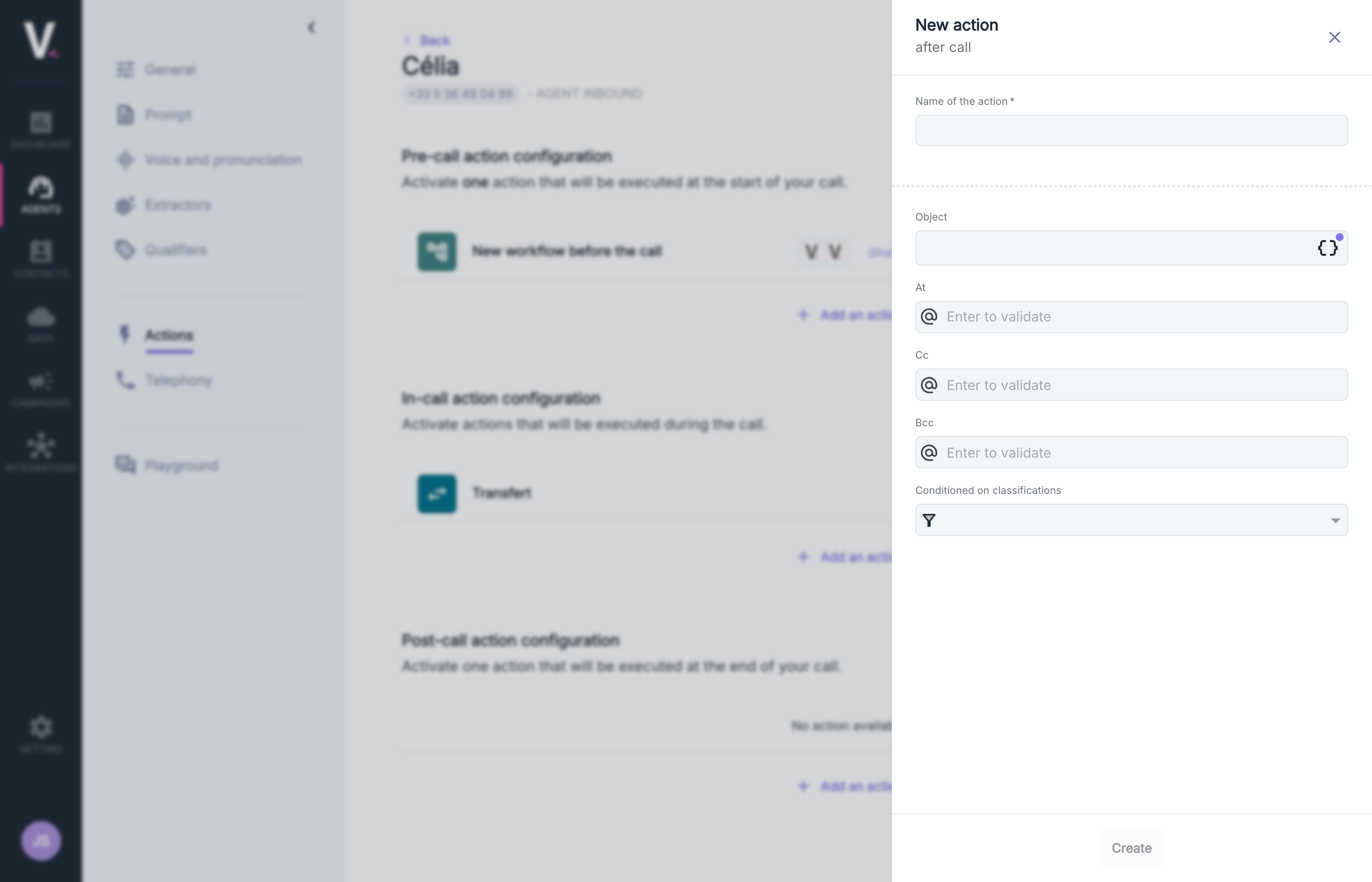 The email sending action allows for the automated transmission of electronic messages following a telephone interaction.
### Use Cases
This feature is particularly suited to the following scenarios:
* Automatic sending of a summary of the conversation
* Notification to relevant teams following a customer interaction
* Structured transmission of specific requests identified during the call
* Automated escalation for issues requiring specific intervention
### Configuration Parameters
Creating an email sending action requires defining the following parameters:
| Parameter | Description | Required |
| ------------------------------ | ----------------------------------------------- | :------: |
| Action Name | Unique and descriptive identifier of the action | ✓ |
| Subject | Subject of the email to be sent | ✓ |
| To | Email address(es) of the main recipient(s) | ✓ |
| Cc | Email address(es) of recipients in copy | |
| Bcc | Email address(es) of recipients in blind copy | |
| Conditioned by Classifications | Trigger criteria based on call categorization | |
### Subject Configuration
The email sending action allows for the automated transmission of electronic messages following a telephone interaction.
### Use Cases
This feature is particularly suited to the following scenarios:
* Automatic sending of a summary of the conversation
* Notification to relevant teams following a customer interaction
* Structured transmission of specific requests identified during the call
* Automated escalation for issues requiring specific intervention
### Configuration Parameters
Creating an email sending action requires defining the following parameters:
| Parameter | Description | Required |
| ------------------------------ | ----------------------------------------------- | :------: |
| Action Name | Unique and descriptive identifier of the action | ✓ |
| Subject | Subject of the email to be sent | ✓ |
| To | Email address(es) of the main recipient(s) | ✓ |
| Cc | Email address(es) of recipients in copy | |
| Bcc | Email address(es) of recipients in blind copy | |
| Conditioned by Classifications | Trigger criteria based on call categorization | |
### Subject Configuration
 You can dynamize the subjects of your communications by leveraging the contextual variables of the call.
Use the **\{}** icon located to the right of the field to access available variables.
### Conditional Configuration
You can dynamize the subjects of your communications by leveraging the contextual variables of the call.
Use the **\{}** icon located to the right of the field to access available variables.
### Conditional Configuration
 To optimize the triggering of the email sending action, you can use the **Conditioned by Classifications** parameter:
* Select one or more relevant classifications from the dropdown menu
* The email will only be sent if the call matches the defined classification criteria
* This feature is particularly effective in targeting specific interaction scenarios
#### Best Practices
* Precisely configure triggering conditions to avoid excessive email sending
* Test your configurations with test email addresses before deployment in production
## Workflow
This feature is not enabled by default. Please contact support to activate it on your account.
This feature allows for the development of sophisticated integrations with your external systems after the end of your communications.
See how to configure workflows
To optimize the triggering of the email sending action, you can use the **Conditioned by Classifications** parameter:
* Select one or more relevant classifications from the dropdown menu
* The email will only be sent if the call matches the defined classification criteria
* This feature is particularly effective in targeting specific interaction scenarios
#### Best Practices
* Precisely configure triggering conditions to avoid excessive email sending
* Test your configurations with test email addresses before deployment in production
## Workflow
This feature is not enabled by default. Please contact support to activate it on your account.
This feature allows for the development of sophisticated integrations with your external systems after the end of your communications.
See how to configure workflows