> ## Documentation Index
> Fetch the complete documentation index at: https://docs.volubile.ai/llms.txt
> Use this file to discover all available pages before exploring further.
# Introduction
> Actions significantly enhance the contextual intelligence of your voice agent, transforming it into a comprehensive solution capable of dynamically adapting to every situation.
## Definition
In the context of **configuring a generative AI conversational agent**, **actions** refer to the concrete operations that the agent can perform **beyond simple text generation**. They enable the agent to *do* something before, during, or after a call.
**An action** is an **explicit instruction** that the agent can execute, generally triggered by an identified user intent or a particular context in the conversation.
**Examples of actions in an AI conversational agent:**
1. **Call an external API** → Retrieve an order status, check a calendar, query a database
2. **Trigger a workflow** → Create a CRM ticket, send a support request, launch an internal procedure
3. **Send an email or SMS** → Appointment confirmation, client follow-up, summary delivery
4. **Create / modify a database entry** → Update a client profile, record a response
5. **Redirect to a human** → Transfer to an advisor when needed, escalate a complex case
6. **Perform a calculation or business verification** → Estimate a quote, validate eligibility, compare two products
**Relationship with text generation:**
In a **generative** agent, AI can identify when an action should be taken from natural dialogue, then trigger the corresponding action *via an orchestration mechanism* (functions, plugins, or specific modules).
**Why it's important:**
Actions transform a conversational agent from a simple "assistant that talks" into a true **autonomous and useful agent**, capable of **acting in the real or digital world**, not just responding.
## Usage
To effectively respond to the entire communication lifecycle, the action architecture has been structured around three strategic moments.
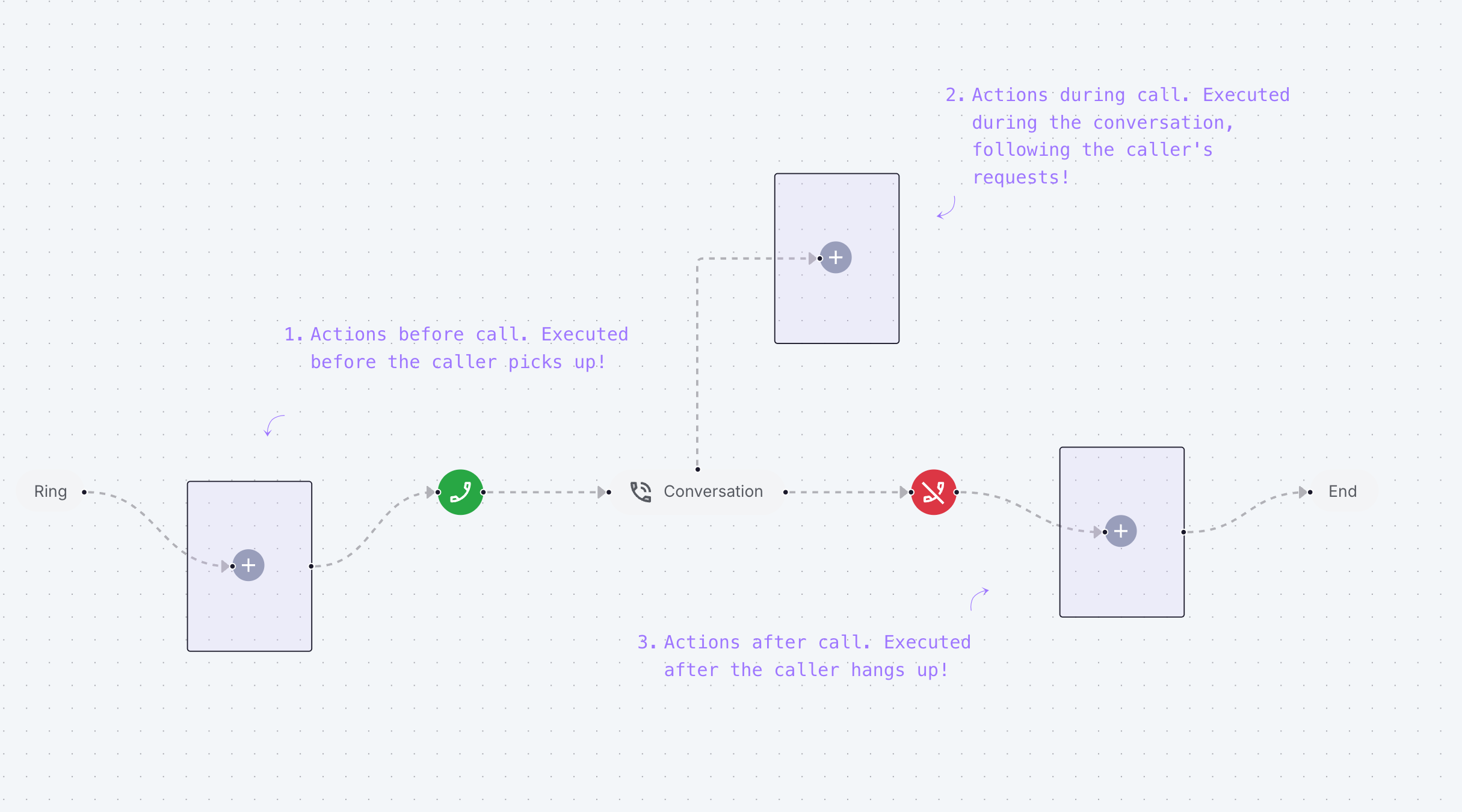 During the ringing interval, you can trigger preliminary actions such as identifying the caller or retrieving essential contextual information to prepare the agent for the interaction.
Once the call starts and throughout its duration, you can equip your agent with numerous actions.
These capabilities allow you to precisely configure how the agent accesses additional information, manages call transfers, determines call termination conditions, and optimizes interactions with IVR systems and hold messages.
It is in this phase that actions reveal their maximum potential, offering a multitude of automation possibilities. This flexibility can sometimes complicate design, but our platform has been optimized to make this configuration as intuitive as possible.
Once the communication is complete, post-call actions can be executed to ensure necessary follow-ups: automatic sending of confirmation emails, synchronization with your management system, updating databases, and other integration processes.
## First steps
**Creating Actions**
To implement a new action, follow this process:
1. Access the **Actions** section from the main navigation menu
During the ringing interval, you can trigger preliminary actions such as identifying the caller or retrieving essential contextual information to prepare the agent for the interaction.
Once the call starts and throughout its duration, you can equip your agent with numerous actions.
These capabilities allow you to precisely configure how the agent accesses additional information, manages call transfers, determines call termination conditions, and optimizes interactions with IVR systems and hold messages.
It is in this phase that actions reveal their maximum potential, offering a multitude of automation possibilities. This flexibility can sometimes complicate design, but our platform has been optimized to make this configuration as intuitive as possible.
Once the communication is complete, post-call actions can be executed to ensure necessary follow-ups: automatic sending of confirmation emails, synchronization with your management system, updating databases, and other integration processes.
## First steps
**Creating Actions**
To implement a new action, follow this process:
1. Access the **Actions** section from the main navigation menu
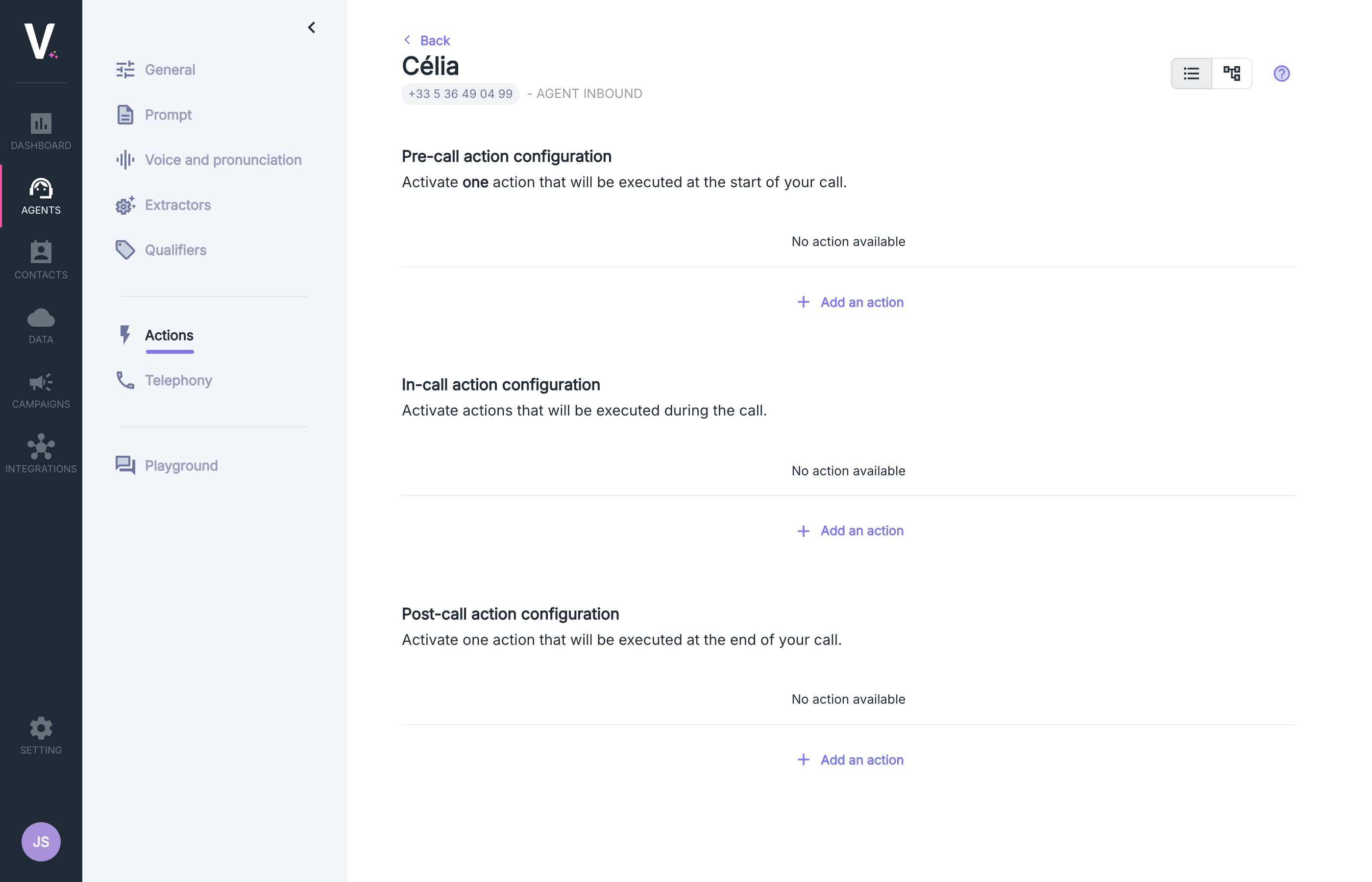 2. Select the appropriate configuration according to the moment you wish the transfer to execute:
* **Configuration of actions before the call**
* **Configuration of actions during the call**
* **Configuration of actions after the call**
3. Click on **Add an Action** to create a new action
**Activating Actions**
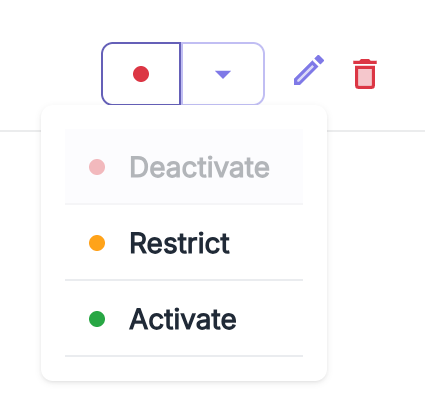
Once configured, the action will appear in the list of available actions in the previously selected section. You can then enable or disable these actions according to your operational needs using the status dropdown menu available next to each action.
A restricted mode action is not visible to the agent during calls unless the caller is identified as a user.
2. Select the appropriate configuration according to the moment you wish the transfer to execute:
* **Configuration of actions before the call**
* **Configuration of actions during the call**
* **Configuration of actions after the call**
3. Click on **Add an Action** to create a new action
**Activating Actions**
Once configured, the action will appear in the list of available actions in the previously selected section. You can then enable or disable these actions according to your operational needs using the status dropdown menu available next to each action.
A restricted mode action is not visible to the agent during calls unless the caller is identified as a user.
 Inappropriate configuration of actions can negatively impact the call experience. It is strongly recommended to rigorously test your configurations before any deployment in a production environment.