> ## Documentation Index
> Fetch the complete documentation index at: https://docs.volubile.ai/llms.txt
> Use this file to discover all available pages before exploring further.
# Connections
> Connections are the foundation of your integrations, allowing Volubile to securely exchange data with your third-party applications.
## Supported Applications
Volubile natively integrates with many professional services and tools:
* HubSpot
* Salesforce
* Zoho CRM
* Zendesk
* Google Calendar
* Microsoft Outlook Calendar
* Calendly
* Microsoft Teams
* Azure Communication Services
* Slack
* Microsoft Teams
* Trello
## Creating a Connection
In the sidebar menu, from the Integrations section, click on "Connections" to access the management interface.
Click on the Create a connection button in the upper right corner of the screen.
Choose the application to connect from the available options.
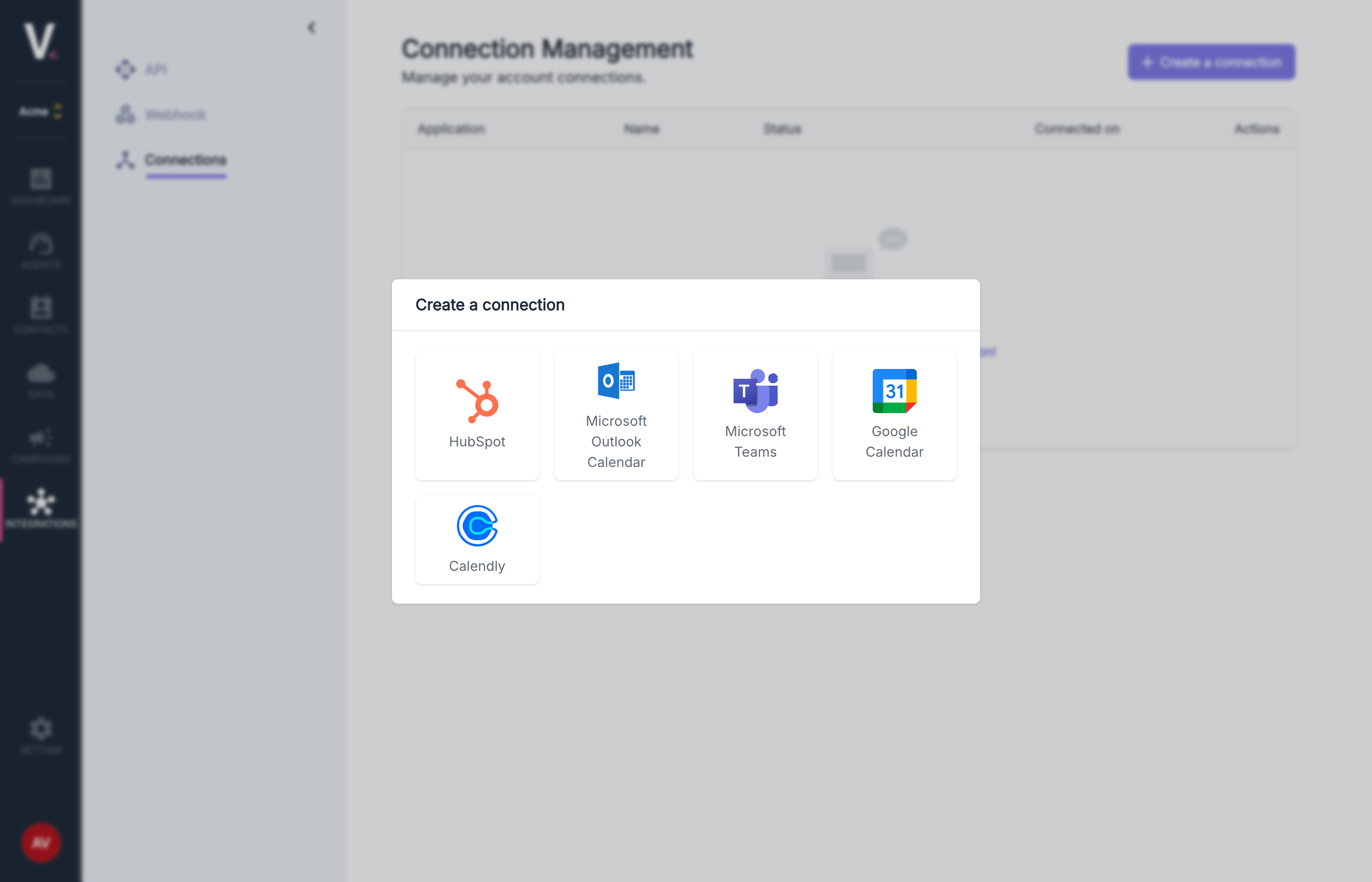 Follow the authentication process specific to the selected application (OAuth, API keys, etc.).
Name your connection and confirm its creation.
Once the connection is established, it will appear in your connections table with its status, connection date, and the option to delete it.
Deleting a connection used in active workflows may cause malfunctions. Make sure to update your workflows before deleting a connection.
Follow the authentication process specific to the selected application (OAuth, API keys, etc.).
Name your connection and confirm its creation.
Once the connection is established, it will appear in your connections table with its status, connection date, and the option to delete it.
Deleting a connection used in active workflows may cause malfunctions. Make sure to update your workflows before deleting a connection.